See what your contractor shares and send things back
Accept your contractor's invite link, see the photos, documents and updates they share on your claim, and send them a message. About 5 minutes.
Watch it (2:09, no sound)
- The invite link your contractor sent you (they use CaseLens Pro).
- The email address they sent it to. You sign in (or create a free account) with that same email.
Step by step
1Open the invite link
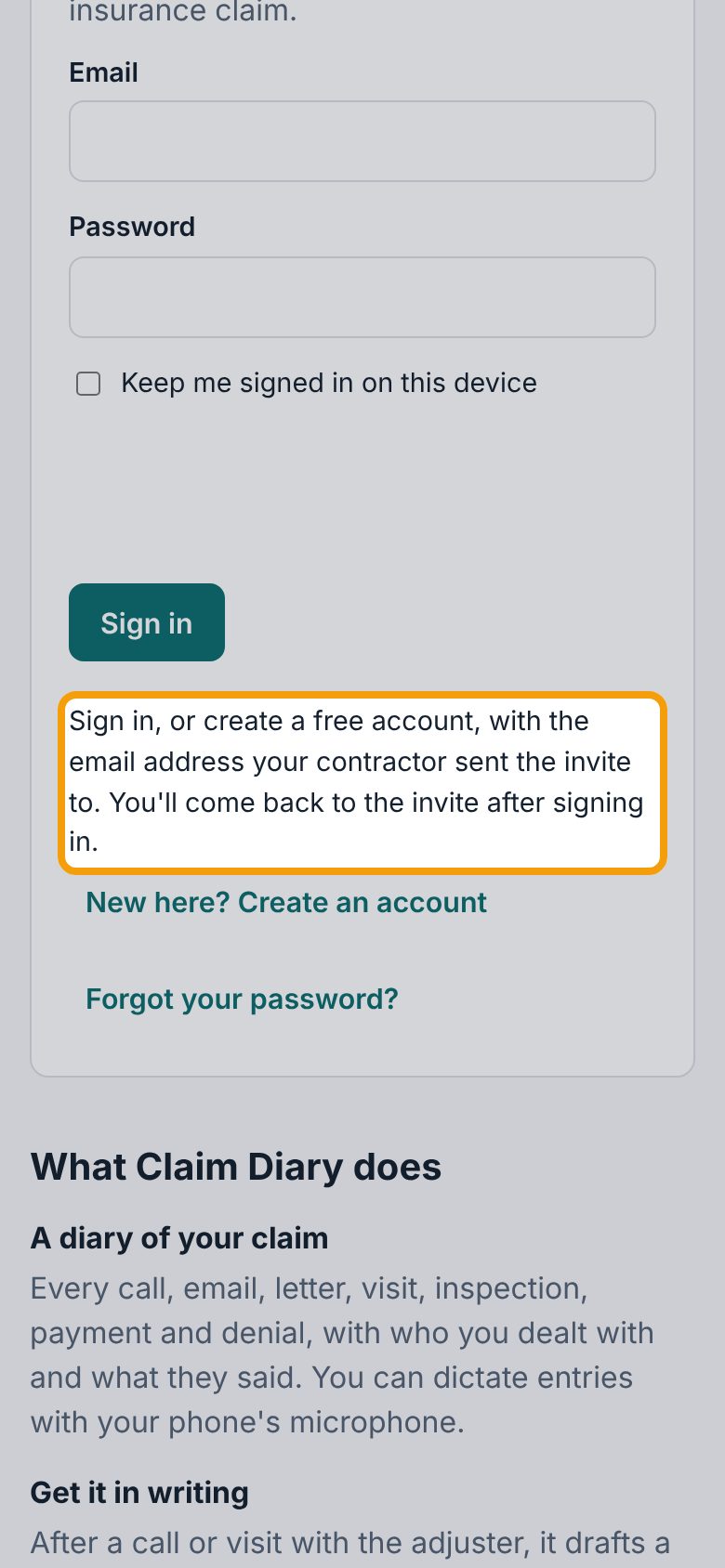
Tap the link your contractor sent you. Claim Diary opens and asks you to sign in, or create a free account, with the email address your contractor sent the invite to. Nothing about the invite shows until you do.
2Sign in with that email
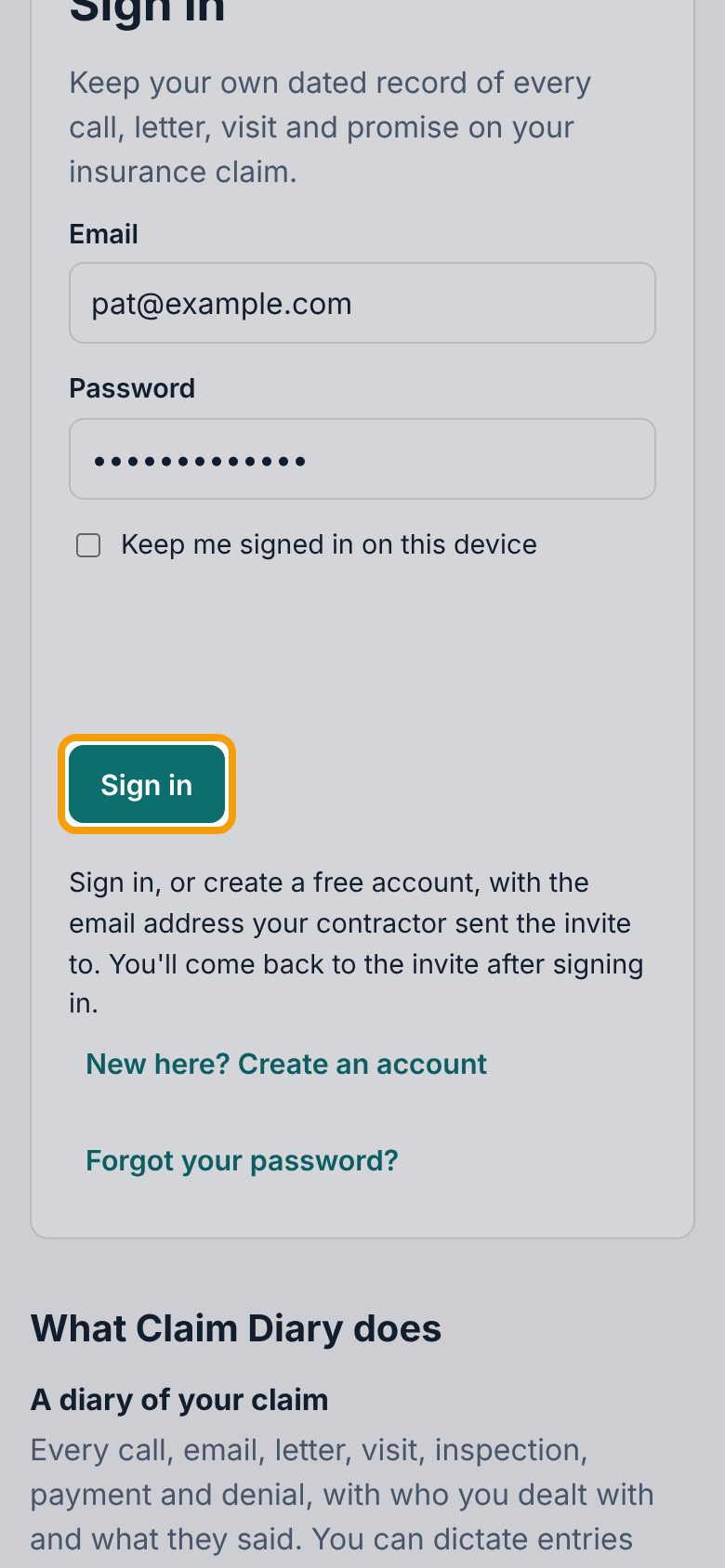
Enter that email and your password and tap Sign in. New to Claim Diary? Tap New here? Create an account first, confirm your email, then open the invite link again.
3Accept the invite
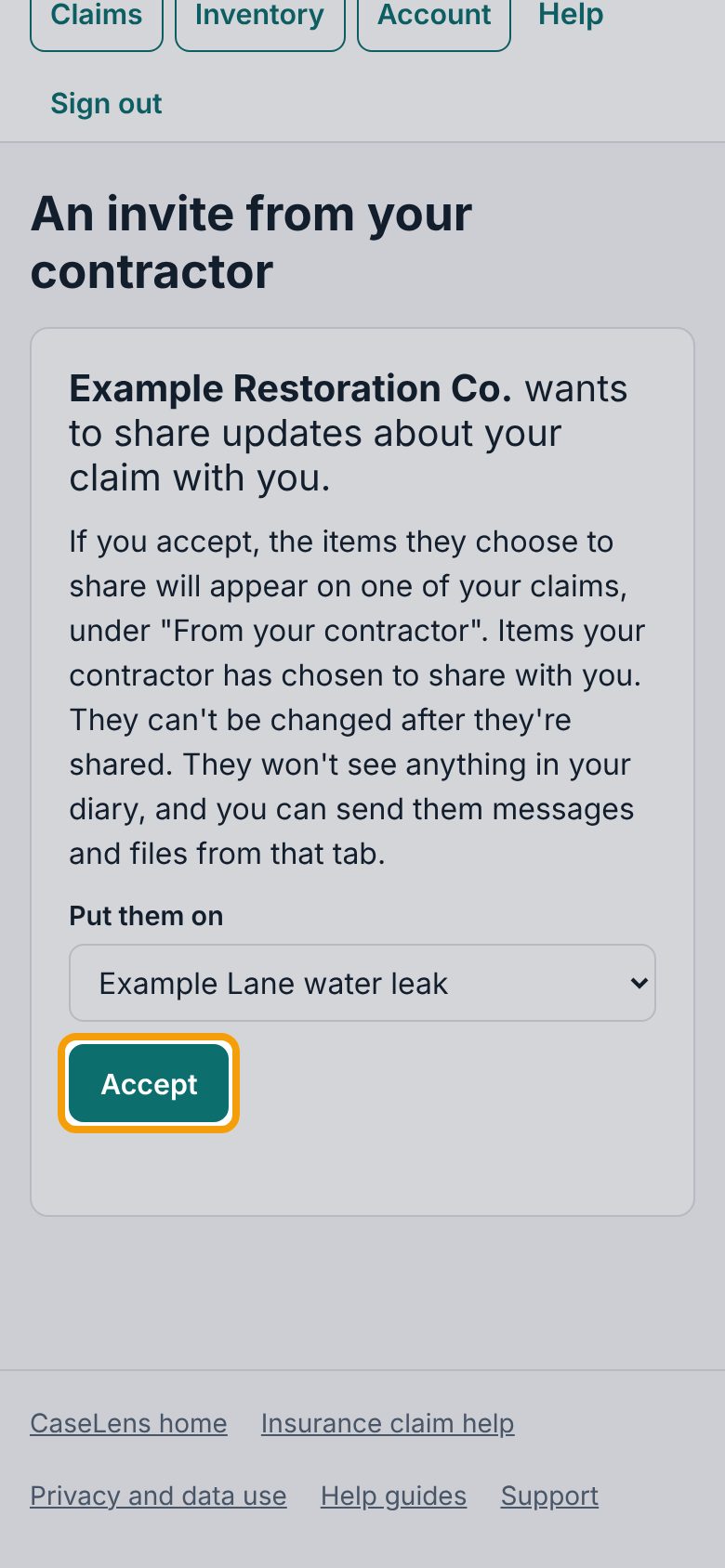
You're back on the invite: Example Restoration Co. wants to share updates about your claim with you. Under Put them on, pick your claim, or keep Start a new claim and name it. They won't see anything in your diary. Tap Accept.
4The From your contractor tab
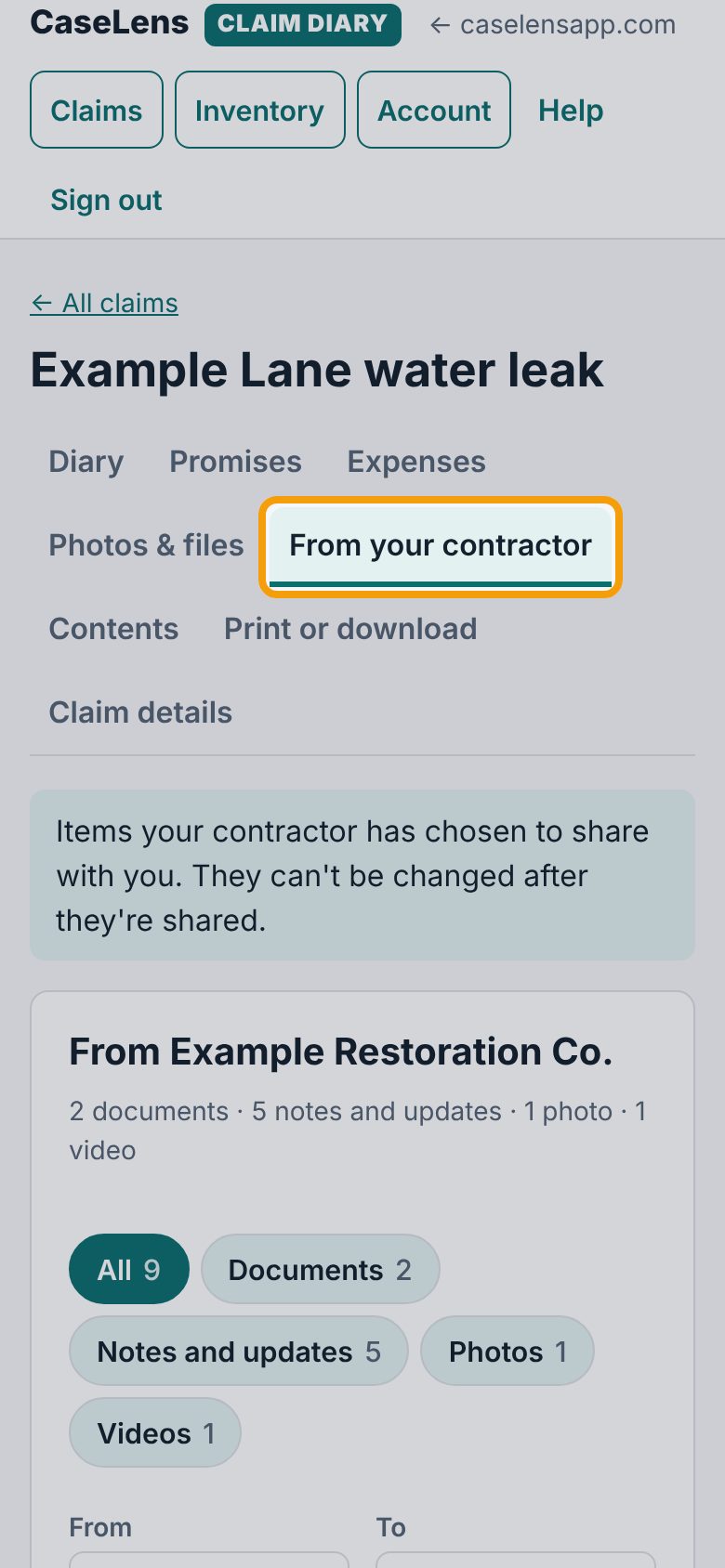
Your claim now has a From your contractor tab, and it opens there. Everything on it is a copy your contractor chose to share; it can't be changed after it's shared, so it stays as it was that day.
5Find what you need
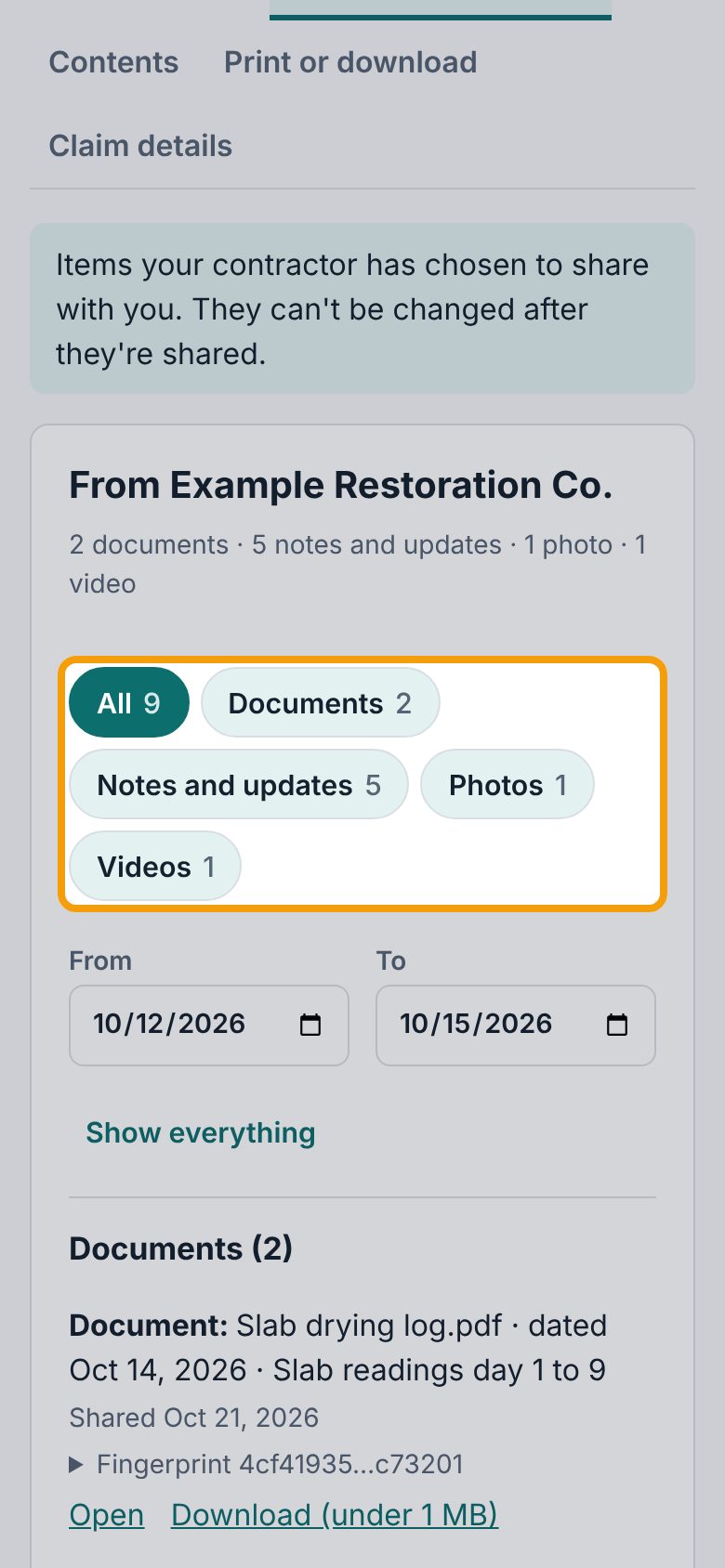
Under From Example Restoration Co., tap a type to show only that: Documents, Notes and updates (their notes, moisture readings and equipment), Photos or Videos. You can also narrow the From and To dates, which start at the first and last day shared (and pick a Room when there's more than one). Show everything clears the filters.
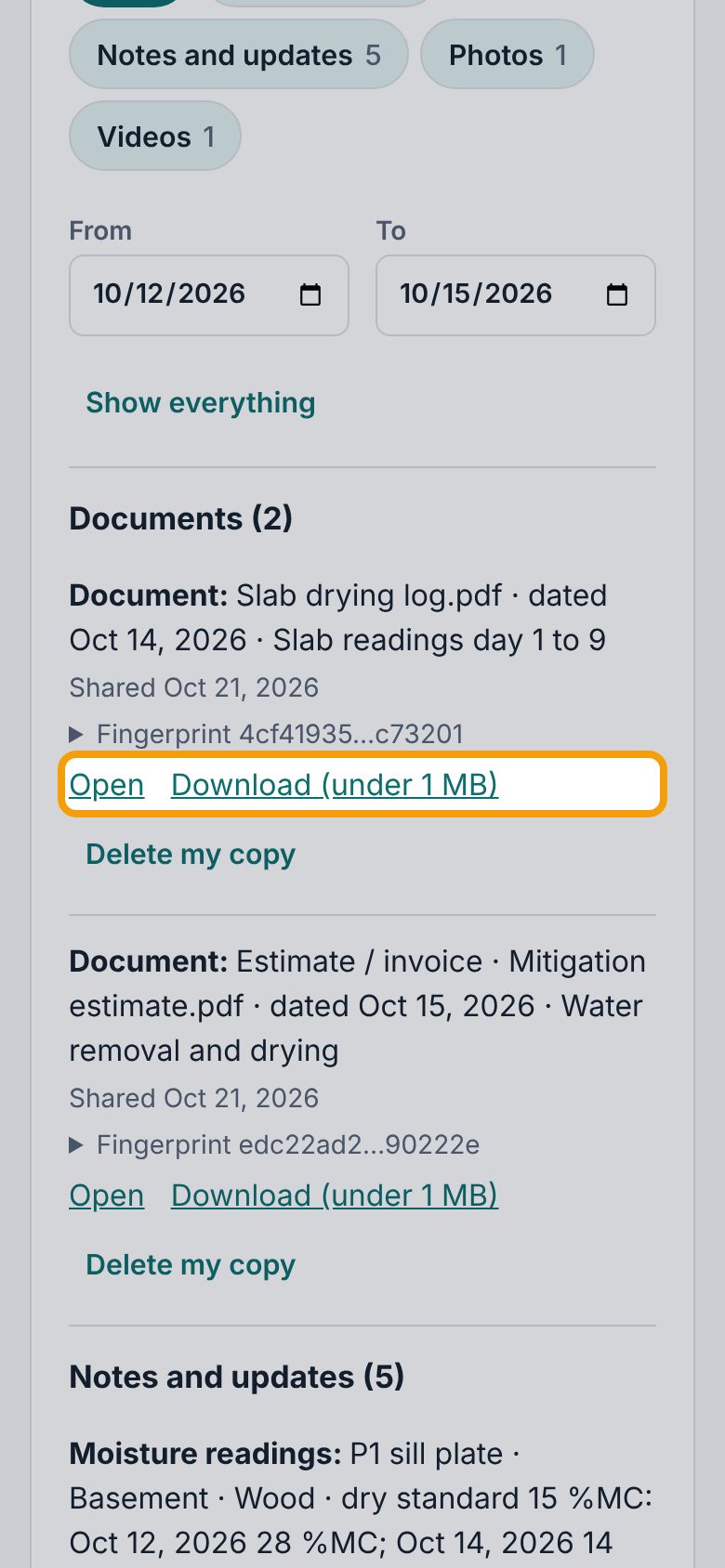
6Open a document
Each document shows its name, date and caption. Tap Open to read it, or Download to save it. The Fingerprint line is its SHA-256 code, computed by the CaseLens server; tap it to see the whole code. The copy is your contractor's file byte for byte, so it has the same code their original got when it was uploaded to CaseLens Pro.
7Look at photos
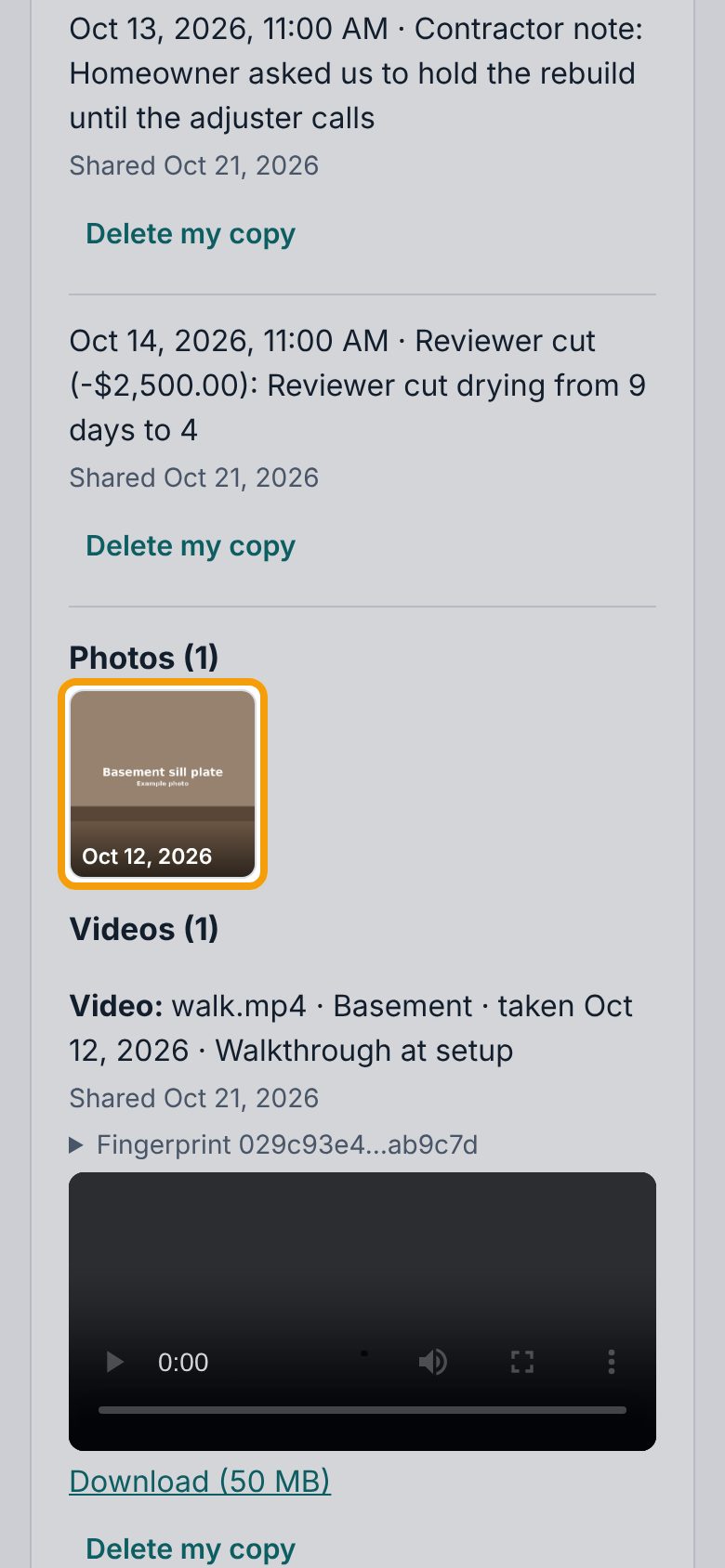
Photos show as small previews by room, with the date taken. Tap one to open it full size.
8A photo, full size
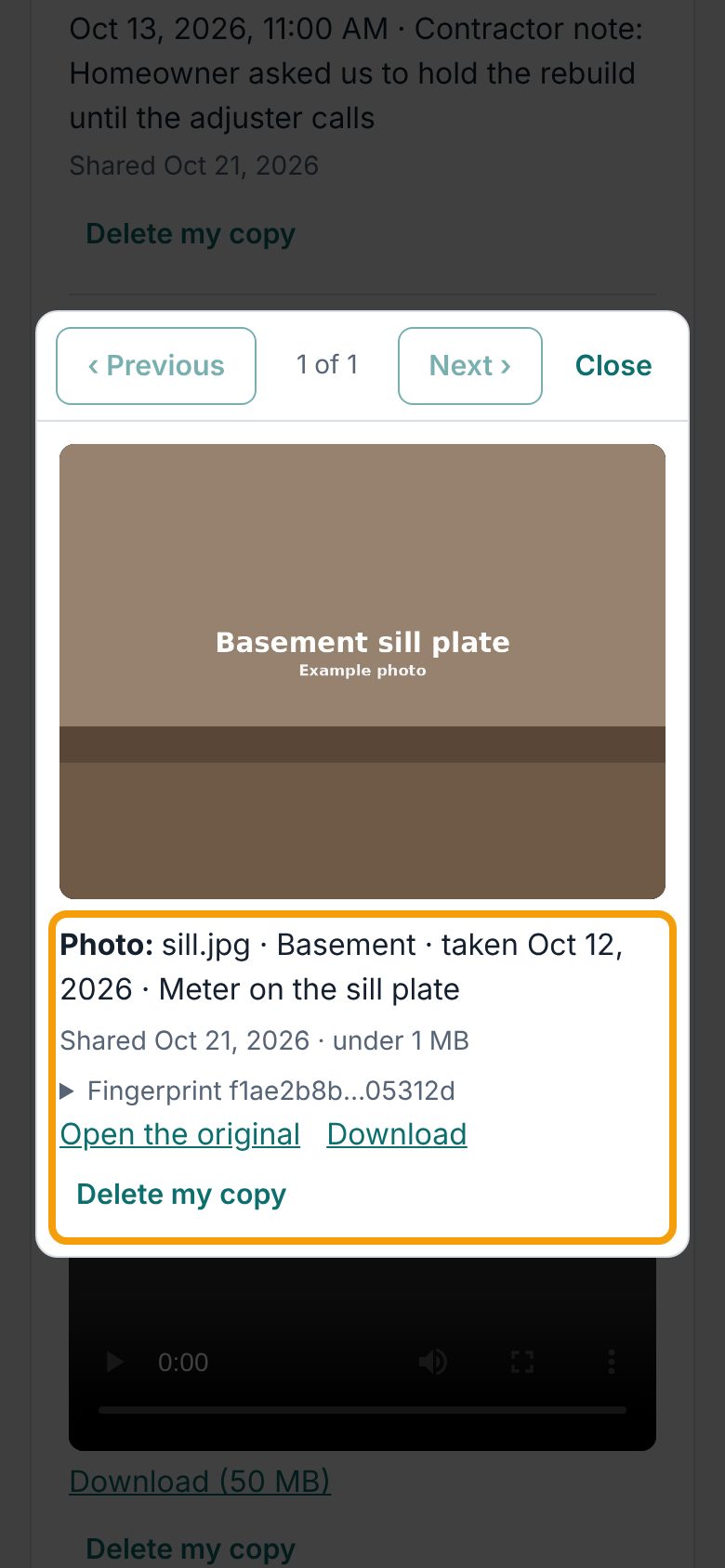
The photo opens with what it shows, the room and date. Open the original and Download get the full file. Use Next › and ‹ Previous to go through them, and Close when done.
9Send something back
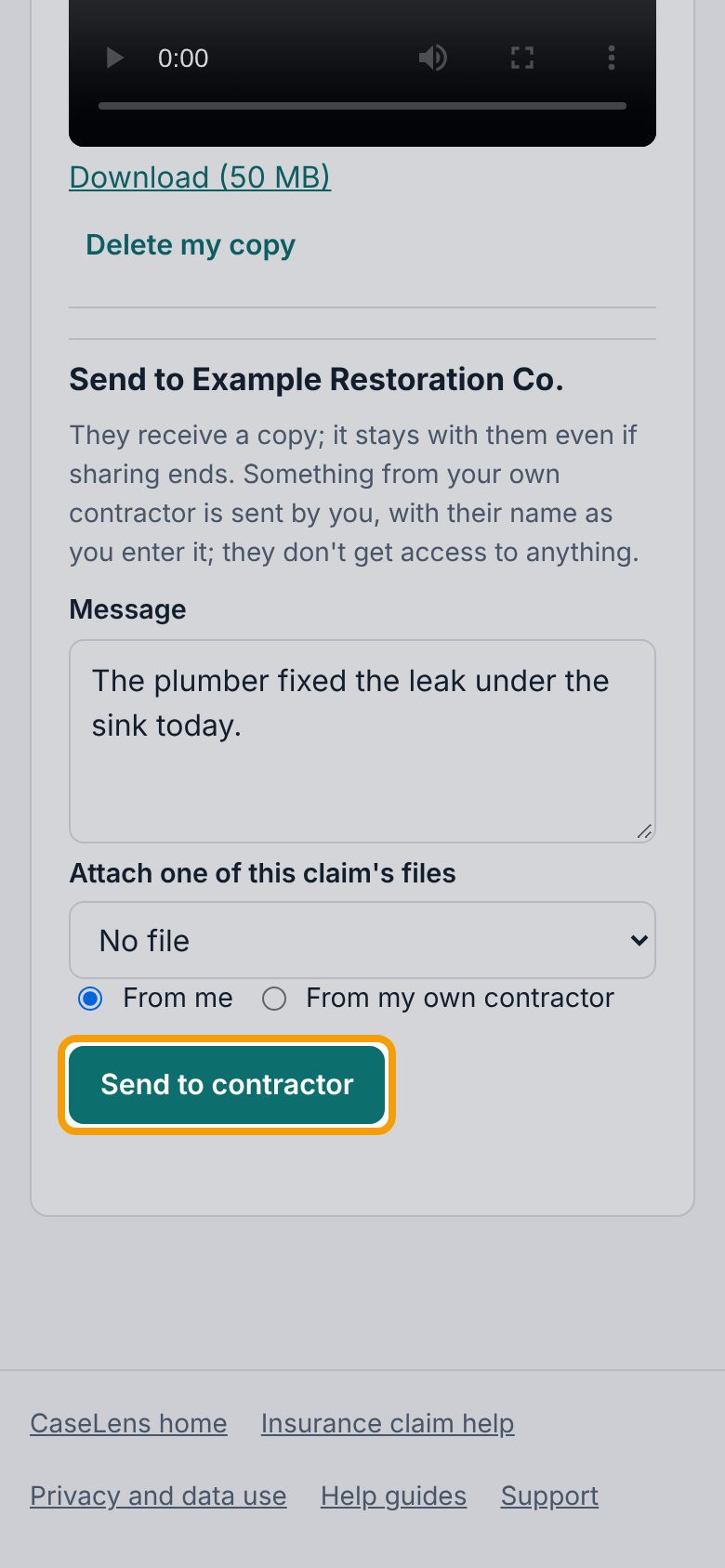
Further down, under Send to Example Restoration Co., write your Message. To send one of your claim's photos or files, pick it under Attach one of this claim's files. Choose From me, or From my own contractor and type their name. Tap Send to contractor.
10What you sent
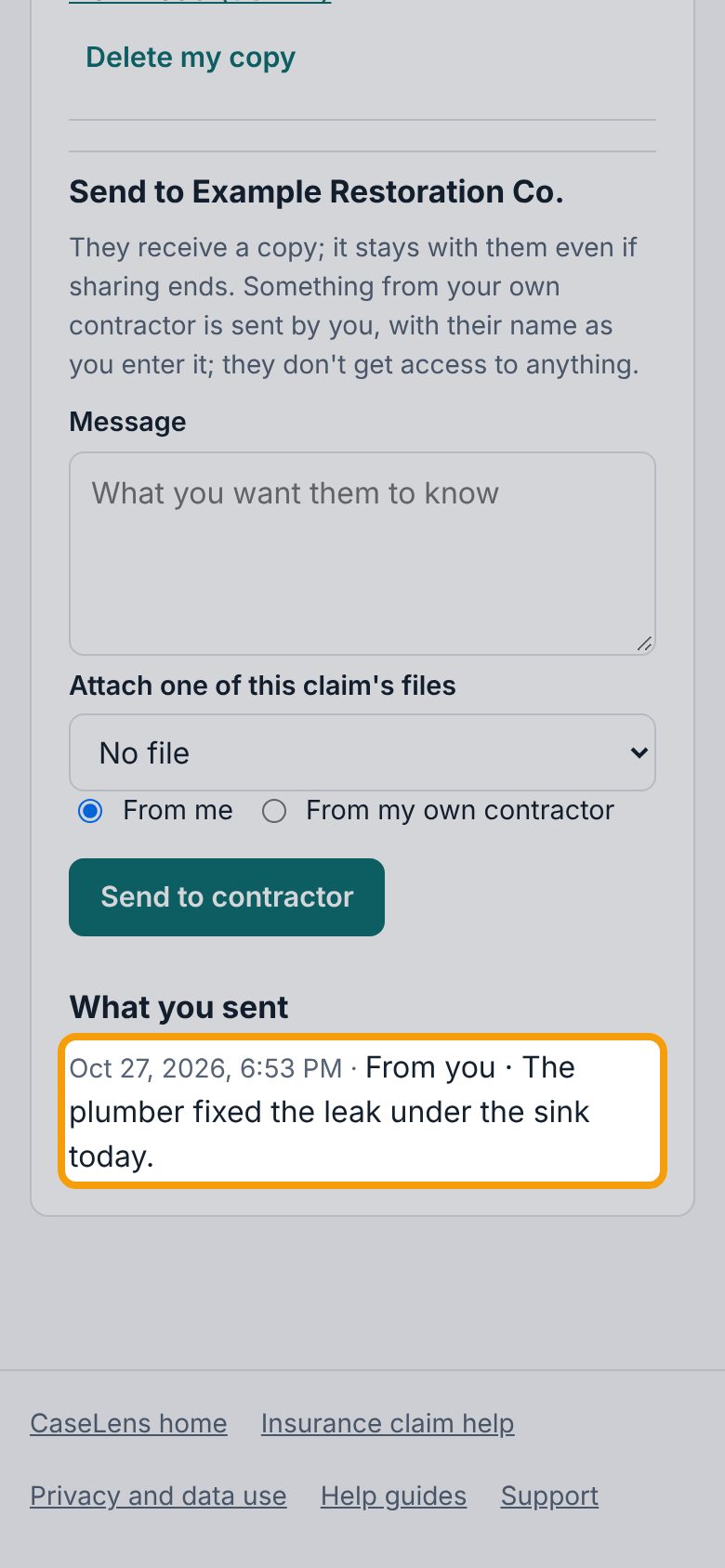
It's listed under What you sent with the date and time. Your contractor gets a copy that stays with them, even if sharing ends.
If something goes wrong
- "This invite was sent to a different email address"
- You're signed in with another email. Tap Sign out, then sign in or create an account with the email the invite went to, and open the link again.
- "This invite has expired."
- Ask your contractor to send you a new one.
- "This invite link isn't valid."
- Part of the link may be missing. Copy the whole link from the email or text, or ask your contractor to send it again.
- I lost the invite link
- Sign in with the invited email: a waiting invite also shows on Your claims.
- I don't want something they shared
- Tap Delete my copy under it, then tap it again to confirm. It only deletes your copy.