Print your claim record or download everything
Print or save a dated record of your claim as a PDF, and download every file and entry in one .zip, to send to your adjuster, a supervisor, your state insurance department or an attorney. About 3 minutes.
Watch it (1:44, no sound)
- A claim with diary entries, and any expenses, photos and files you've added.
- To print: a printer your phone or computer can reach. To save a PDF, you don't need one.
Step by step
1Open Print or download
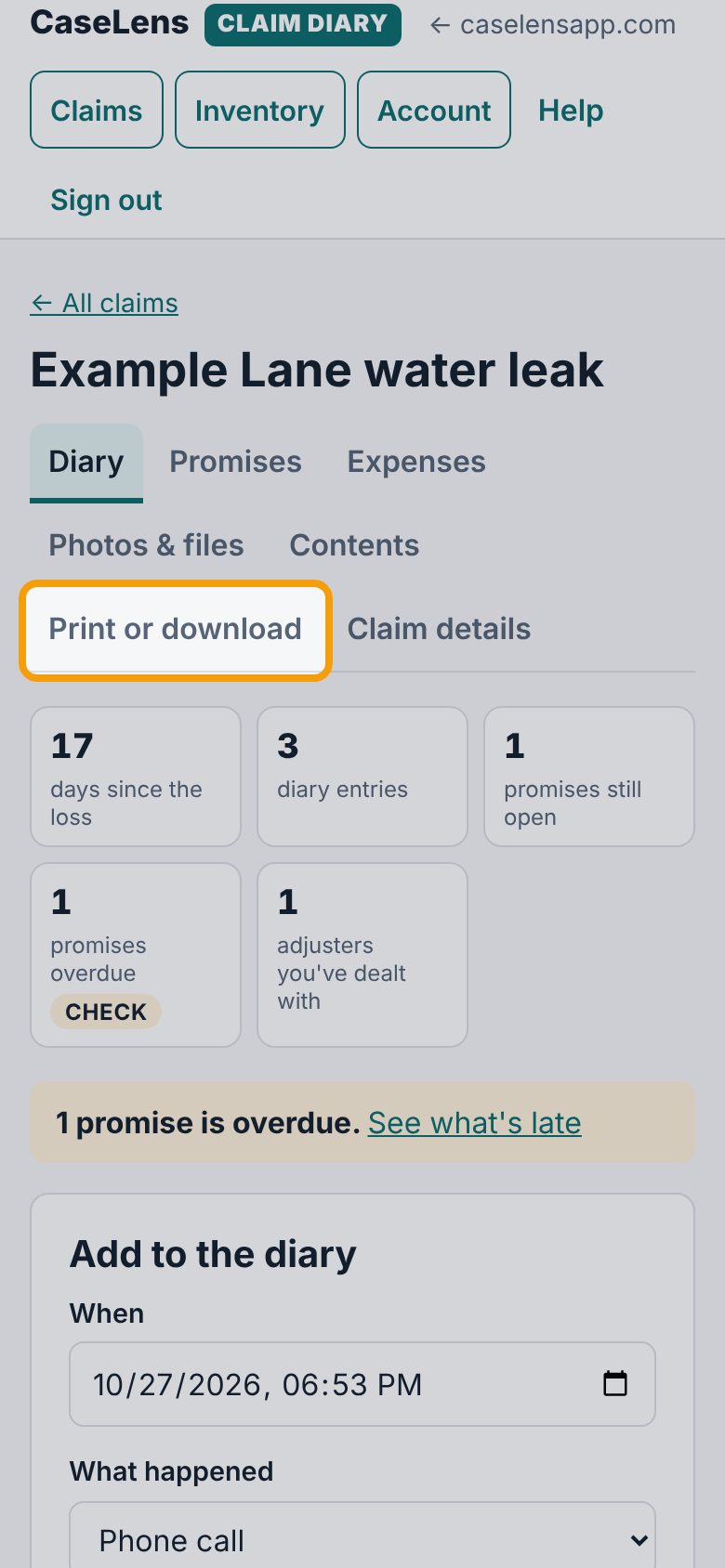
Open your claim and tap the Print or download tab.
2Choose what goes in
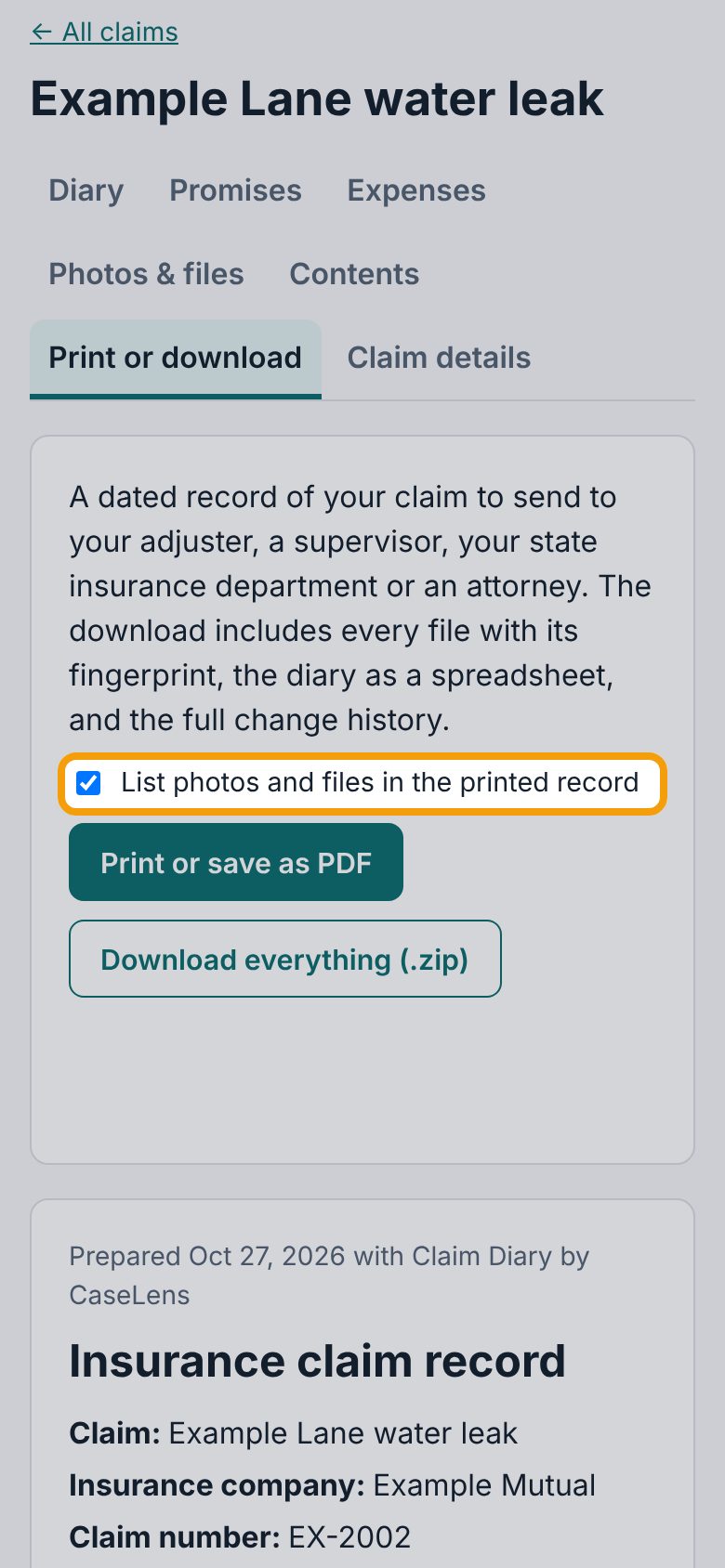
At the top, List photos and files in the printed record is ticked: the record then lists every file with its date, caption, camera details and fingerprint. Untick it for a shorter printout.
3Look over the record
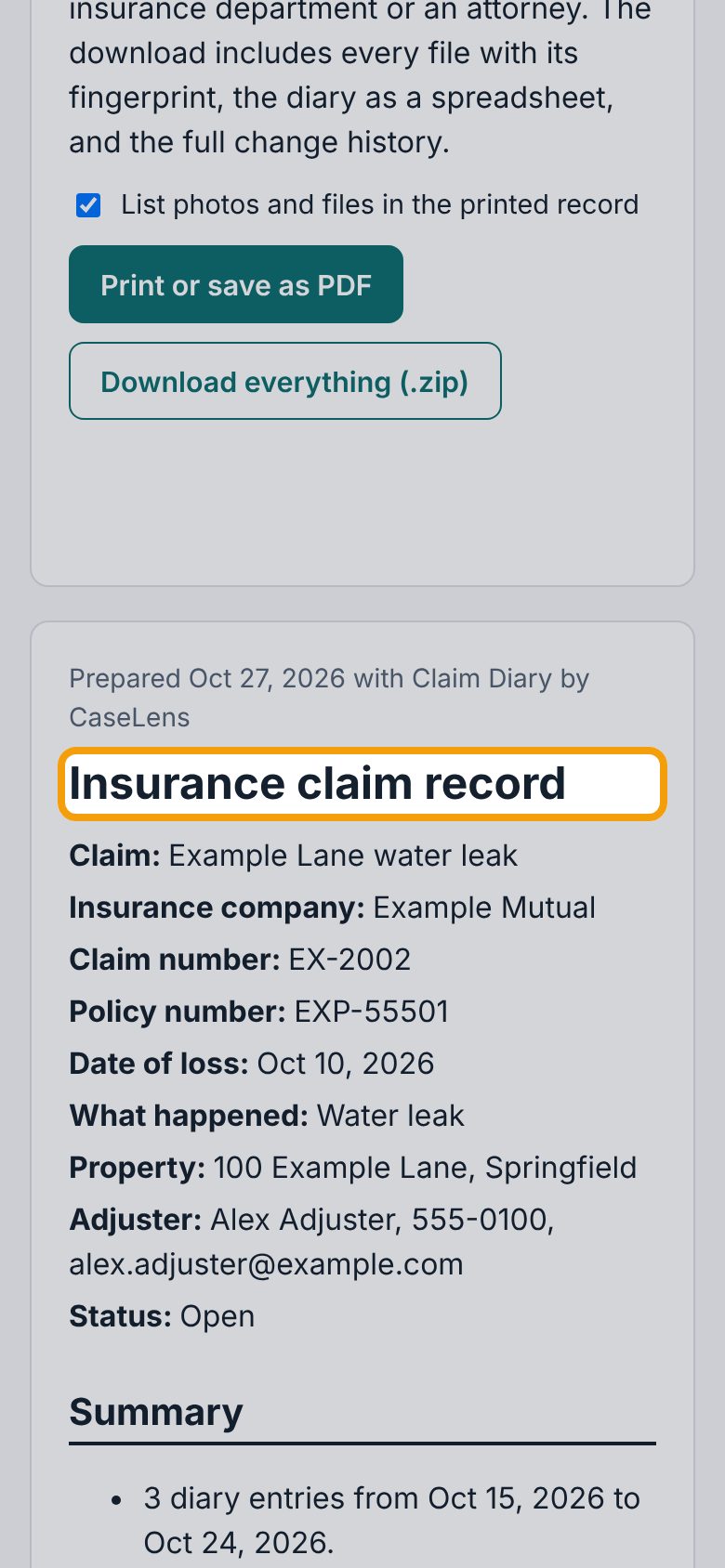
Below the buttons is the record itself, Insurance claim record: the claim's details, a Summary (entries, adjusters, promises kept and not kept, payments, expenses), then the Diary and your expenses. Scroll through it before you send it.
4Where to get help
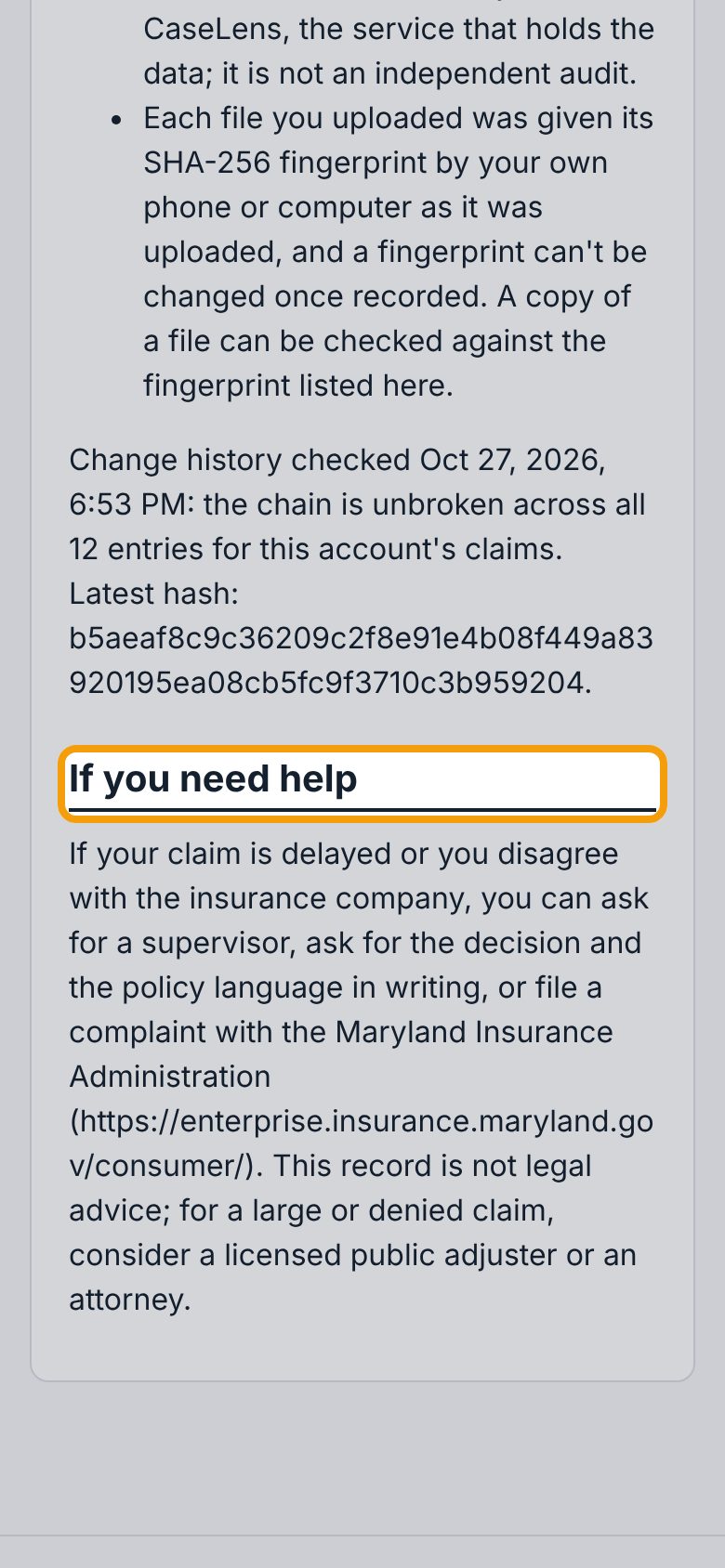
At the end, If you need help names your state's insurance department and its complaint page (for a claim in Maryland, the Maryland Insurance Administration). It's there because a record like this is what a complaint needs.
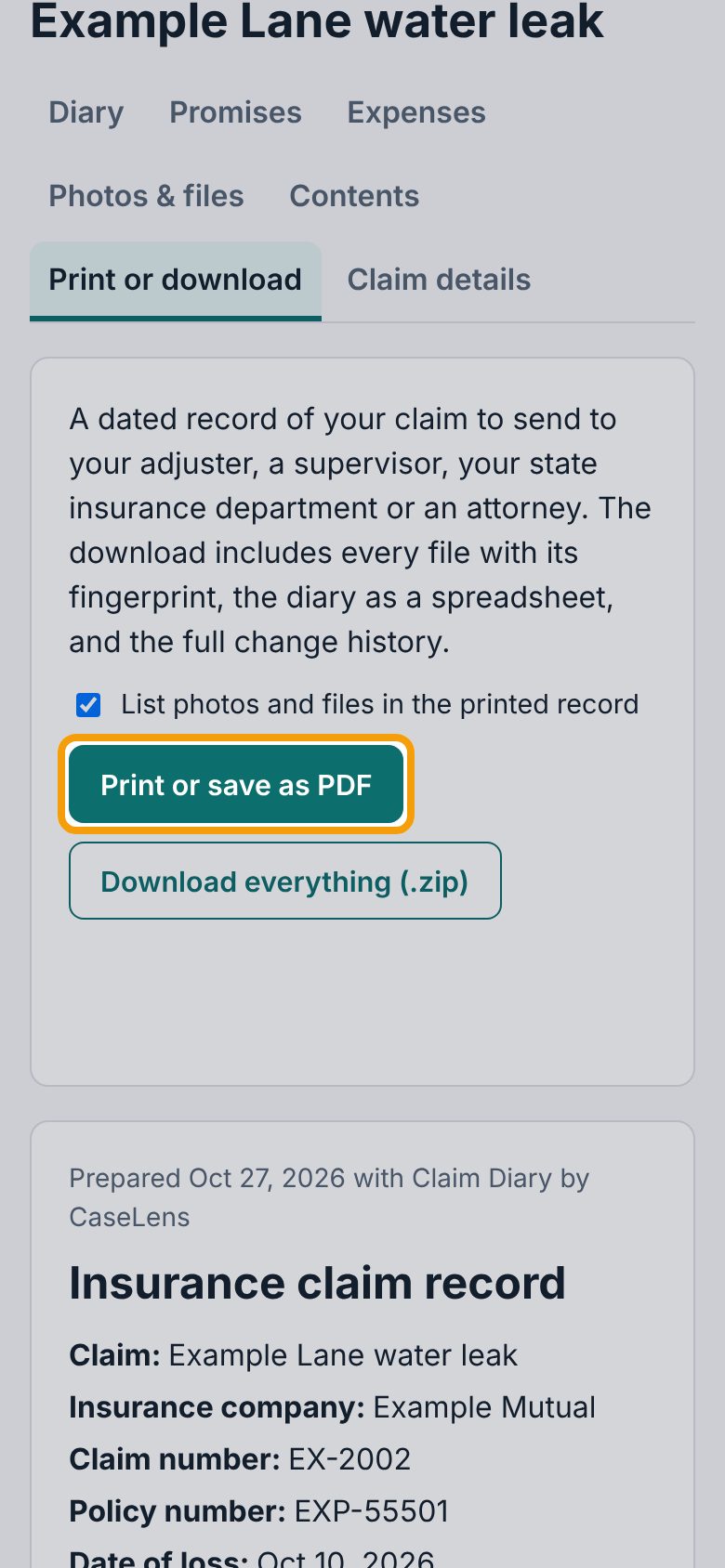
5Print or save as PDF
Tap Print or save as PDF. Your phone's print screen opens. On an iPhone, pick a printer, or tap the share button at the top of the print screen and choose Save to Files. On Android, choose Save as PDF as the printer. On a computer, choose Save as PDF as the destination.
6Download everything
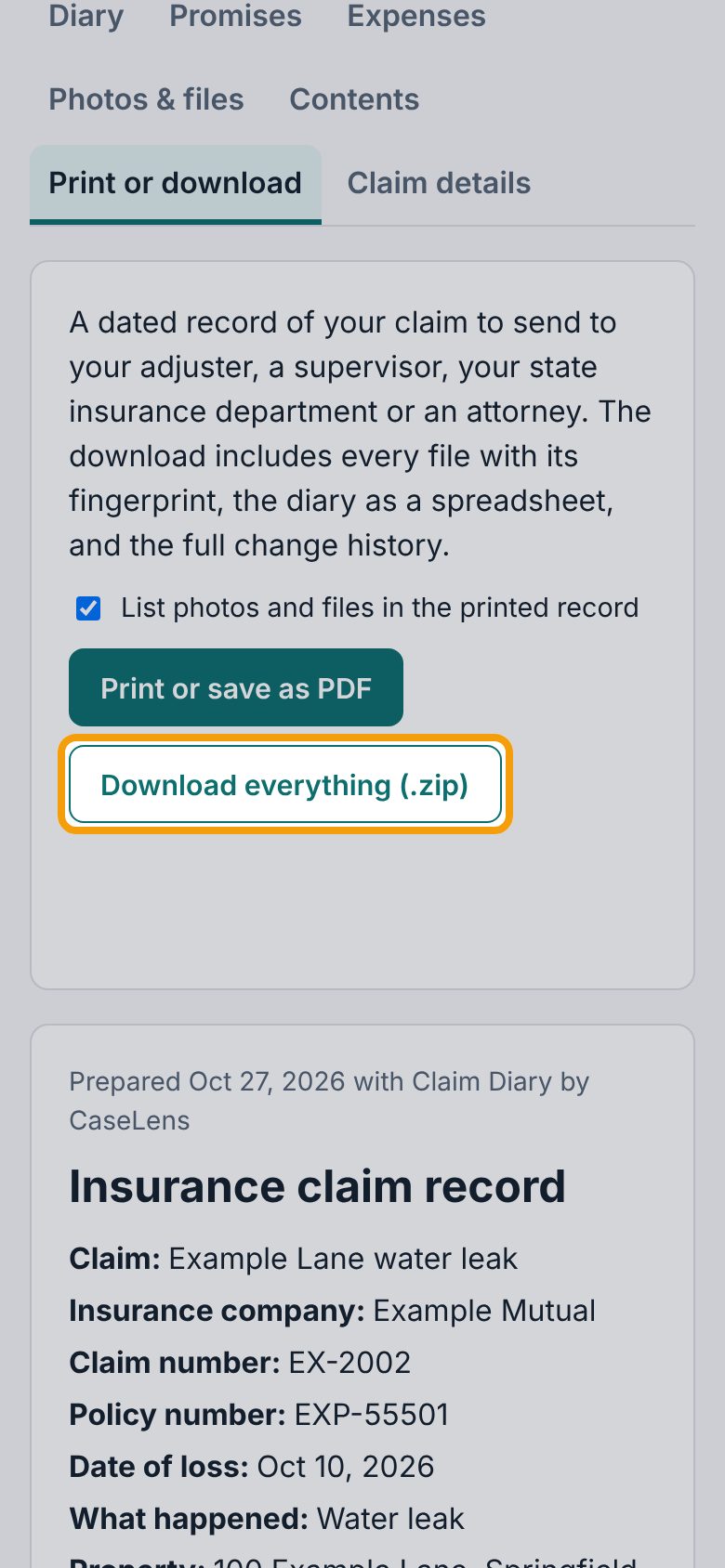
Tap Download everything (.zip). It gathers every file first, so give it a moment. A very large claim comes in numbered parts: tap Save part 1 of …, then each next part.
7Find the download
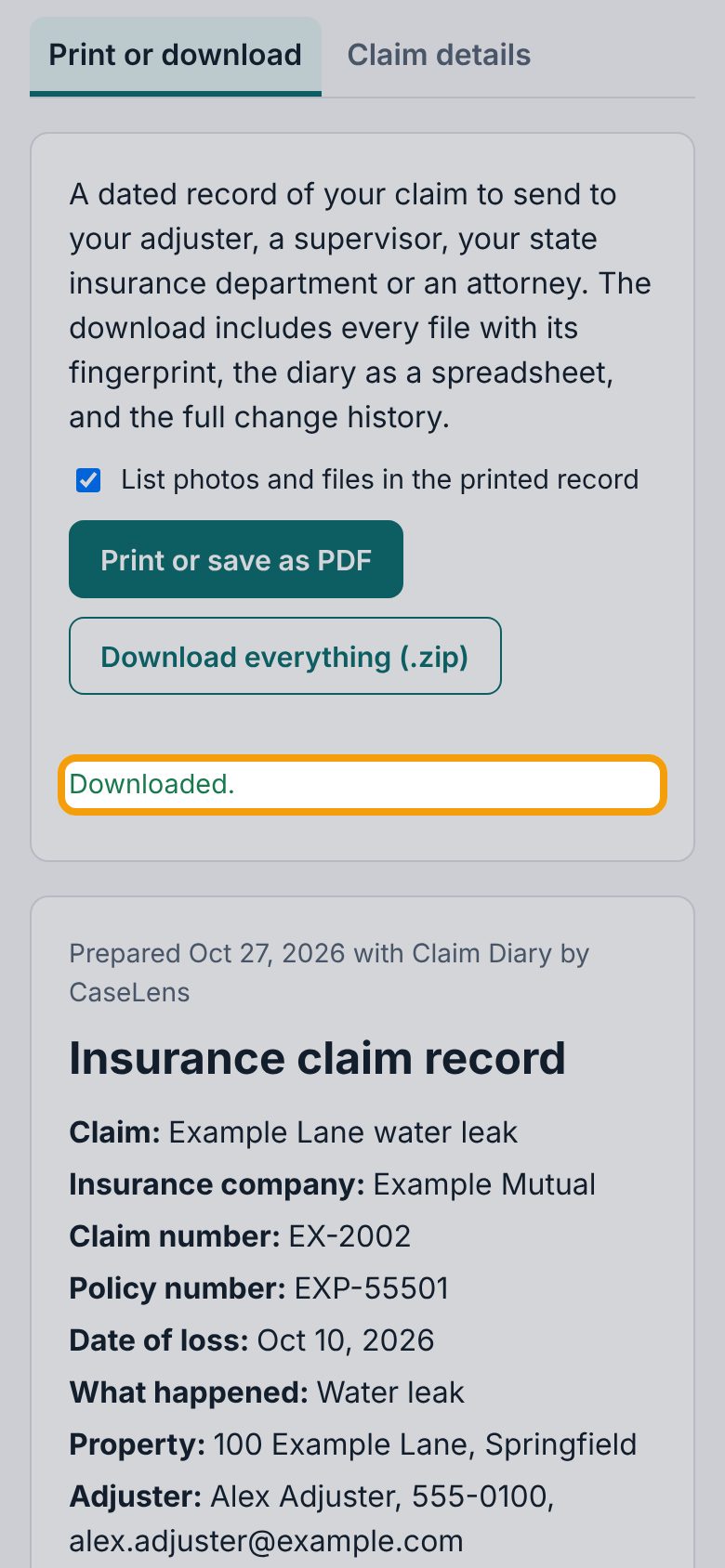
When it's done you'll see Downloaded. The .zip goes to your Downloads (on an iPhone, open the Files app, then Downloads). Keep a copy somewhere other than your phone, like a computer or a USB stick.
8What's in the download
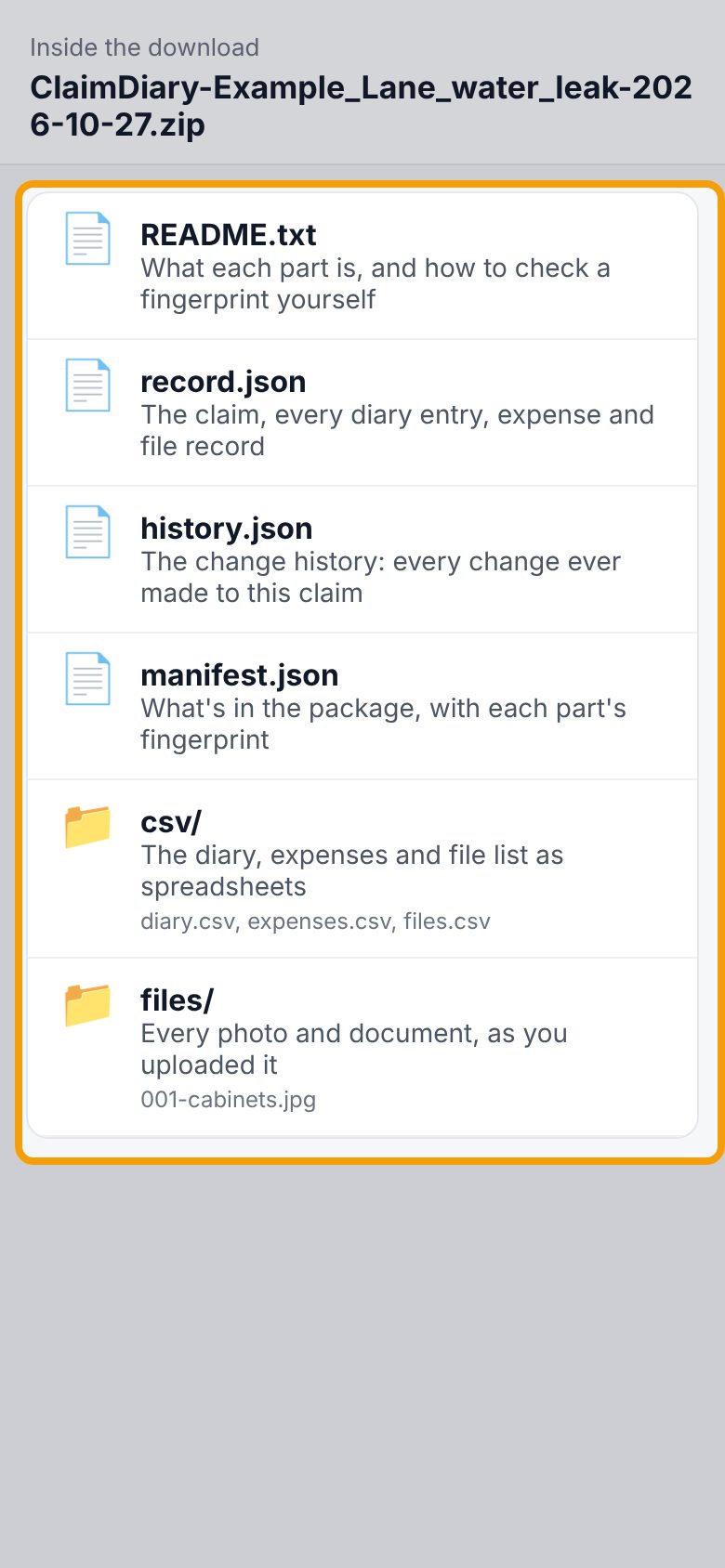
Tap the .zip to open it (on a computer, double-click it). README.txt says what each part is; record.json is the full record; history.json is the change history, every change ever made to the claim; manifest.json lists what's in the package with fingerprints. csv/ has the diary, expenses and file list as spreadsheets, and files/ has every photo and document as you uploaded it.
If something goes wrong
- Nothing happens when I tap Download everything
- Wait: it gathers every file first, and the line under the buttons counts them (Adding file 1 of …). On a slow connection, stay on the page until it says Downloaded.
- "Downloaded. Note: … do not match their upload fingerprint"
- A file changed since it was uploaded or didn't download properly. Try the download again; if it still says so, email admin@caselensapp.com.
- My state's insurance department isn't named
- Fill in State (2 letters) on the claim's Claim details tab and tap Save changes.