Tell your inspector about your home (homeowner)
Fill in the seven-step intake in the homeowner portal (your property, concerns, water history, how the house runs, access and records), then choose to share it with your inspector. About 15 minutes.
Watch it (1:54, no sound)
- An account on caselensapp.com (Account access at the top) and an invitation from your inspector.
- Rough dates for when you first noticed the problem and any past leaks or repairs. "Not sure" is a fine answer.
- Links to any photos or past reports you want to share (for example a Google Drive link).
- To practice first, use the fictional demo at caselensapp.com/homeowner/demo (the screenshots here are from it).
Step by step
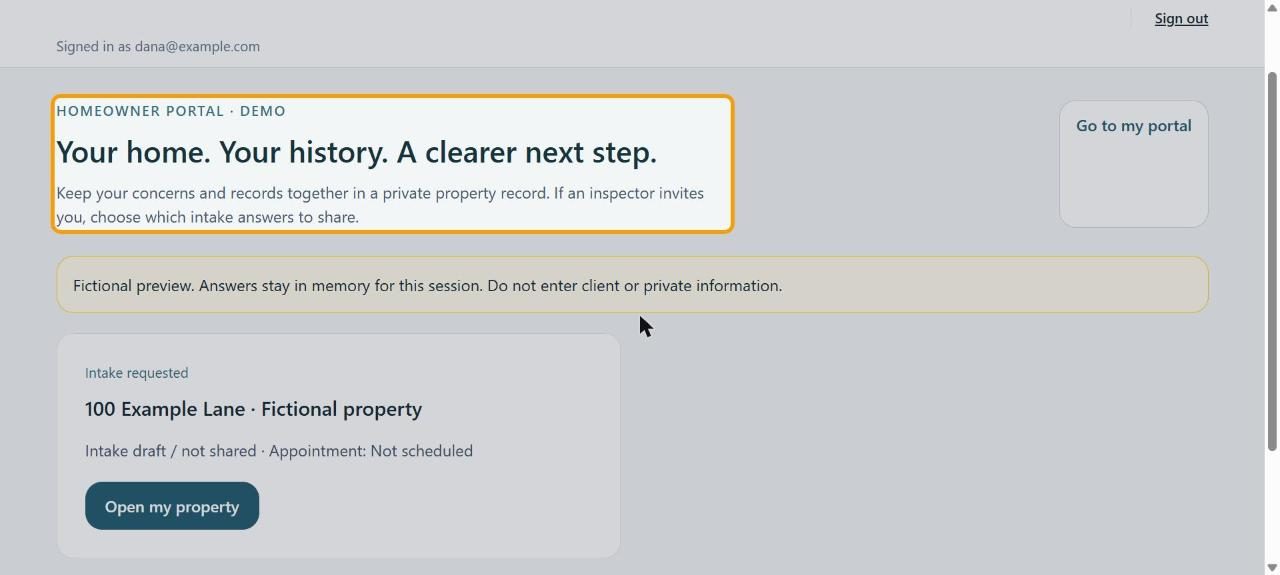
1Open your portal
Click Go to my portal. Your property is listed with its status, like Intake requested.
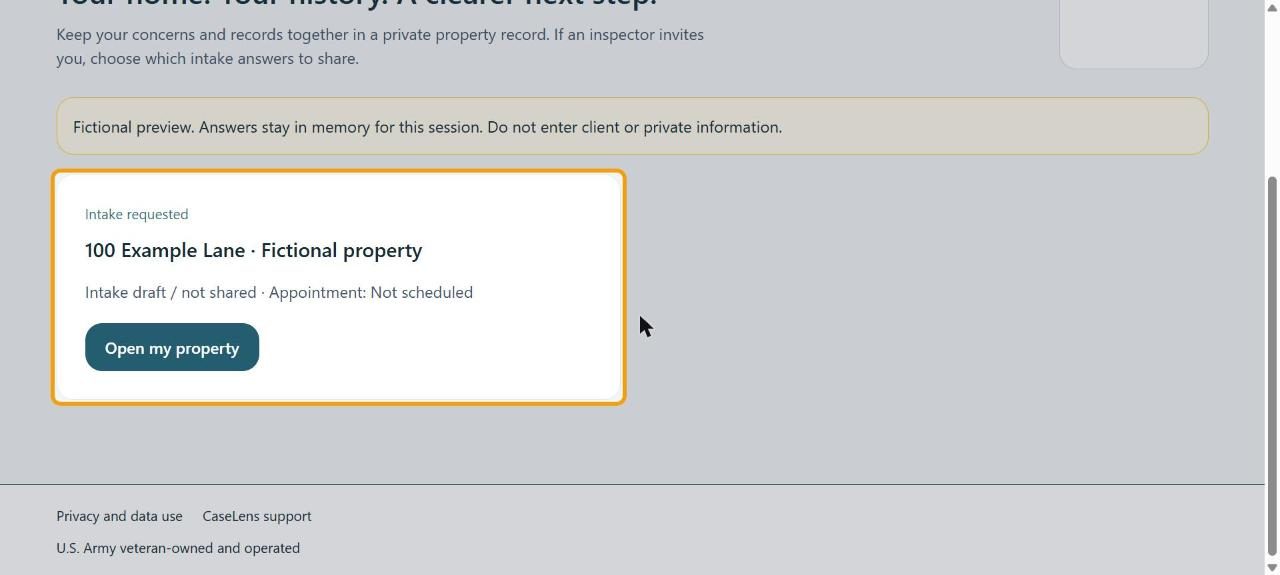
2Open your property
On your property's card, click Open my property. The seven steps are listed on the left.
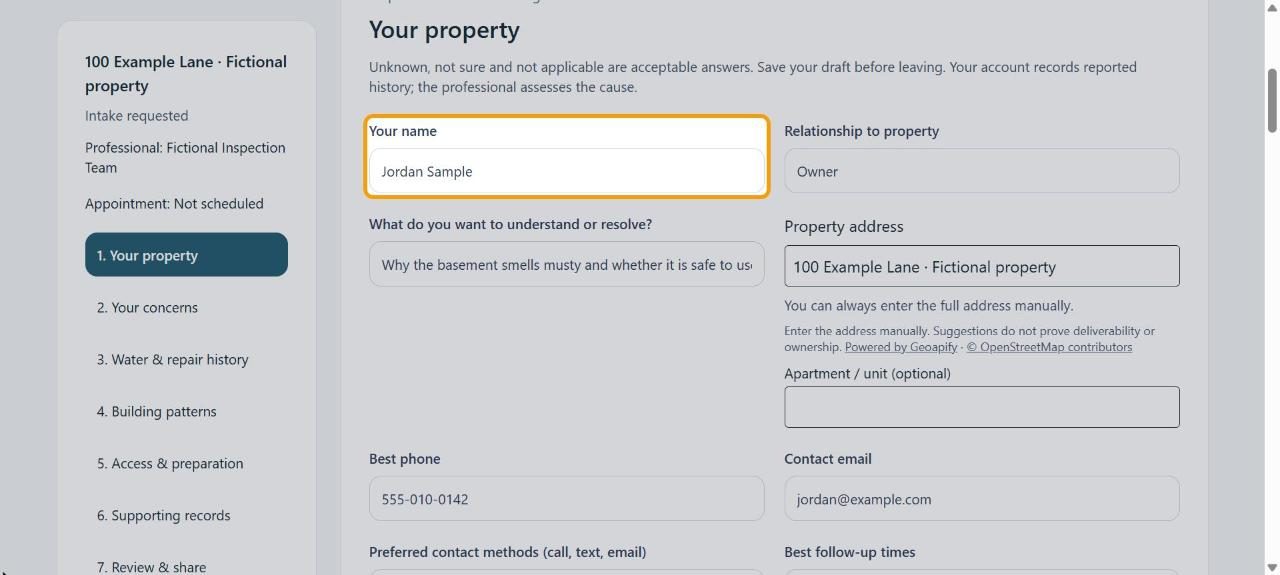
31. Your property
Fill in Your name, Relationship to property, What do you want to understand or resolve?, your address, phone and email, and what you know about the house. Click Next at the bottom (or Save draft to finish later).
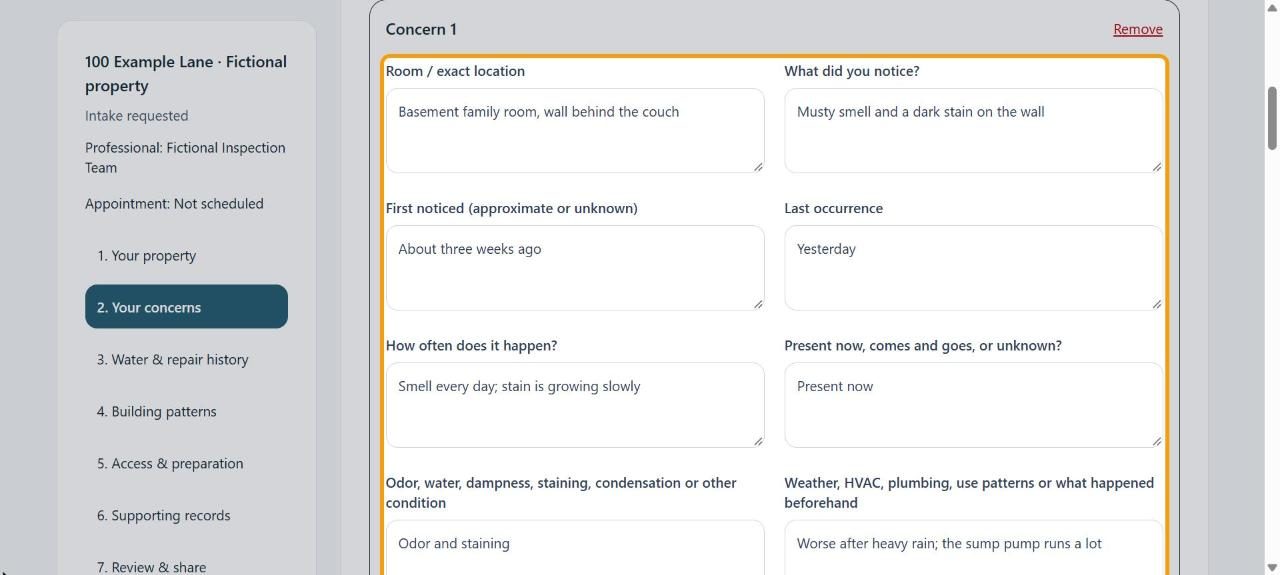
42. Your concerns
Click + Add concern for each problem. Say the room, What did you notice?, when it started, how often, and what makes it better or worse. If there's nothing to report, tick No current concerns to report.
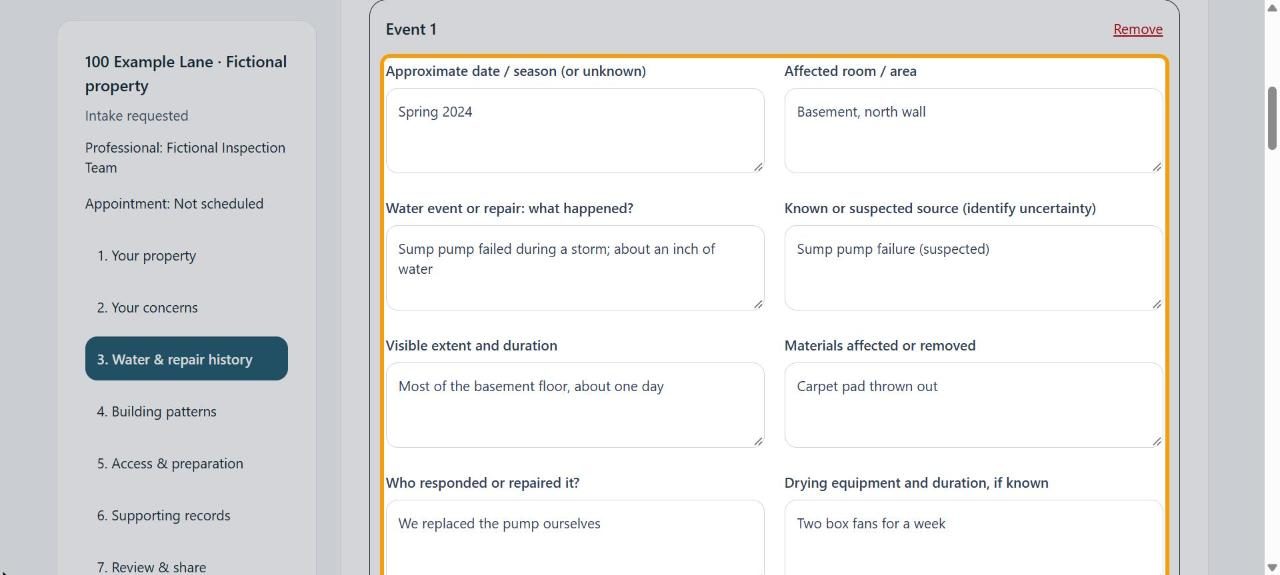
53. Water & repair history
Click + Add water / repair event for each past leak, flood or repair: roughly when, where, what happened, and who fixed it. If you don't know of any, tick No known water or repair events.
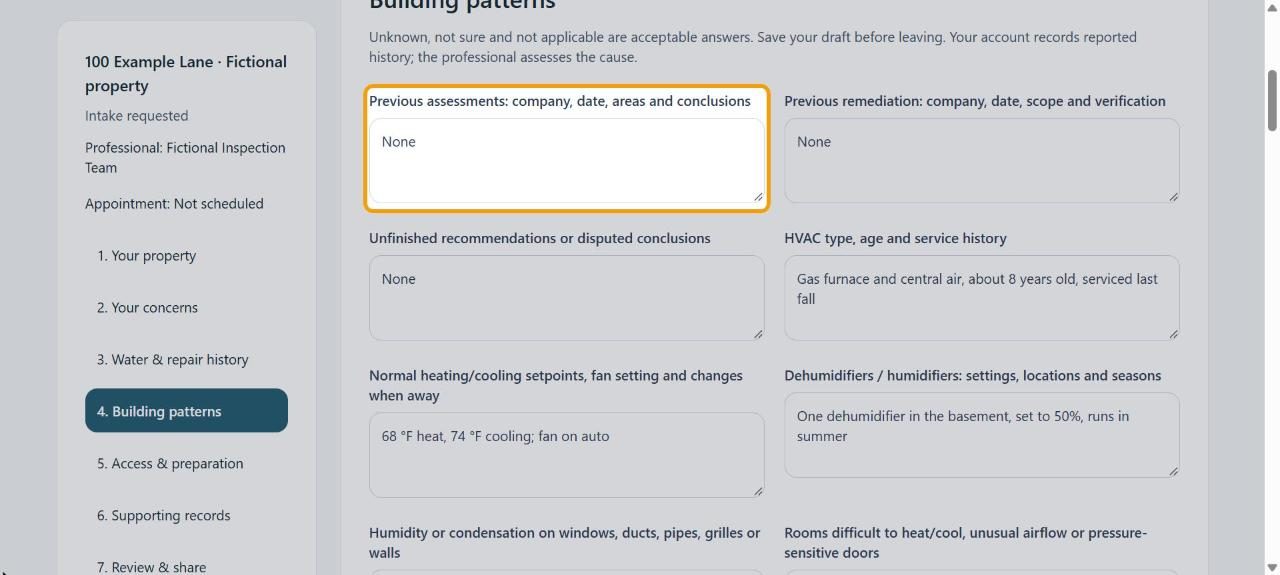
64. Building patterns
Answer what you can about past inspections or cleanup, your heating and cooling, humidity, and plumbing. Leave a box empty if you don't know.
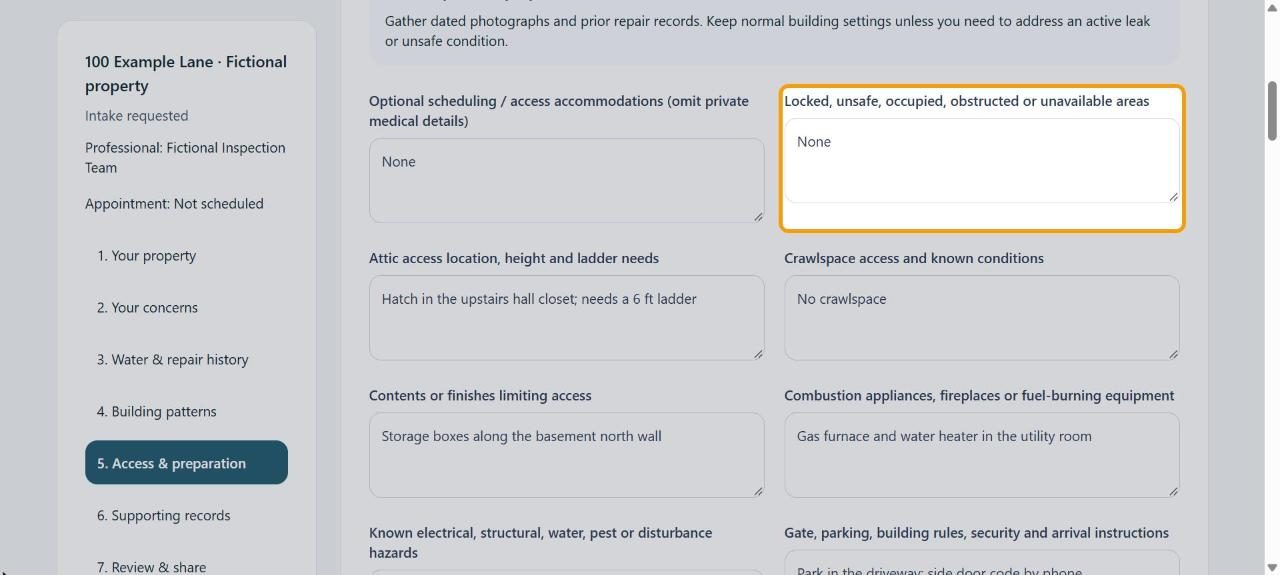
75. Access & preparation
Tell the inspector about locked or blocked areas, the attic hatch, pets, parking and who can let them in. Note any active leak or recent cleanup.
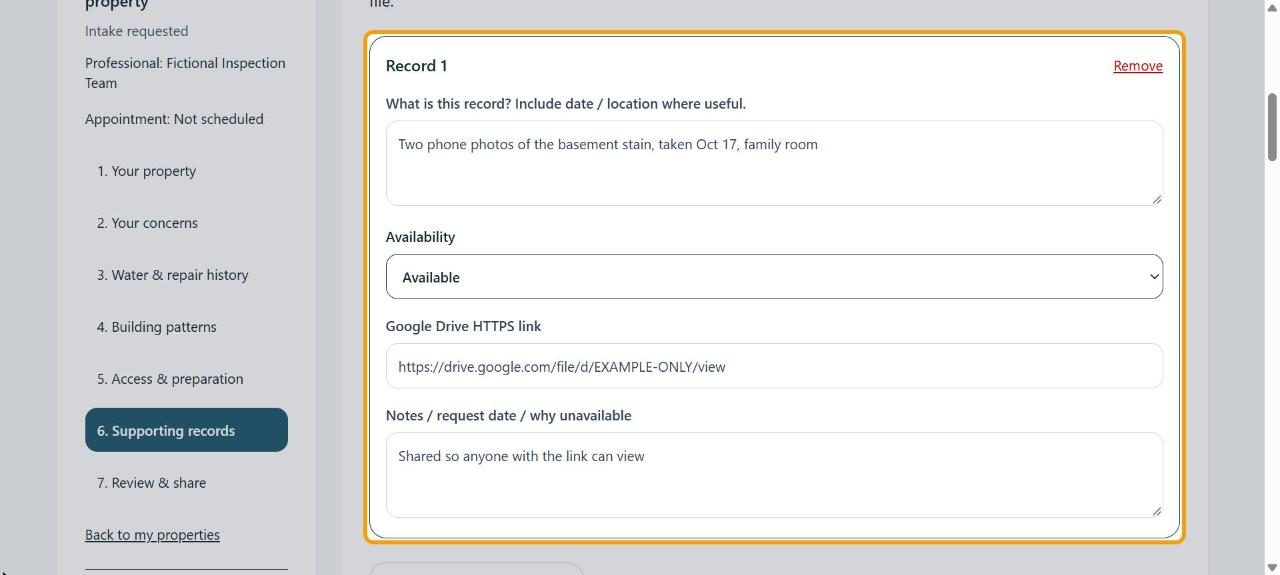
86. Supporting records
Click + Add supporting record for each photo set or document. Describe it, choose Availability, and paste the Google Drive HTTPS link. Make sure the file is shared so your inspector can open it: saving a link doesn't check that.
97. Review & share
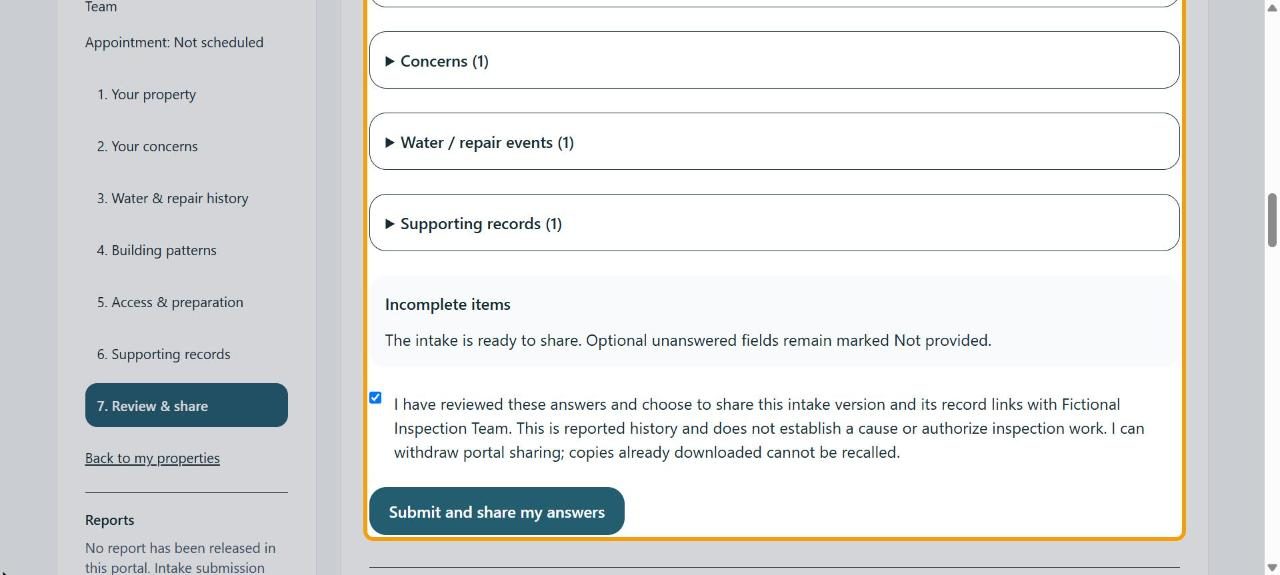
Read your answers. When they're right, tick the box that starts I have reviewed these answers and choose to share and click Submit and share my answers.
10Done
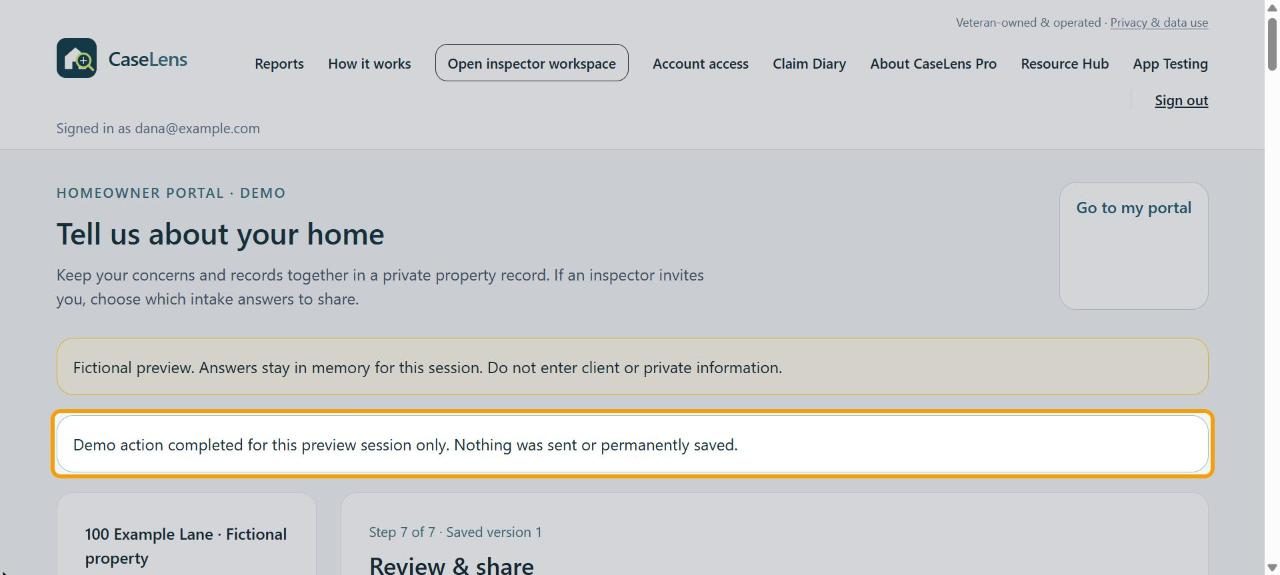
A message at the top confirms it. (In the demo it says Demo action completed for this preview session only. Nothing was sent or permanently saved.) Your inspector now sees this version of your answers.
If something goes wrong
- I don't know an answer
- Write "Not sure" or leave it empty. Optional answers you skip are marked Not provided.
- I want to stop and finish later
- Click Save draft at the bottom of any step before you leave.
- I shared something by mistake
- You can withdraw sharing in the portal, but copies your inspector already downloaded can't be taken back. Contact your inspector.