Phone app: check the upload queue, retry or remove what's waiting
Read the upload line, see what's still on the phone, and retry or remove something CaseLens refused. About 3 minutes.
Watch it (1:35, no sound)
- The CaseLens app, signed in, with something saved (see Take job photos, notes and moisture readings with no signal or Add claim photos and diary entries with no signal).
Step by step
1No signal
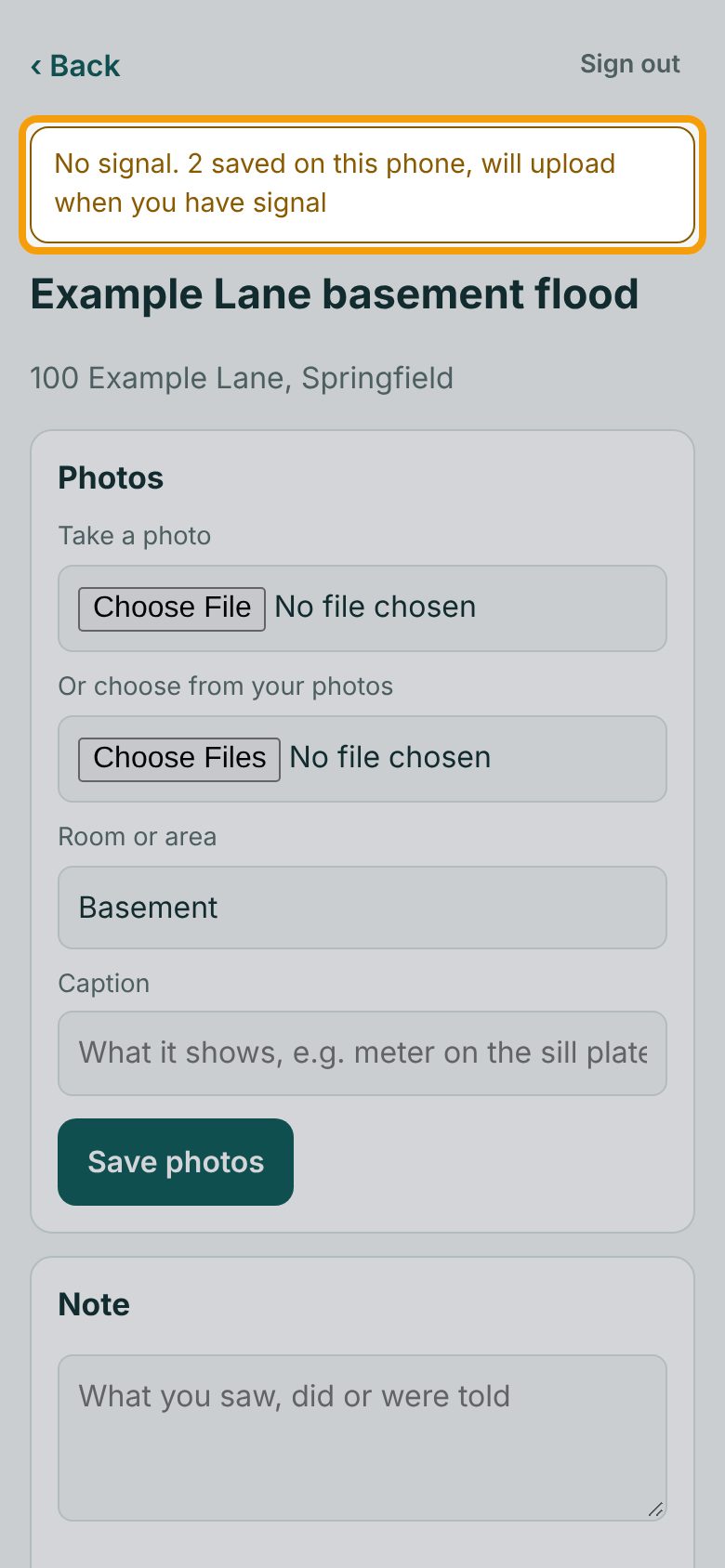
Orange means no signal: No signal. 2 saved on this phone, will upload when you have signal. Everything you save is kept on the phone, even if you close the app or restart the phone, until it's uploaded.
2What's waiting
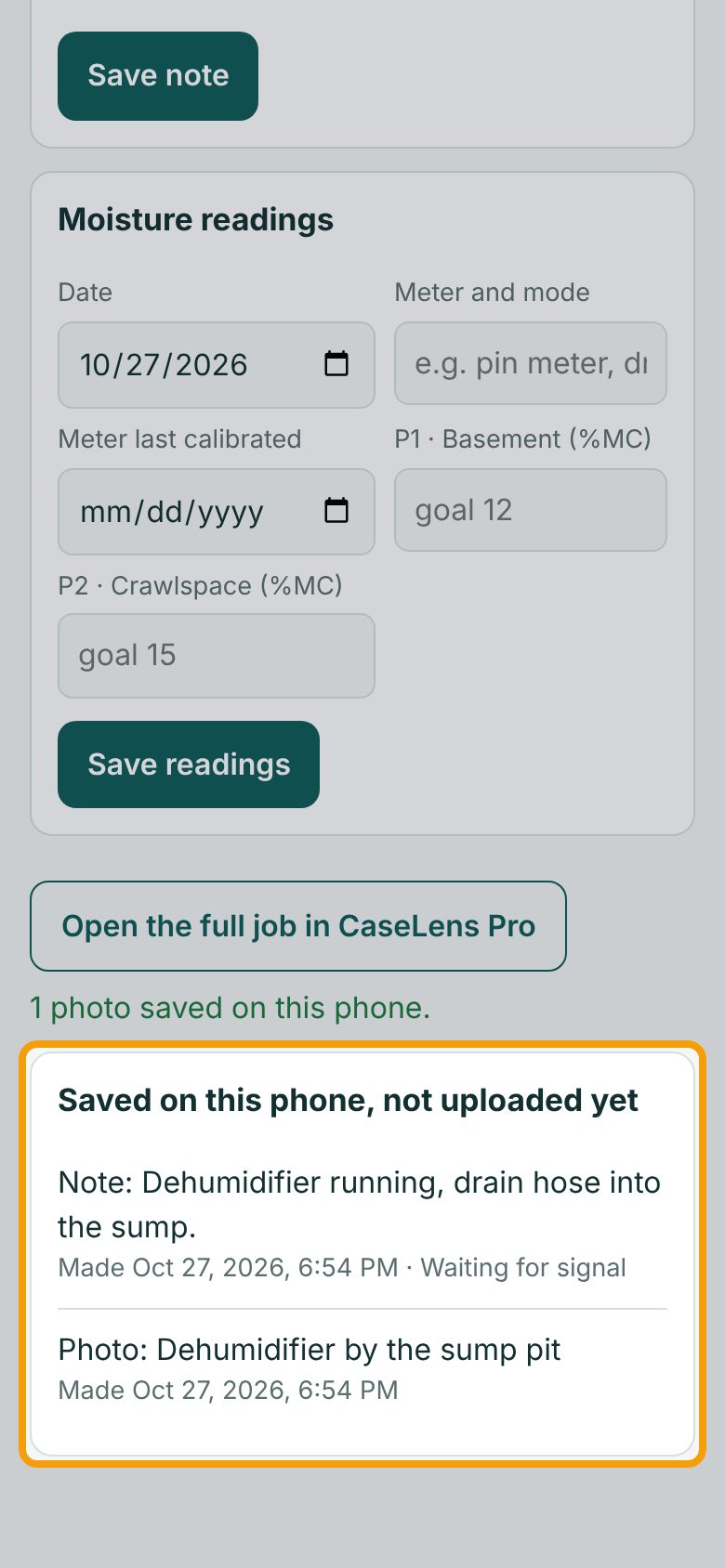
On a job or claim, Saved on this phone, not uploaded yet lists what's waiting for it, with the time you made each. Waiting for signal means the phone has none. Will retry means it has signal but CaseLens didn't answer; the app tries again by itself every 30 seconds while it's open.
3Couldn't upload
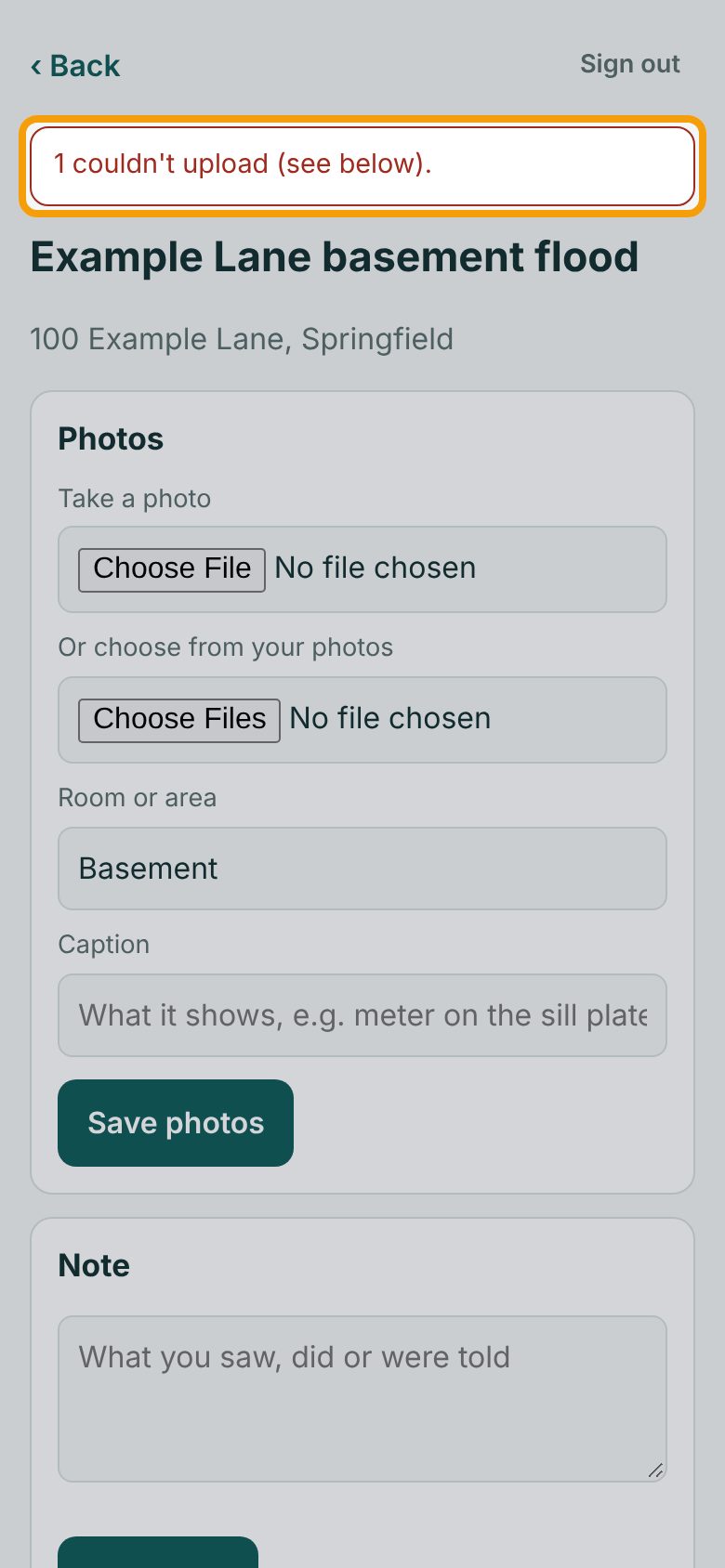
Red means CaseLens refused something: the line says 1 couldn't upload (see below). It isn't lost. The rest carries on uploading; the refused one stays on the phone, listed under Couldn't upload further down.
4See why
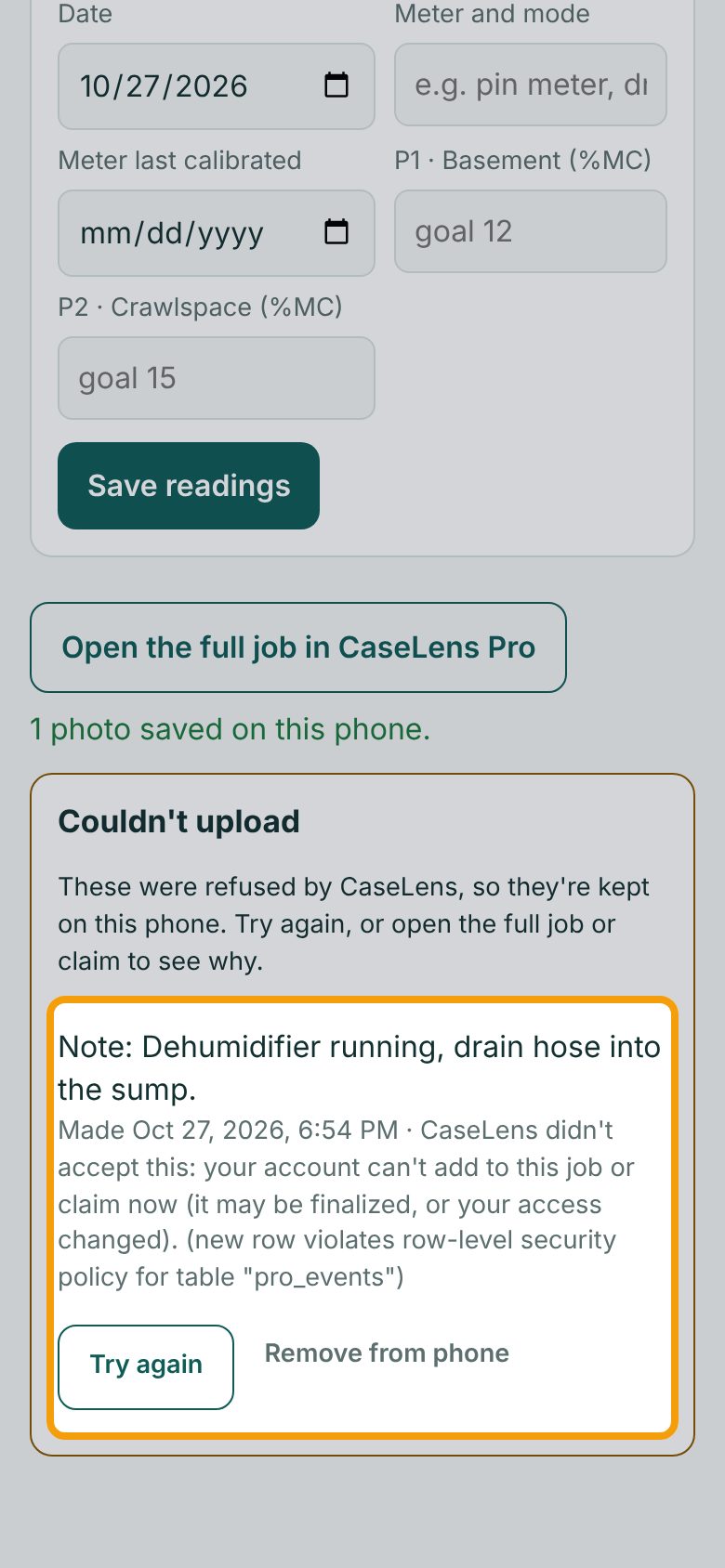
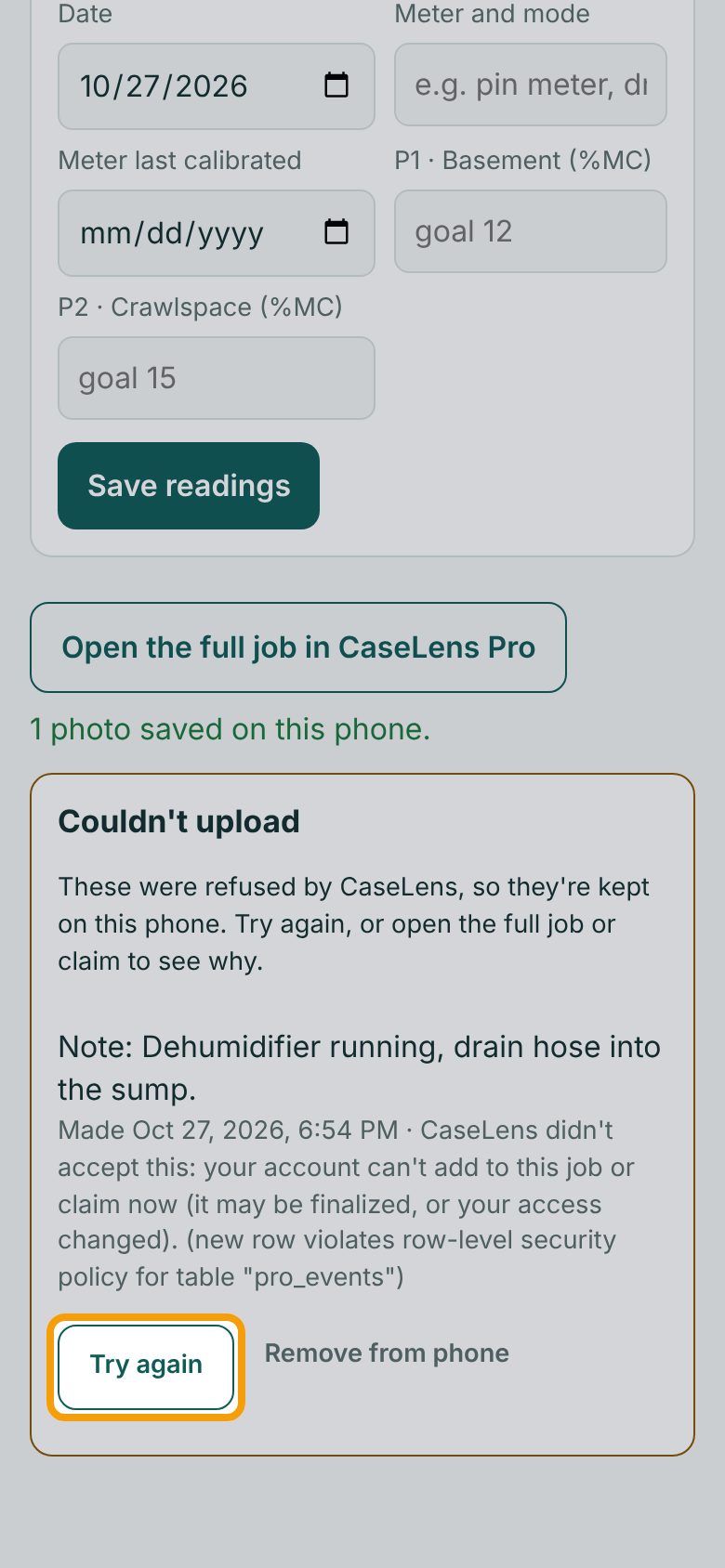
Under Couldn't upload, each item shows what it was, when you made it, and CaseLens's reason. A reason that starts CaseLens didn't accept this means your account can't add to that job or claim right now (for example, the job was finalized, or you were taken off the company's team). Tap Open the full job in CaseLens Pro or ask the job's owner.
5Try again
Once it's sorted out (for example, the owner adds you back to the team), tap Try again. The app sends it again and, if it goes through, it disappears from the list.
6Remove it
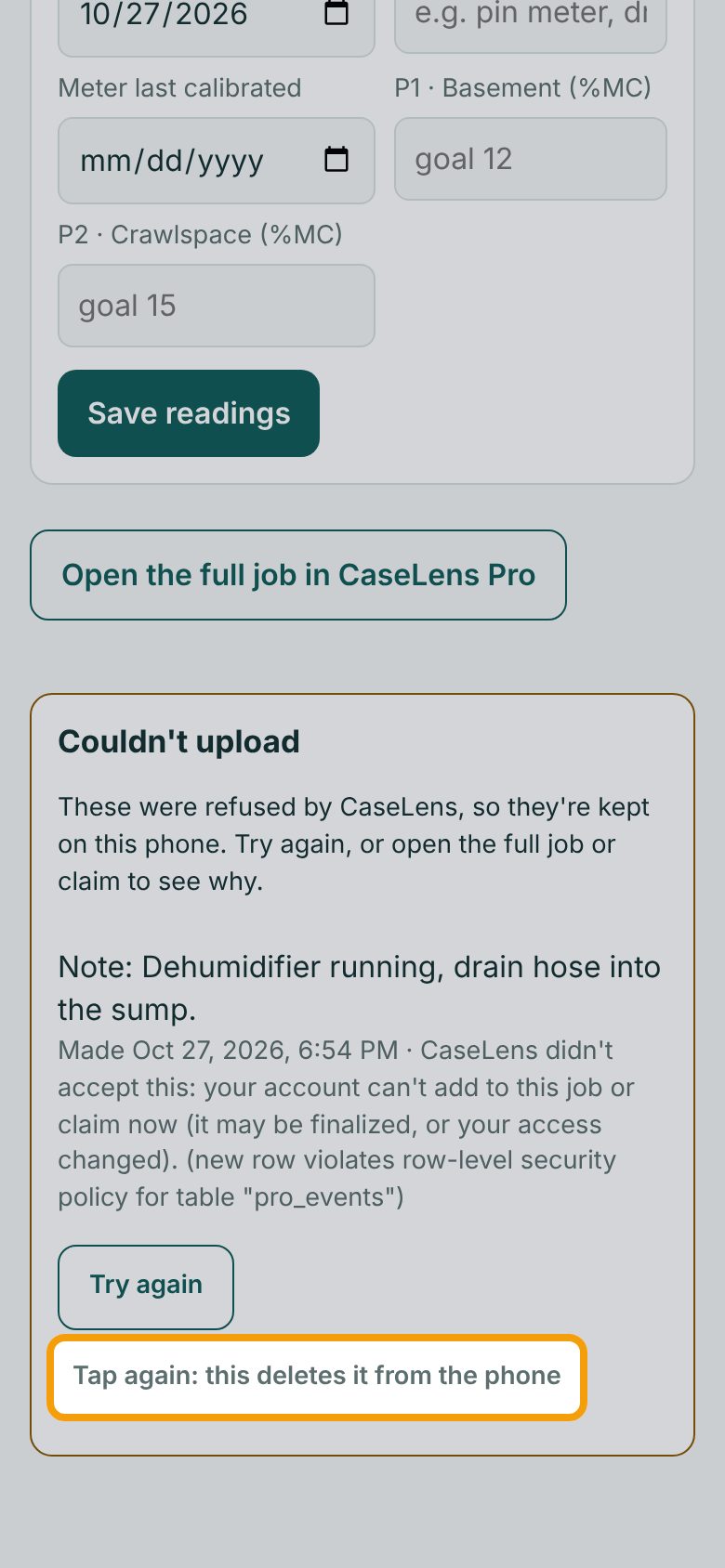
If it should never be uploaded, tap Remove from phone. The button changes to Tap again: this deletes it from the phone; tap it again to delete it for good. Copy anything you need out of it first: it was never uploaded, so CaseLens has no copy.
7All clear
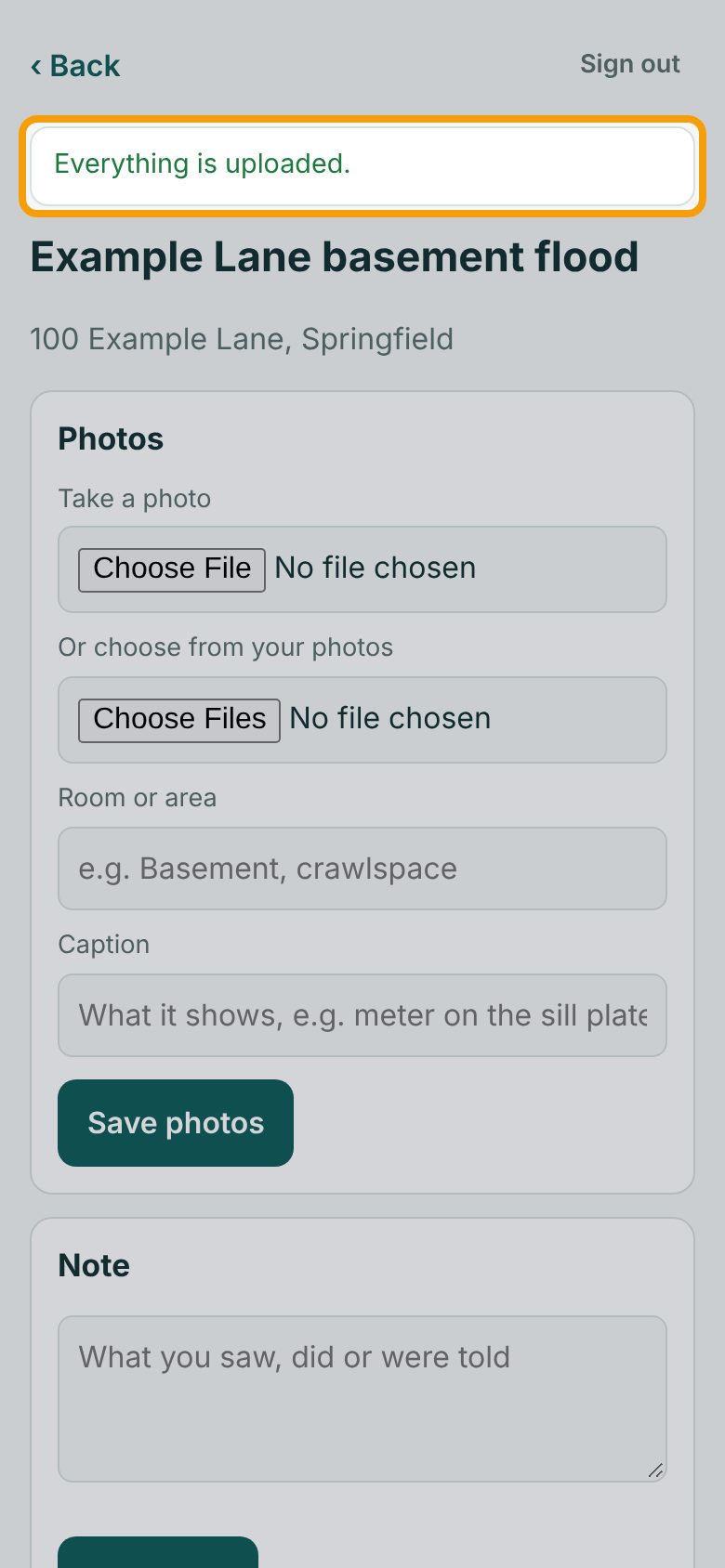
Green Everything is uploaded. means nothing is waiting on this phone. Check for it before you delete the app or hand the phone to someone else.
If something goes wrong
- It stays on "uploading…" or "Will retry"
- The phone has signal but can't reach CaseLens (weak signal, or a Wi-Fi that needs signing in). Keep the app open where the signal is better; it retries every 30 seconds and when you come back to the app.
- "Sign in again to upload"
- Your sign-in ended. Sign out and sign in again (see Sign out without losing what's waiting); everything waiting stays on the phone and uploads once you're signed in.
- "The photo is no longer on this phone."
- The phone cleared the app's stored photo, usually when it ran short of space. Tap Remove from phone, then add the photo again from your photo library.
- Things only upload while the app is open
- That's how the test app works for now. After you come up from a basement, open the app for a minute until it says Everything is uploaded.