Make a home inventory and add damaged items to a claim
Photograph and value your belongings room by room, then after a loss add the affected items to your claim and print the contents list your adjuster asks for. About 2 minutes a room, plus 5 minutes after a loss.
Watch it (2:45, no sound)
- Your phone, charged, to walk from room to room.
- A rough idea of what each thing would cost to buy again. Brand labels and receipts help but can wait.
- For the second half: a claim started in Claim Diary.
Step by step
1Open the inventory
Tap Inventory at the top of any page (or Open the inventory on Your claims). It's kept apart from your claims, so you can make it before anything happens.
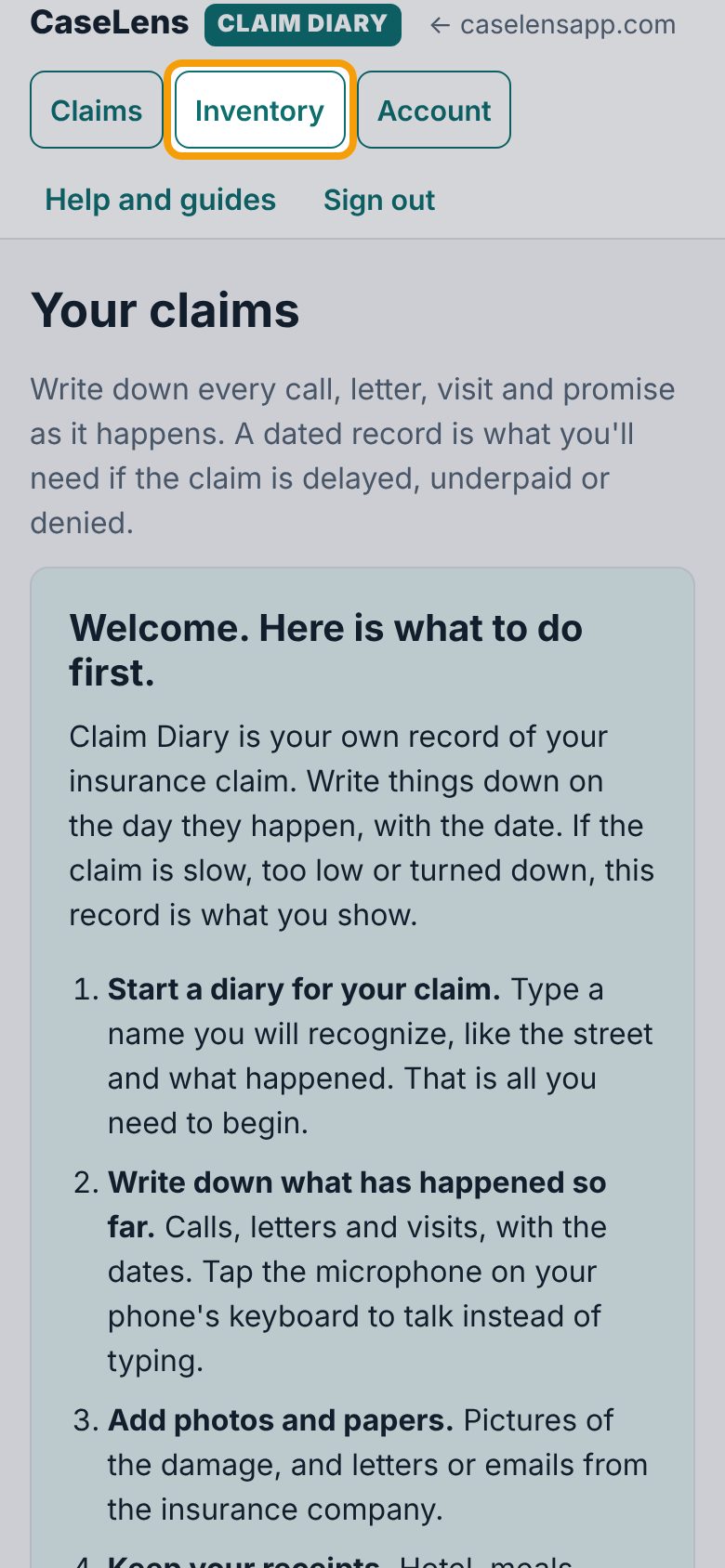
2Add your rooms
Under Rooms, tap the rooms you have, like + Kitchen and + Living room. For any other room, type its name under Add a room and tap Add room.
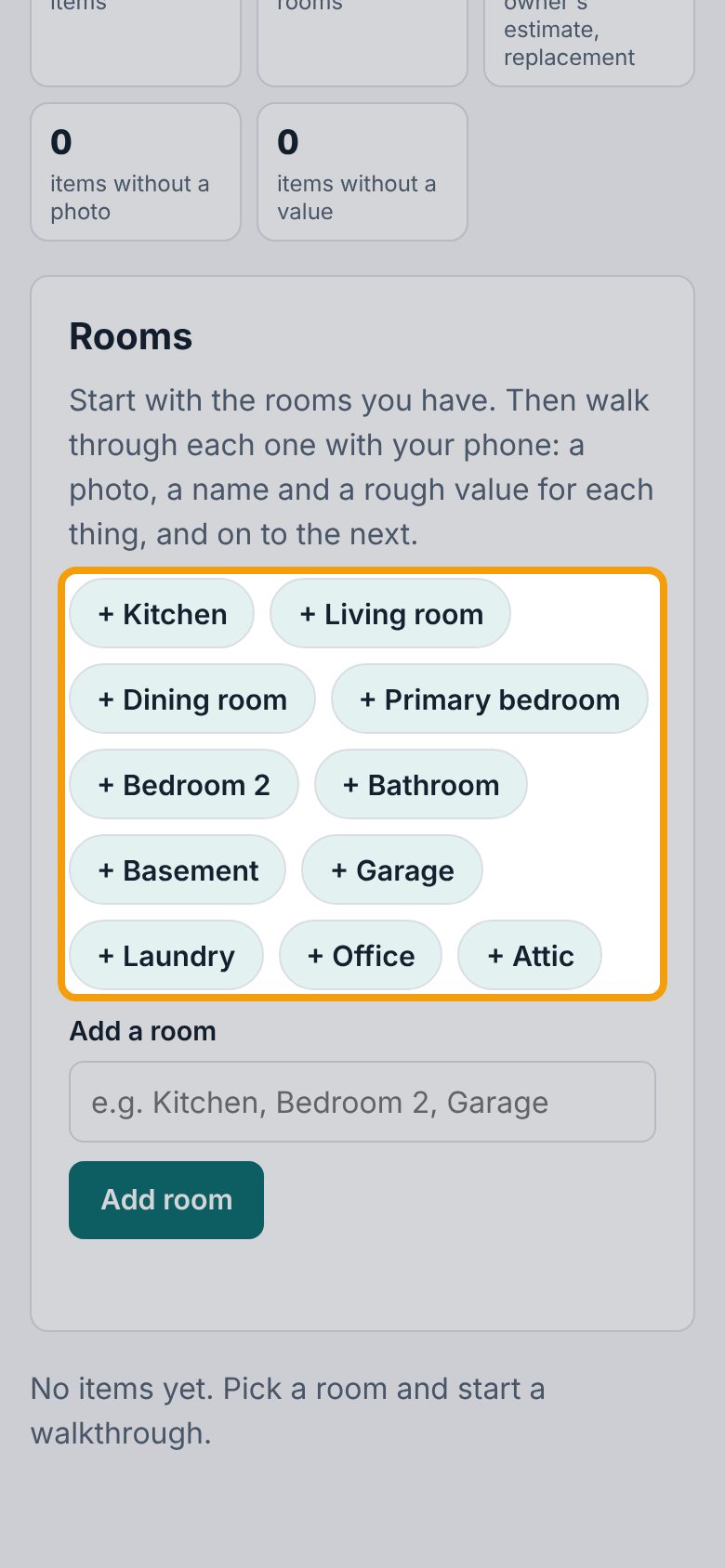
3Start a walkthrough
Your rooms are listed. Tap Start a walkthrough to begin in the first room, or Walk through next to a room to start there. The Walkthrough tab at the top of the inventory opens the same screen.
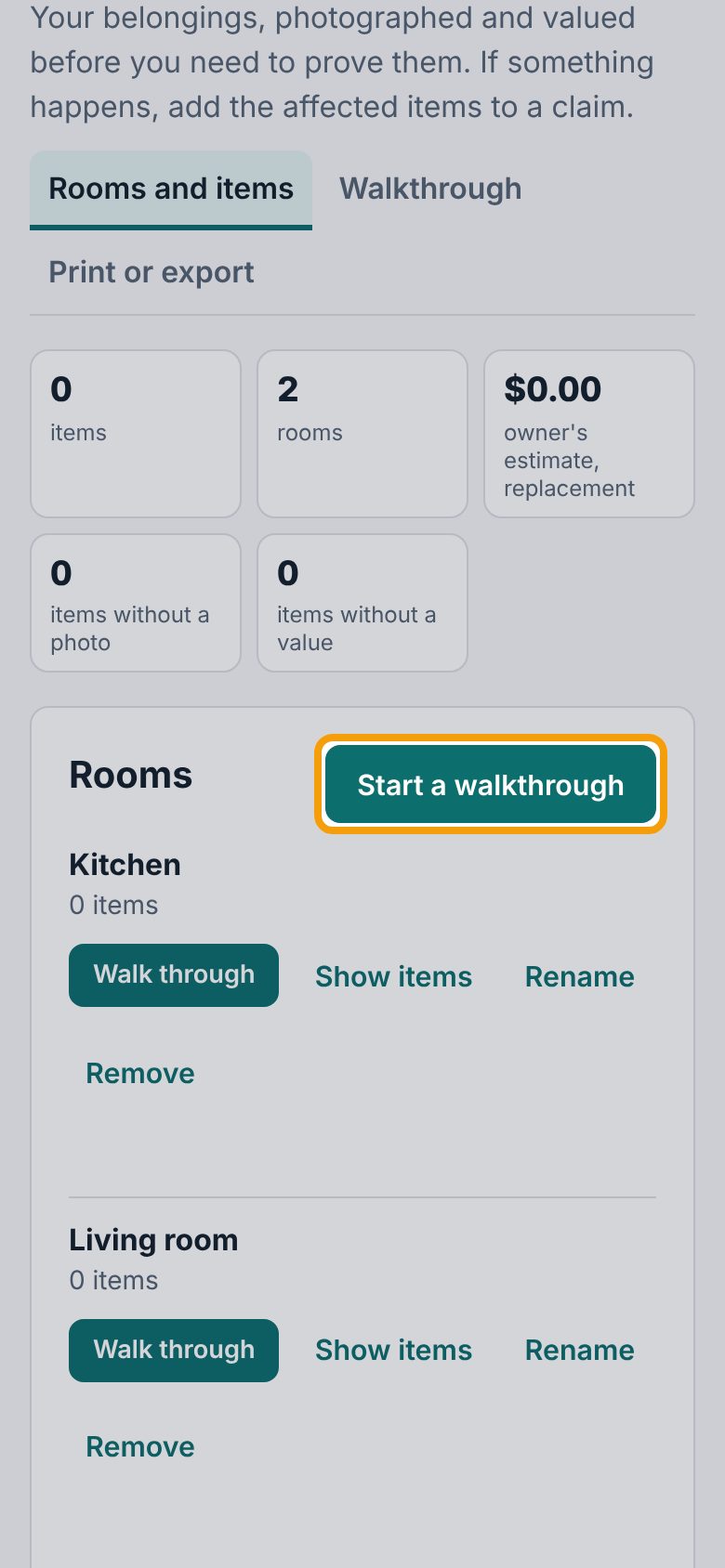
4Take a photo
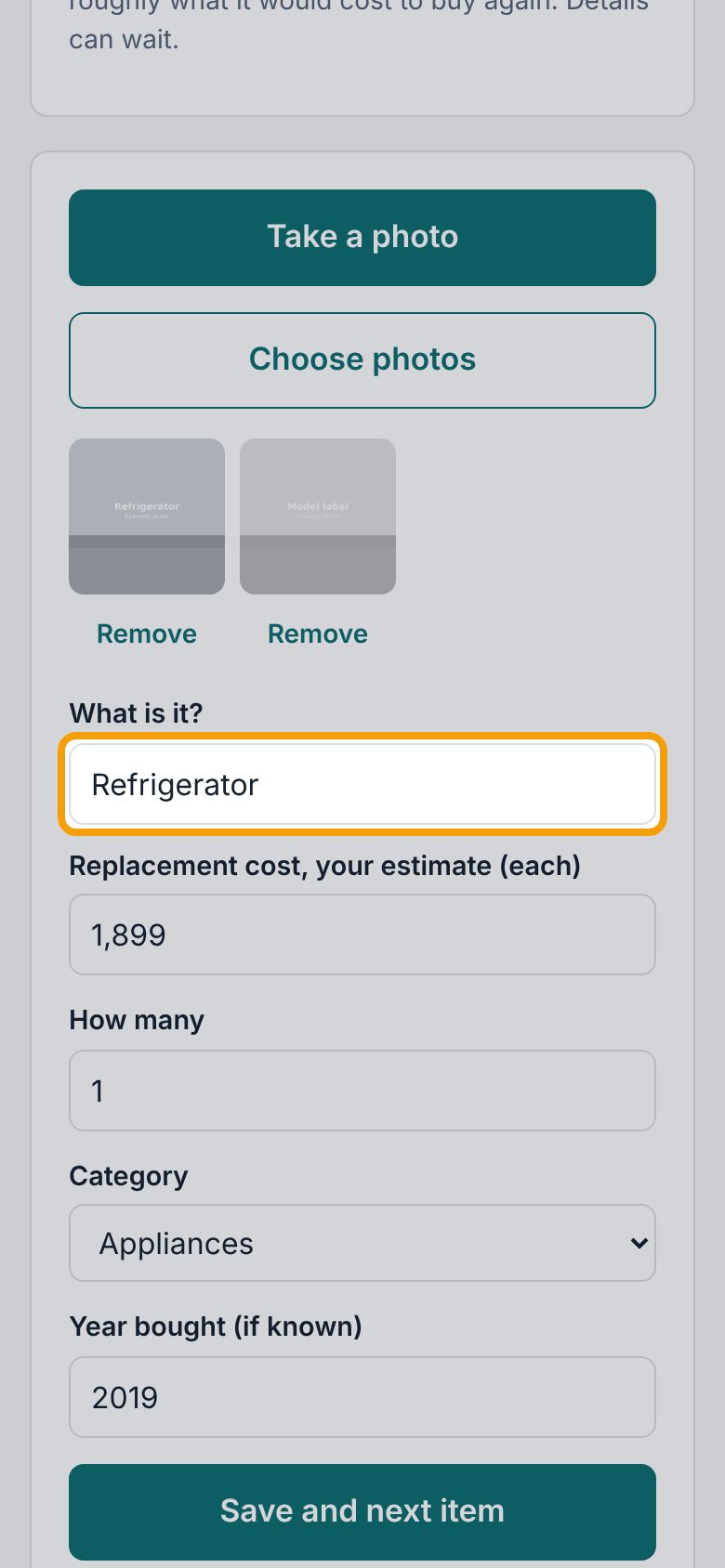
Check the Room at the top. Tap Take a photo to use the camera, or Choose photos to pick ones you've already taken. Get the whole item, then the brand label or serial plate if it has one.
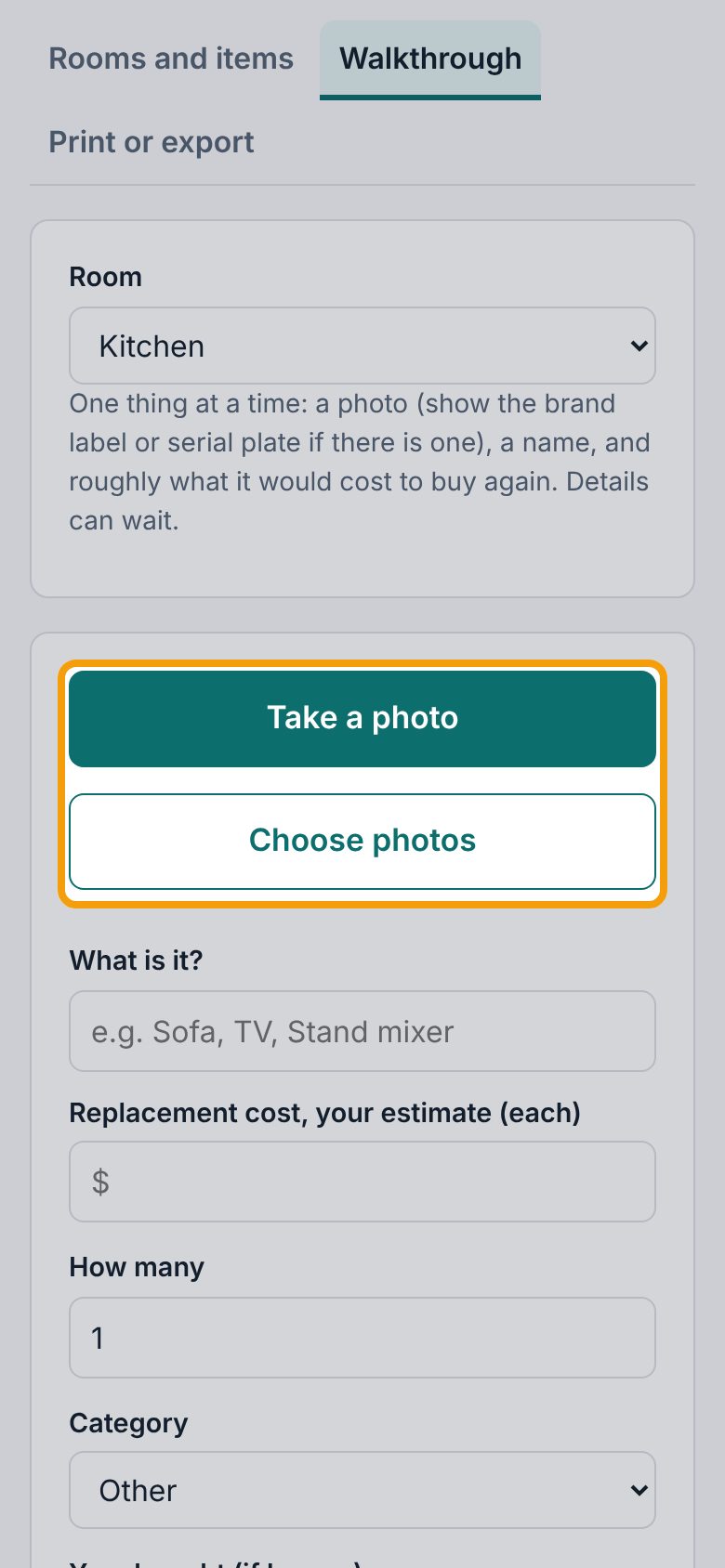
5Name it, value it, save it
The photos show under the buttons (tap Remove under one to drop it). Under What is it? type a name; it's the only thing required. Add Replacement cost, your estimate (each) (roughly what it would cost to buy again), How many, the Category and the Year bought (if known). Tap Save and next item: the form clears for the next thing in the room.
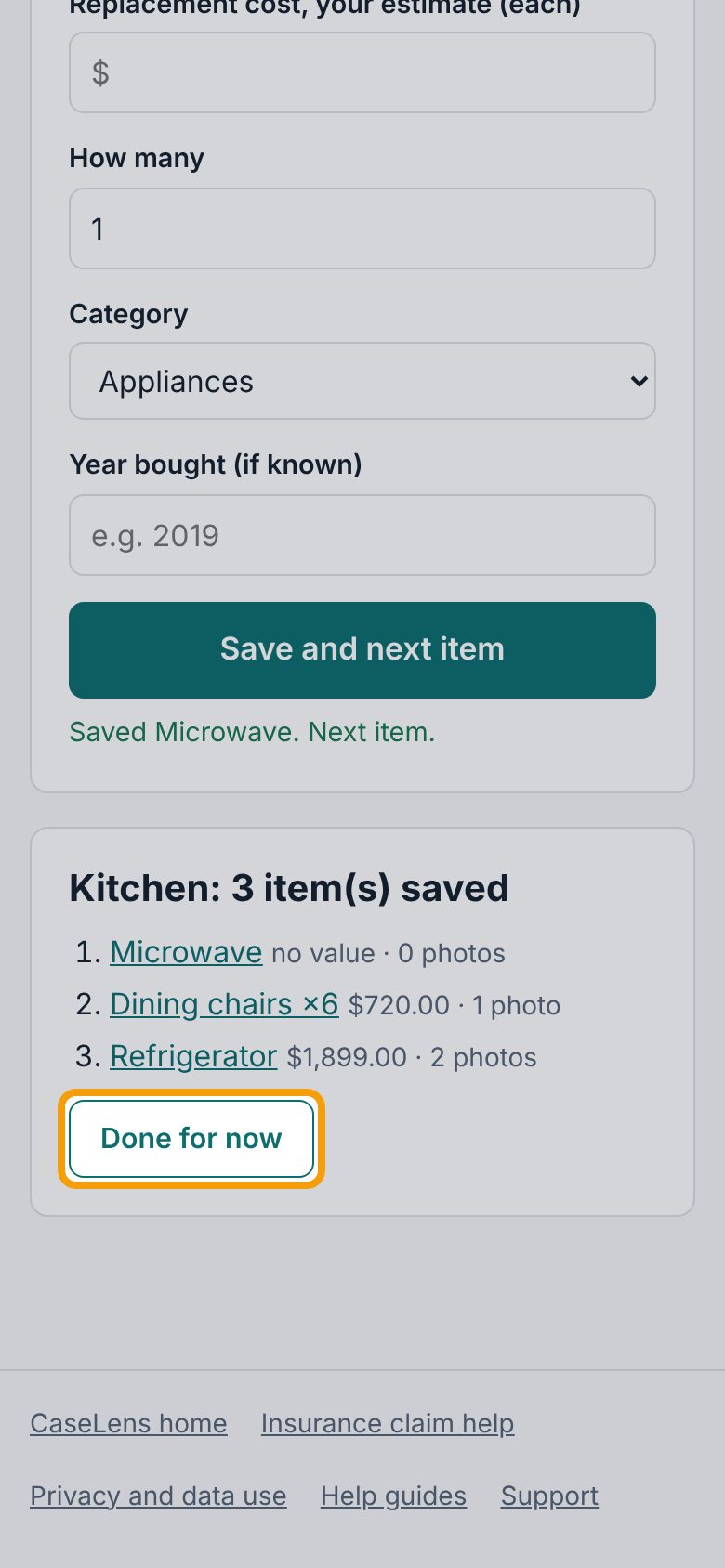
6Done for now
Everything saved in this room is listed under the form. For the next room, change Room at the top of the page. Stop any time: tap Done for now, and pick up where you left off next time.
7See what's still missing
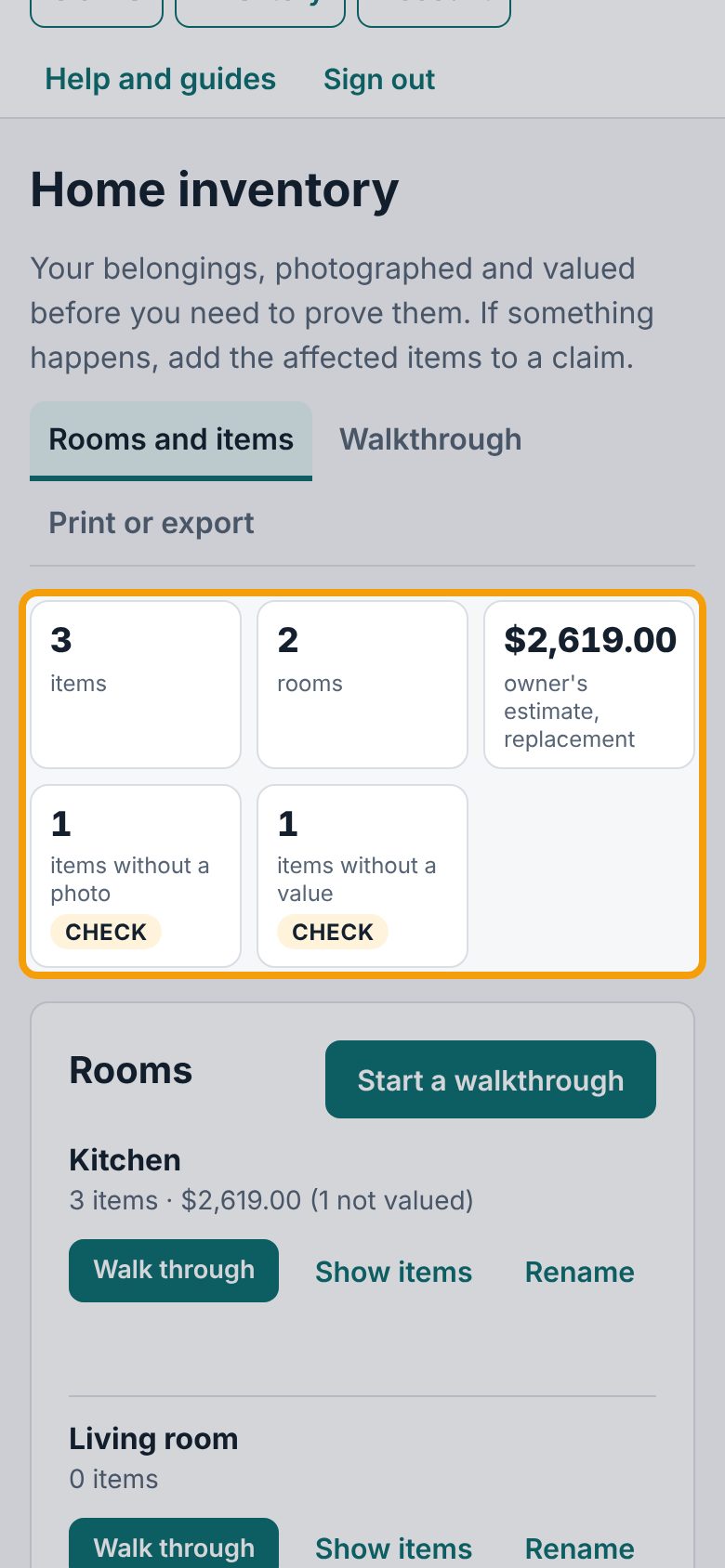
Rooms and items opens with a count of your items and rooms and your estimate of what it would cost to replace them. The items without a photo and items without a value boxes count what still needs finishing (here, the microwave), marked Check. Below them are totals by room and category.
8Open an item
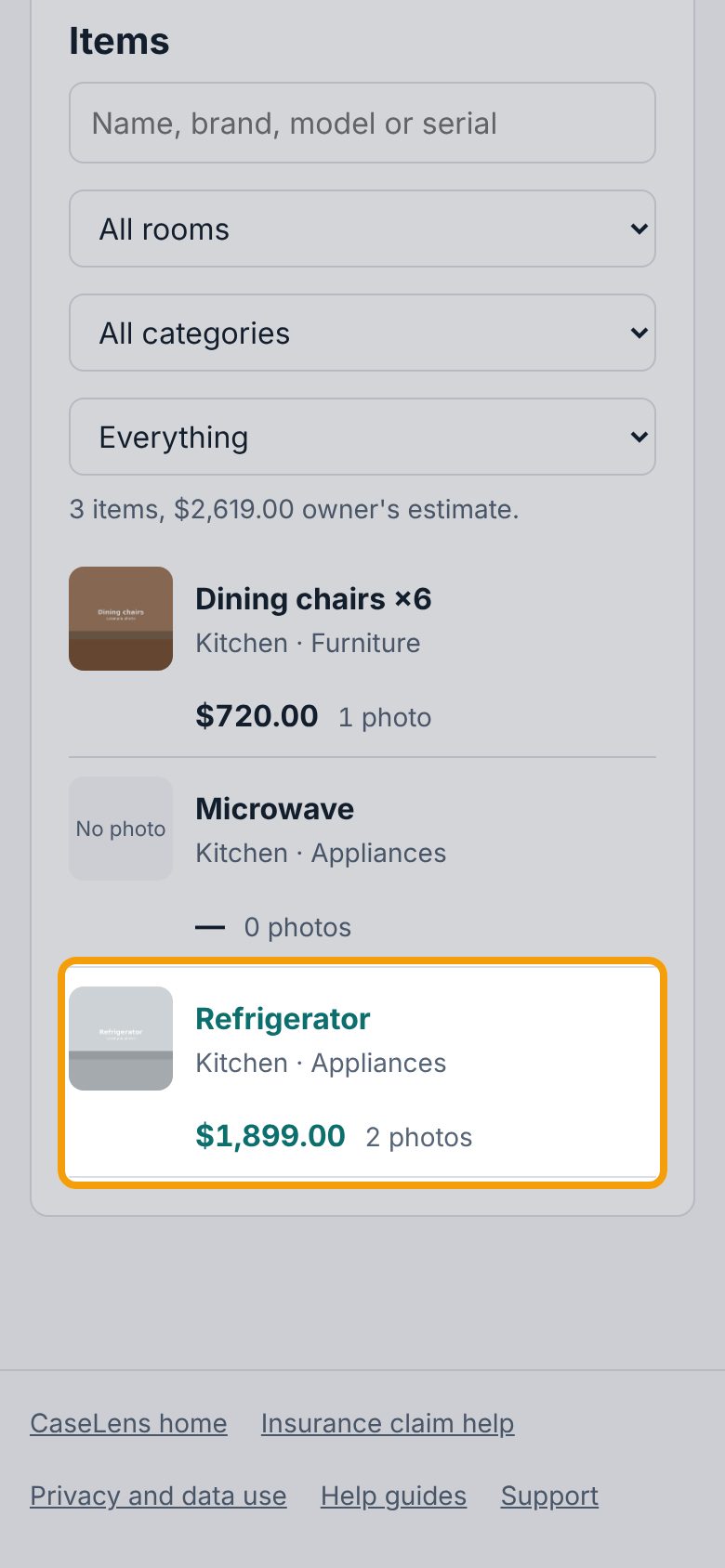
Scroll down to Items: every item with its room, value and number of photos. Use the search box and the lists above it to find one. Tap an item, like Refrigerator, to add more detail.
9Add item details
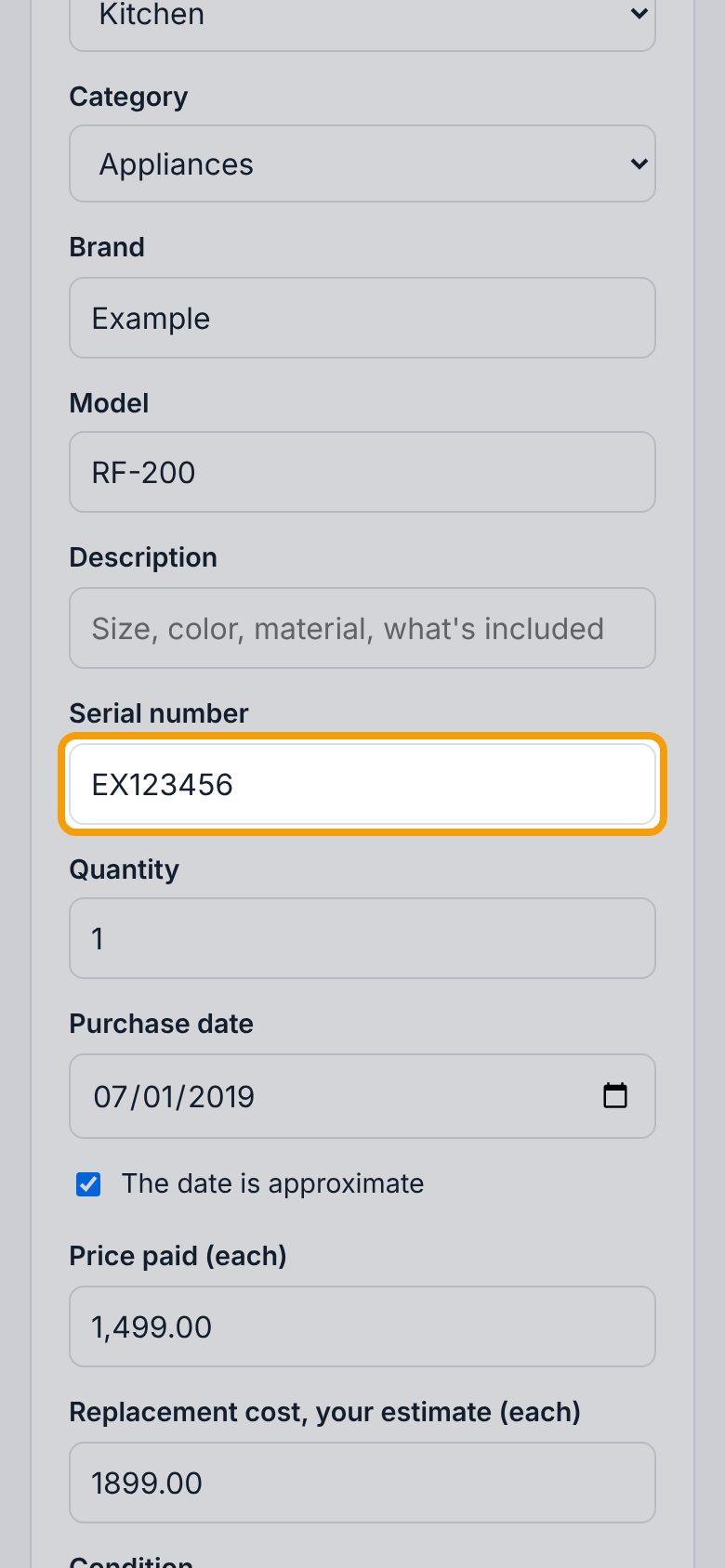
On the item's page, add what you know: Brand, Model, Serial number, Price paid (each), Condition. Tap Save changes at the bottom of that box. Under Photos and files below it you can add more photos, the receipt or the manual.
10After a loss: add items to the claim
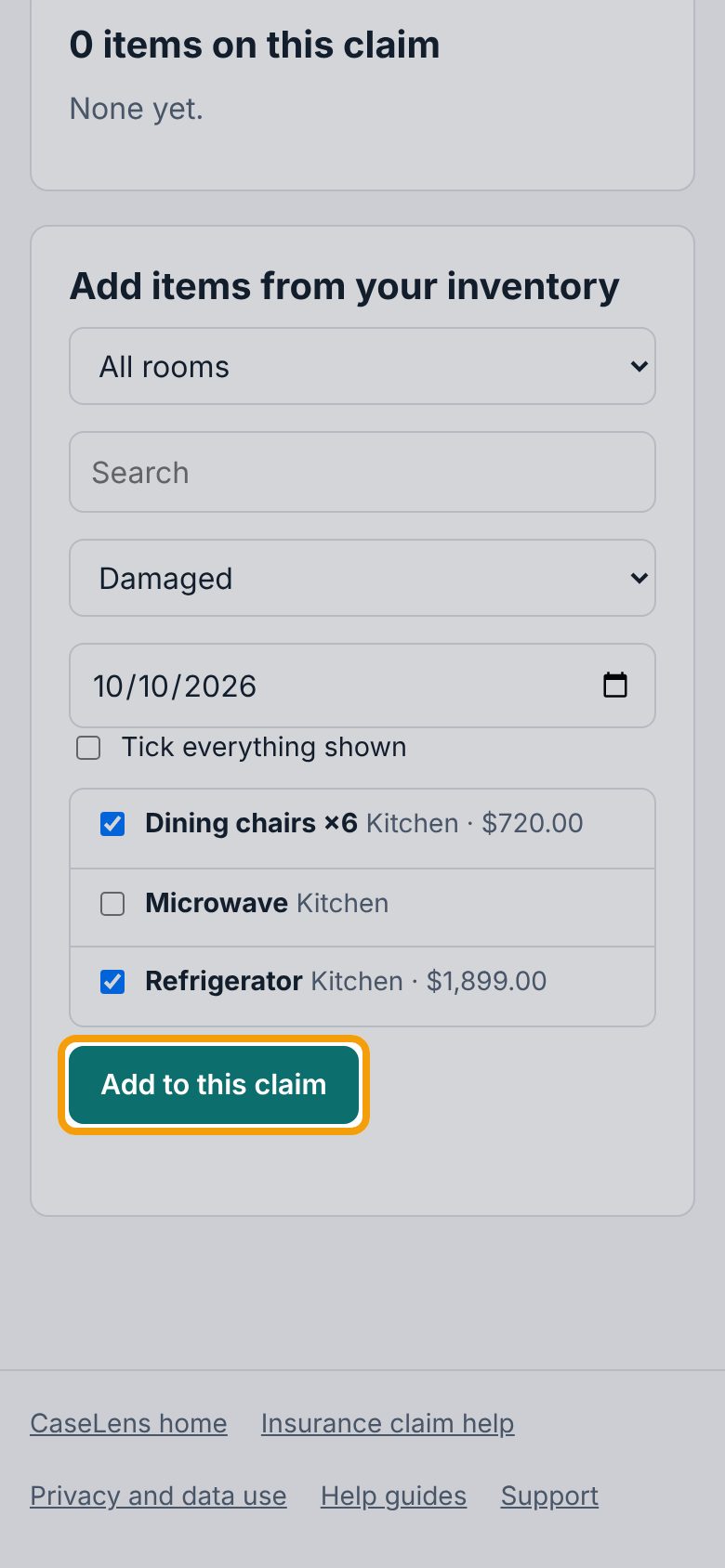
Open the claim and tap its Contents tab. Under Add items from your inventory, tick each affected item (or Tick everything shown; pick a room first to narrow the list). Choose what happened (Damaged, Destroyed and so on), set the date to the day of the loss (it starts at today), then tap Add to this claim.
11Set what happened to each
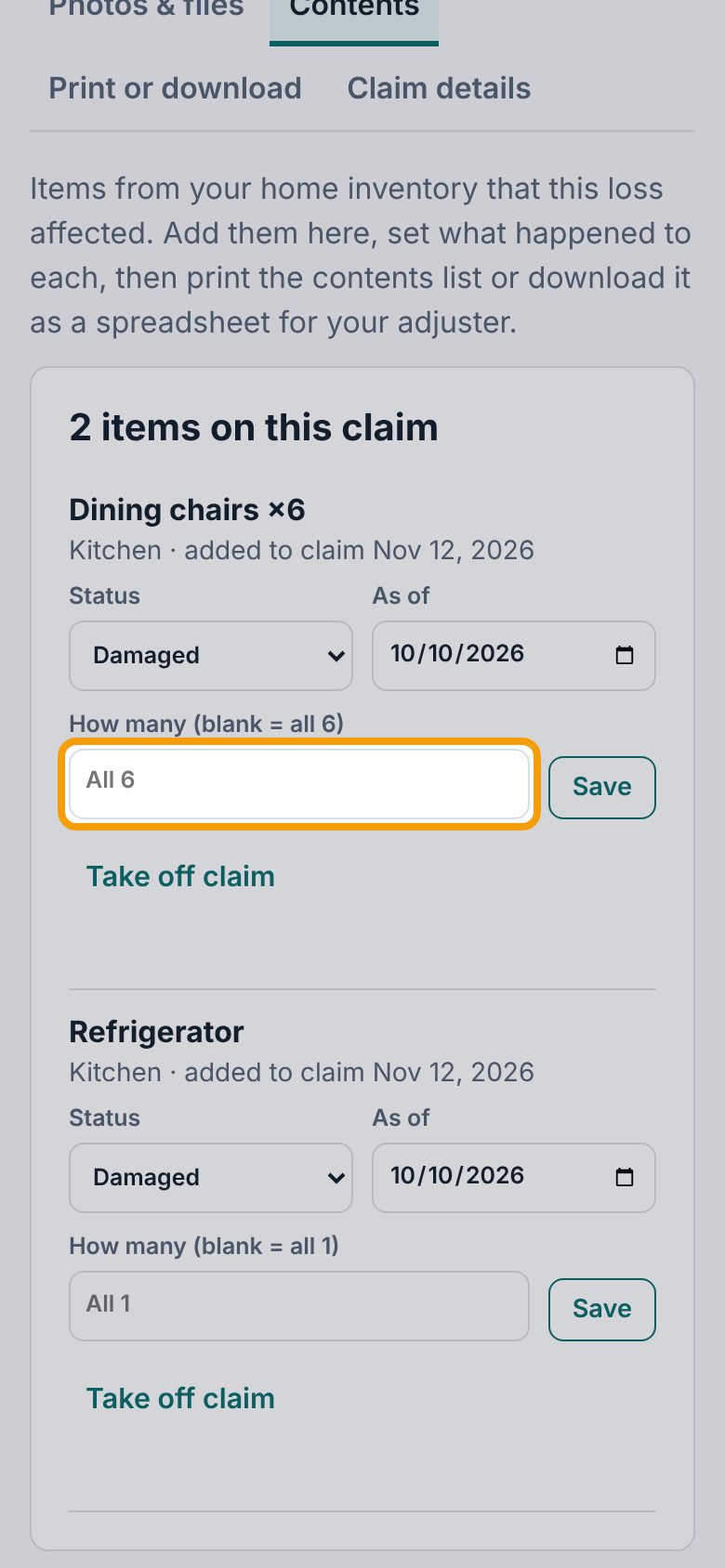
The items are listed under 2 items on this claim, each with its status, date and how many. If only some of a set were affected (say 4 of the 6 chairs), type that number in the box that says All 6, then tap Save under it. Change the status or date the same way.
12Print the contents list
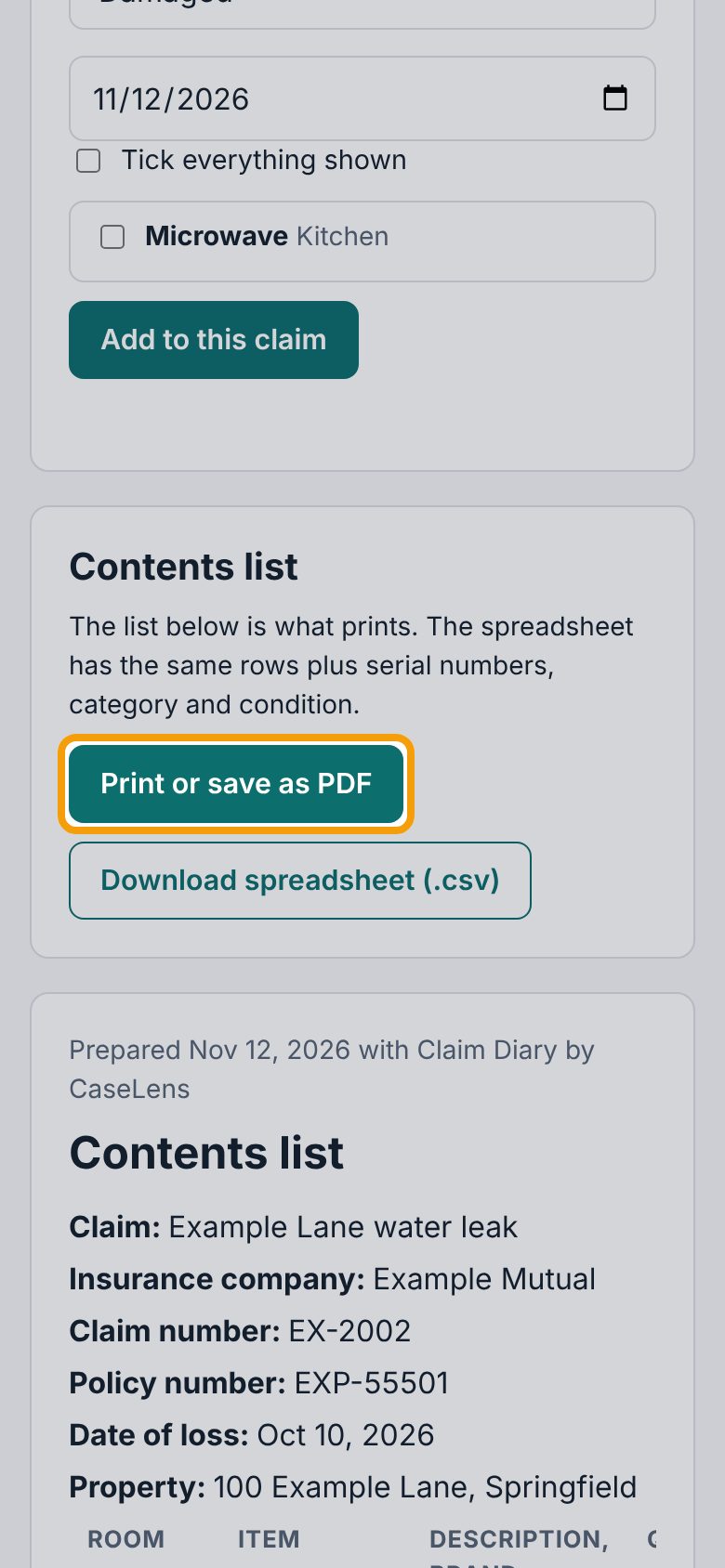
Under Contents list, tap Print or save as PDF to print it or save it as a PDF to send to your adjuster, or Download spreadsheet (.csv) if they want a spreadsheet. The list below the buttons is what prints: room, item, age, prices, your replacement estimate and status. On a phone, swipe the list sideways to see every column.
If something goes wrong
- "Give the item a name."
- What is it? is the one thing every item needs. Type a short name like "Sofa".
- "The value should be a dollar figure."
- Type just the number, like 1,899 or 120.50.
- "How many should be a whole number, 1 or more."
- Type a whole number under How many, like 1 or 6.
- "Your home inventory is empty." on the claim's Contents tab
- Add the items first under Inventory at the top (you can do it after the loss too, from memory and old photos), then come back to Contents.