Print or export your home inventory
Make a copy of your whole home inventory to keep somewhere other than the house: a printout, a PDF or a spreadsheet. About 3 minutes.
Watch it (1:26, no sound)
- A home inventory with at least a few items in it (see Make a home inventory and add damaged items to a claim).
- A printer, or somewhere safe to save a file: an email to yourself, a cloud drive, or a relative's computer.
Step by step
1Open Print or export
Tap Inventory at the top of any page, then the Print or export tab. This copy is of your whole inventory. It's separate from a claim's contents list, which you print from the claim's Contents tab.
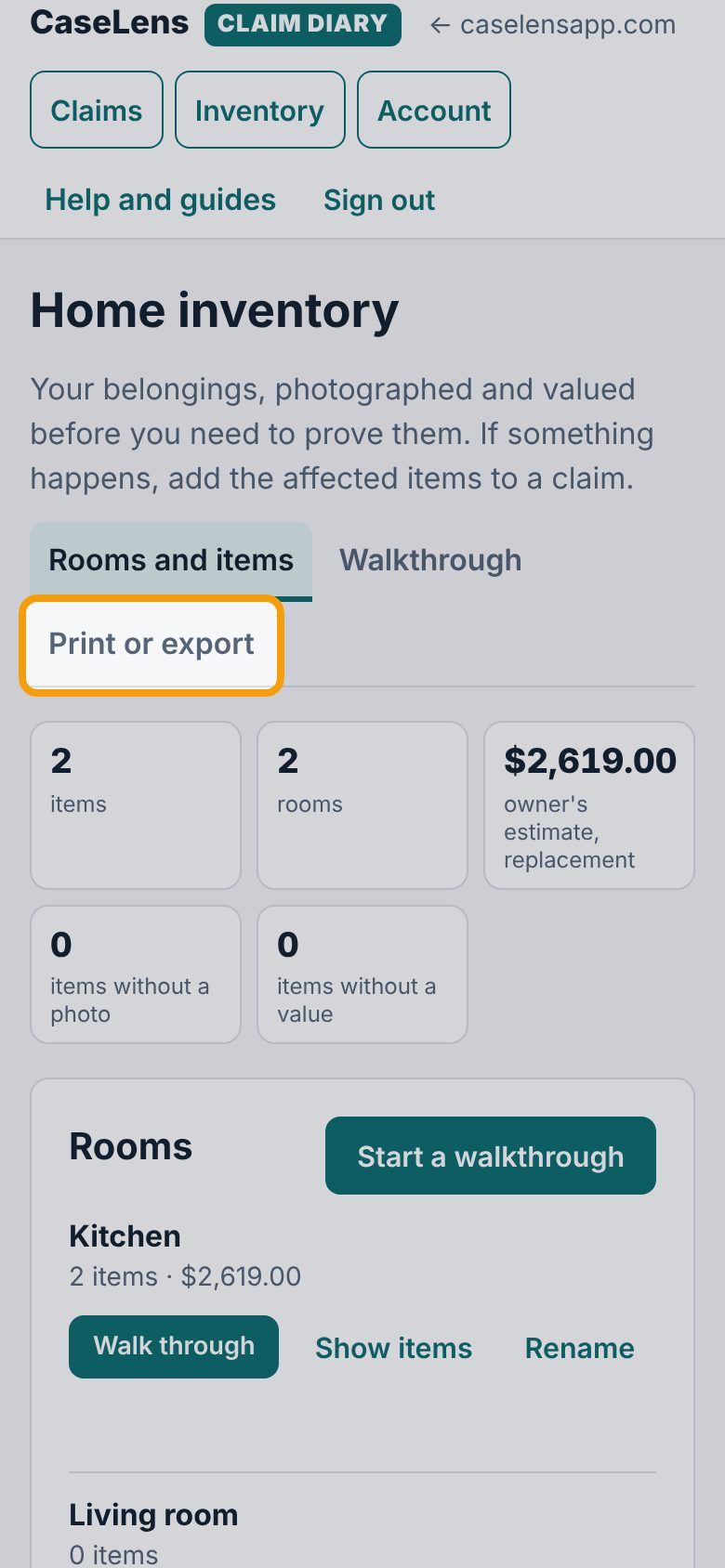
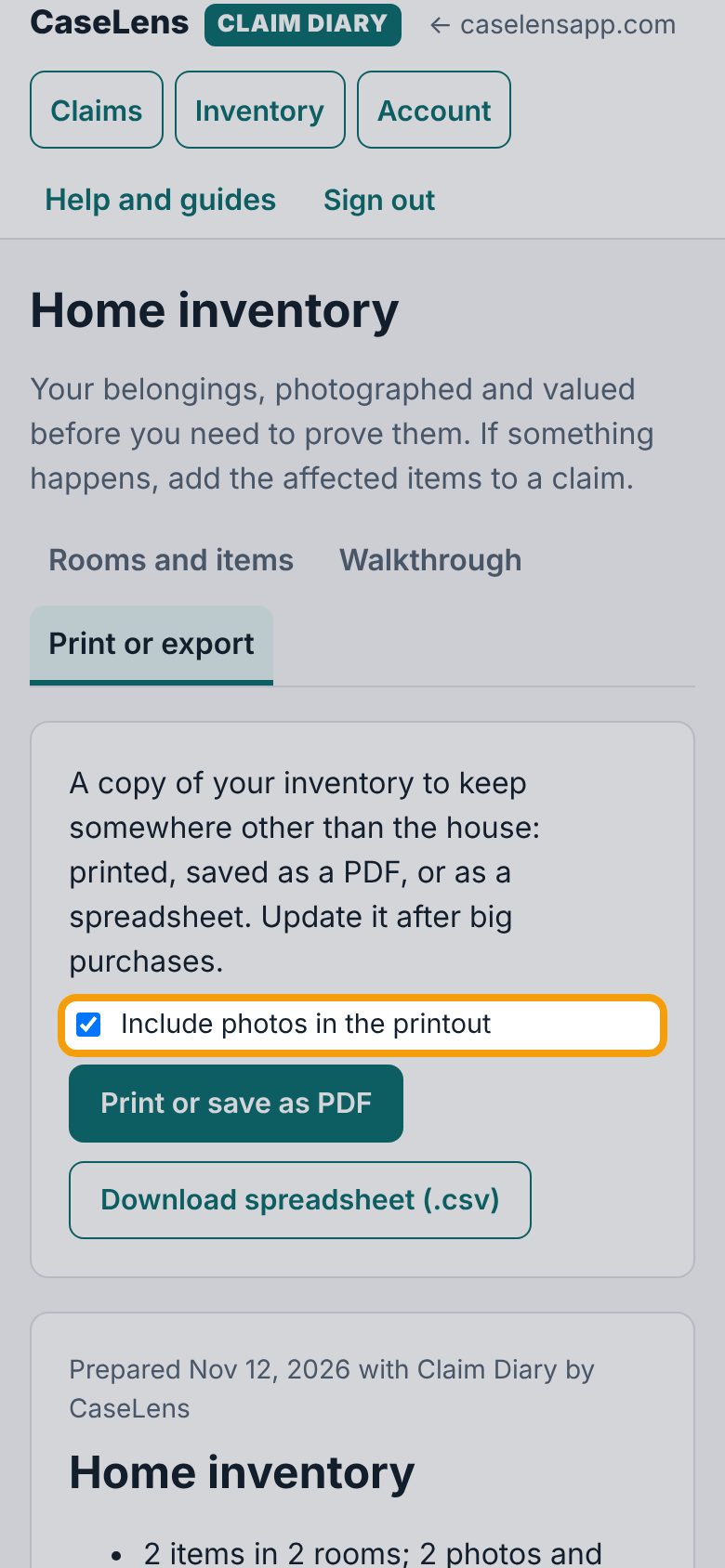
2Choose whether to include photos
Include photos in the printout is ticked to start, so each room's photos print under its items. Untick it for a shorter printout with no pictures. The list below the buttons changes to show exactly what will print.
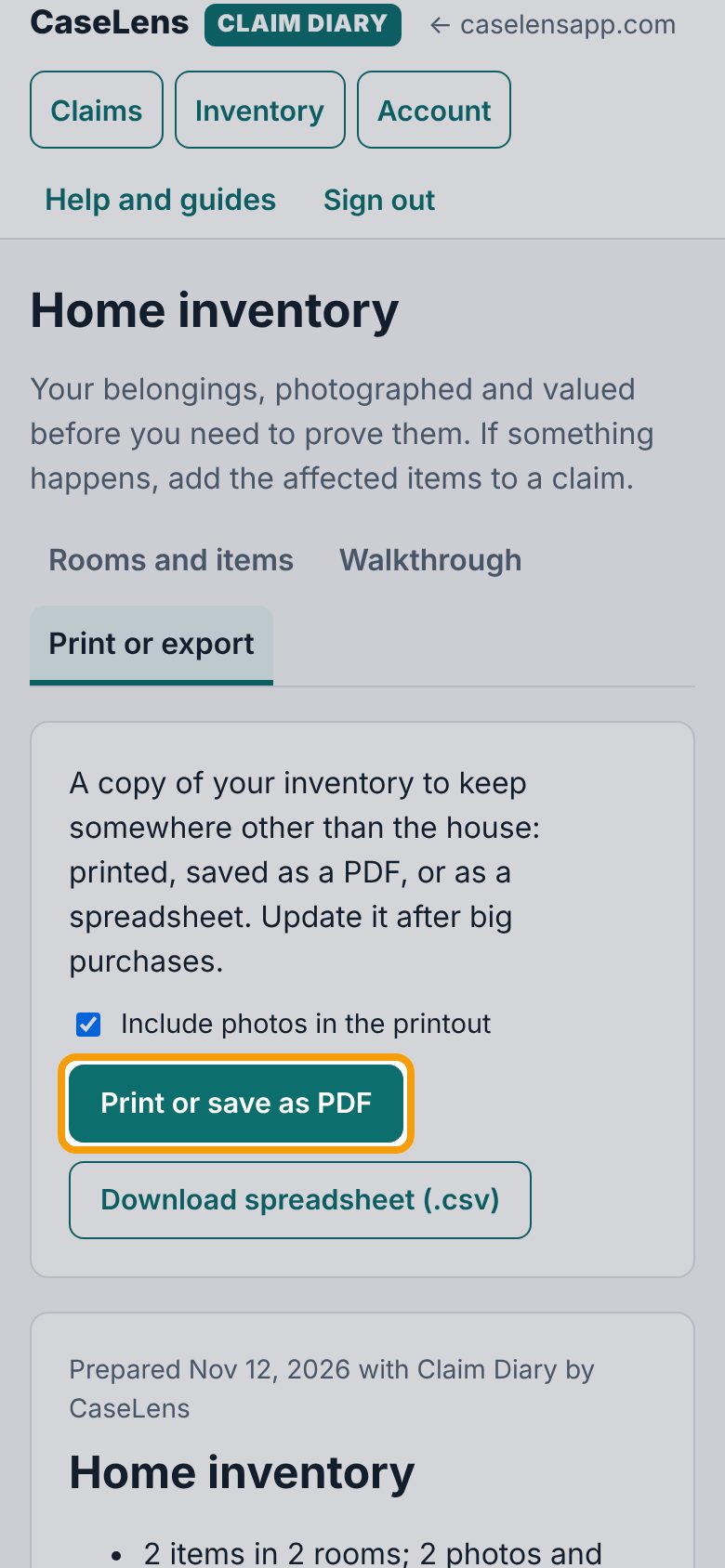
3Print it or save it as a PDF
Tap Print or save as PDF. Your device's print window opens: choose your printer, or choose Save as PDF there to get a file. Keep the copy somewhere other than the house.
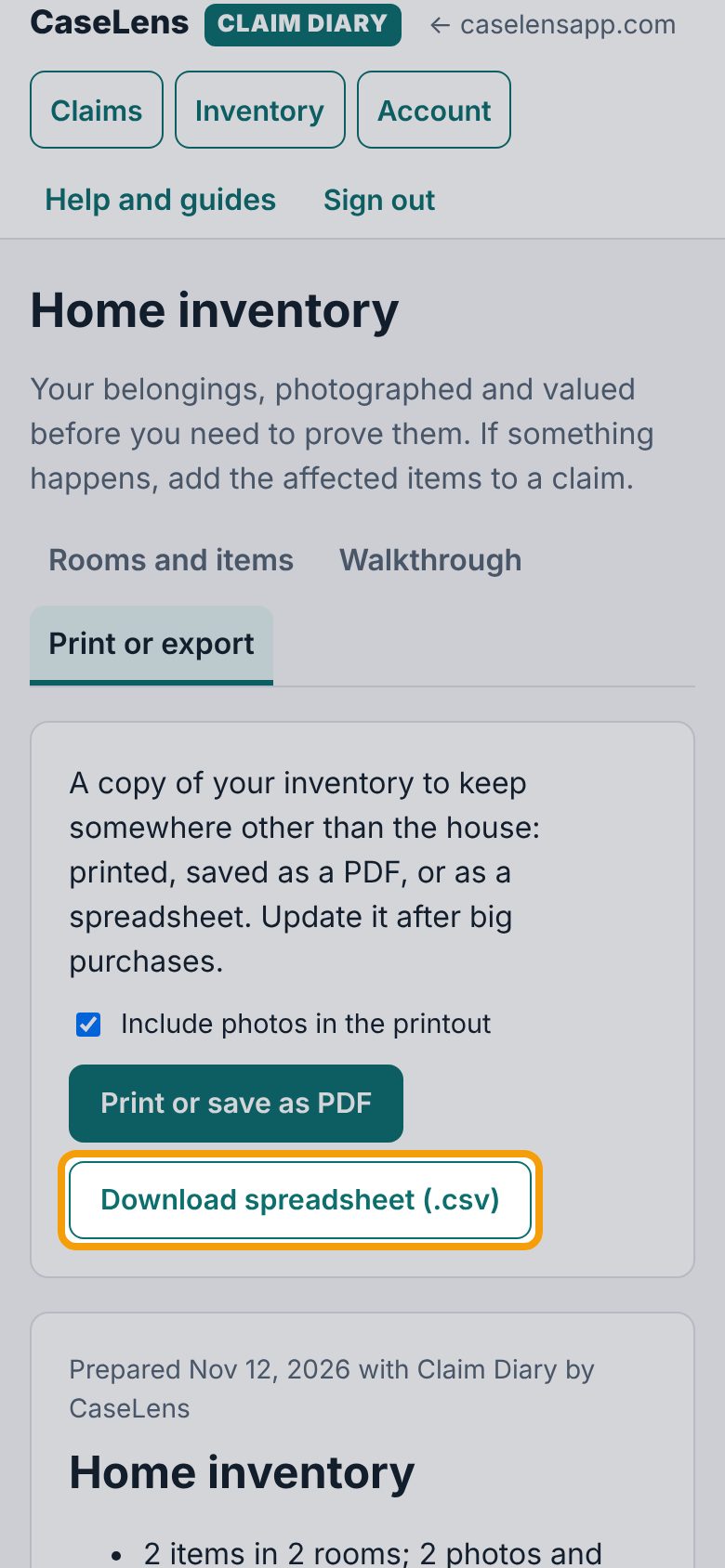
4Or download a spreadsheet
Tap Download spreadsheet (.csv) for a file that opens in Excel or Google Sheets. It has one row for each item with its room, brand, model, serial number, how many, what you paid, your replacement estimate, and the fingerprint of each photo and file.
5Read what the copy says
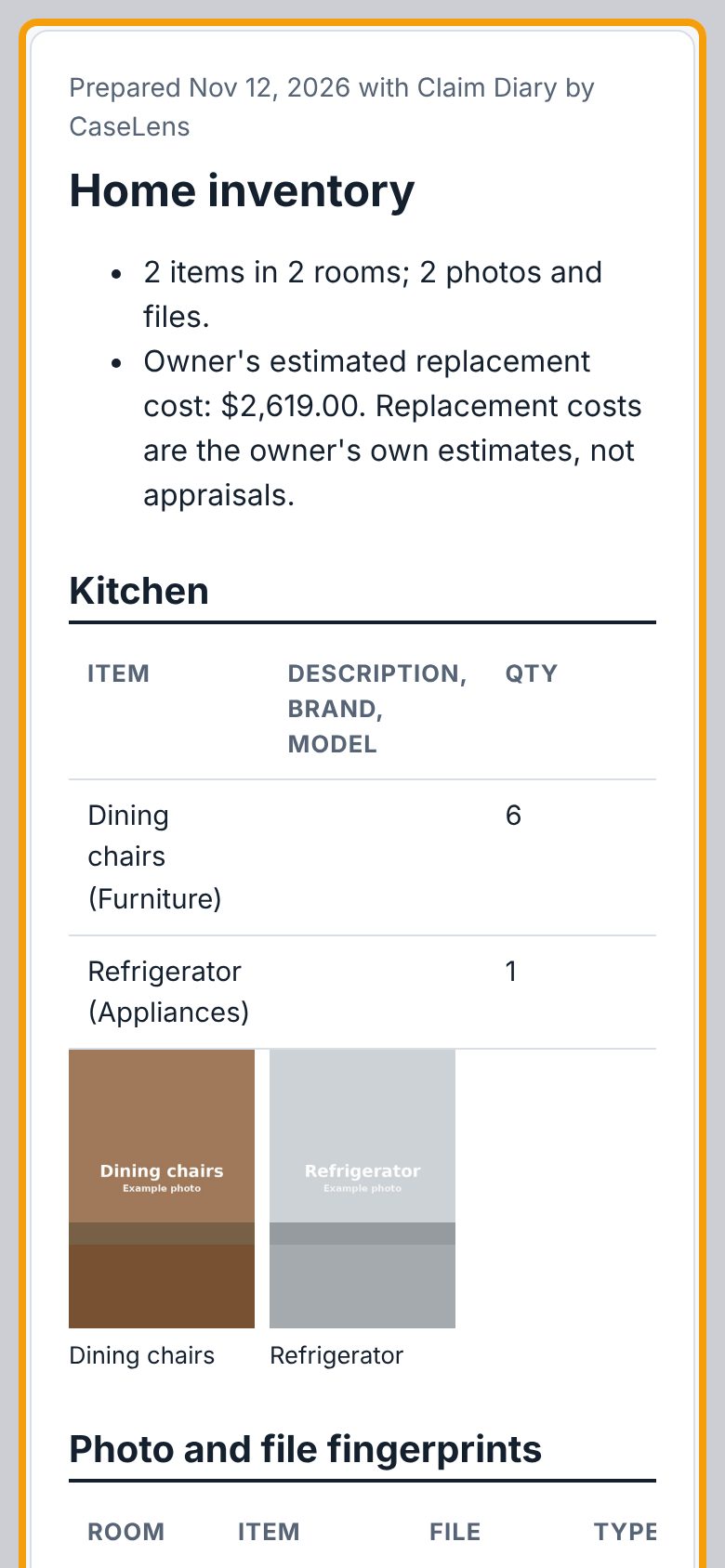
The page under the buttons is what prints. It opens with the day it was prepared, how many items, rooms and photos you have, and your estimate of what it would cost to replace them. Each room follows as a table. The costs are your own estimates, not appraisals, and the copy says so.
6The fingerprints and the history check
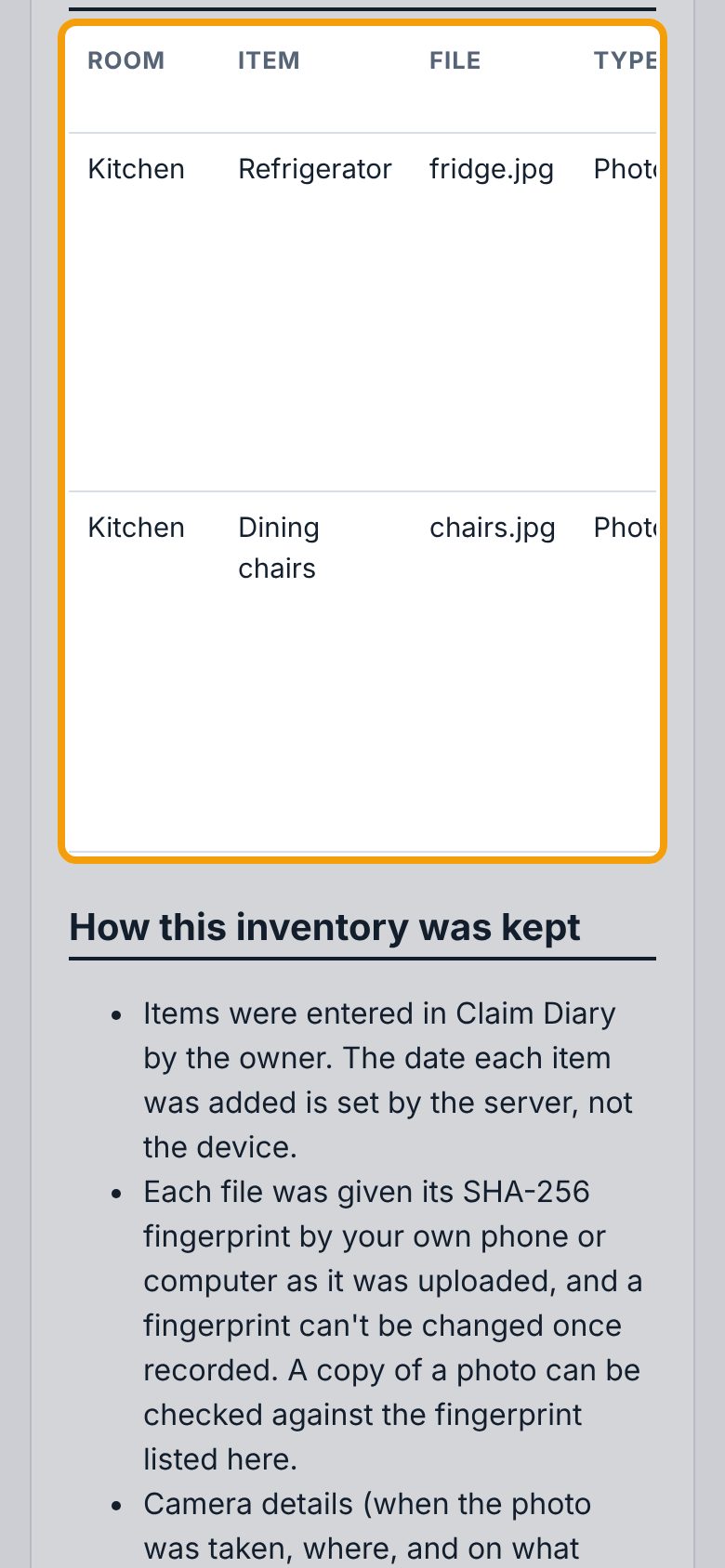
Near the end, Photo and file fingerprints lists every photo with when it was uploaded and what its own file says about when it was taken. How this inventory was kept explains how the record is protected, and the last line says whether the change history check passed. That check is run by CaseLens; it is not an independent audit.
If something goes wrong
- The printout has no items
- Your inventory is empty. Add rooms and items under Rooms and items or the Walkthrough tab first, then come back to Print or export.
- Photos are missing from the printout
- Check that Include photos in the printout is ticked, and wait a few seconds after opening the tab for the photos to load before you print. Only photos print as pictures; receipts and manuals are listed by name.
- "Change history check: not available when this was prepared."
- The check couldn't be run just then, often because the connection dropped. Reload the page and wait for the last line to say the history was checked before you print.
- I only want the items on my claim
- Open the claim and use its Contents tab instead. See Make a home inventory and add damaged items to a claim.