Log a call with your adjuster and put it in writing
Write down what the adjuster said and promised, then send them a short email that puts it in writing. About 5 minutes, right after the call.
Watch it (2:09, no sound)
- A claim started in Claim Diary (see Get started with Claim Diary).
- Your notes from the call, or the call fresh in your mind. Do this as soon as you hang up.
Step by step
1Open your claim
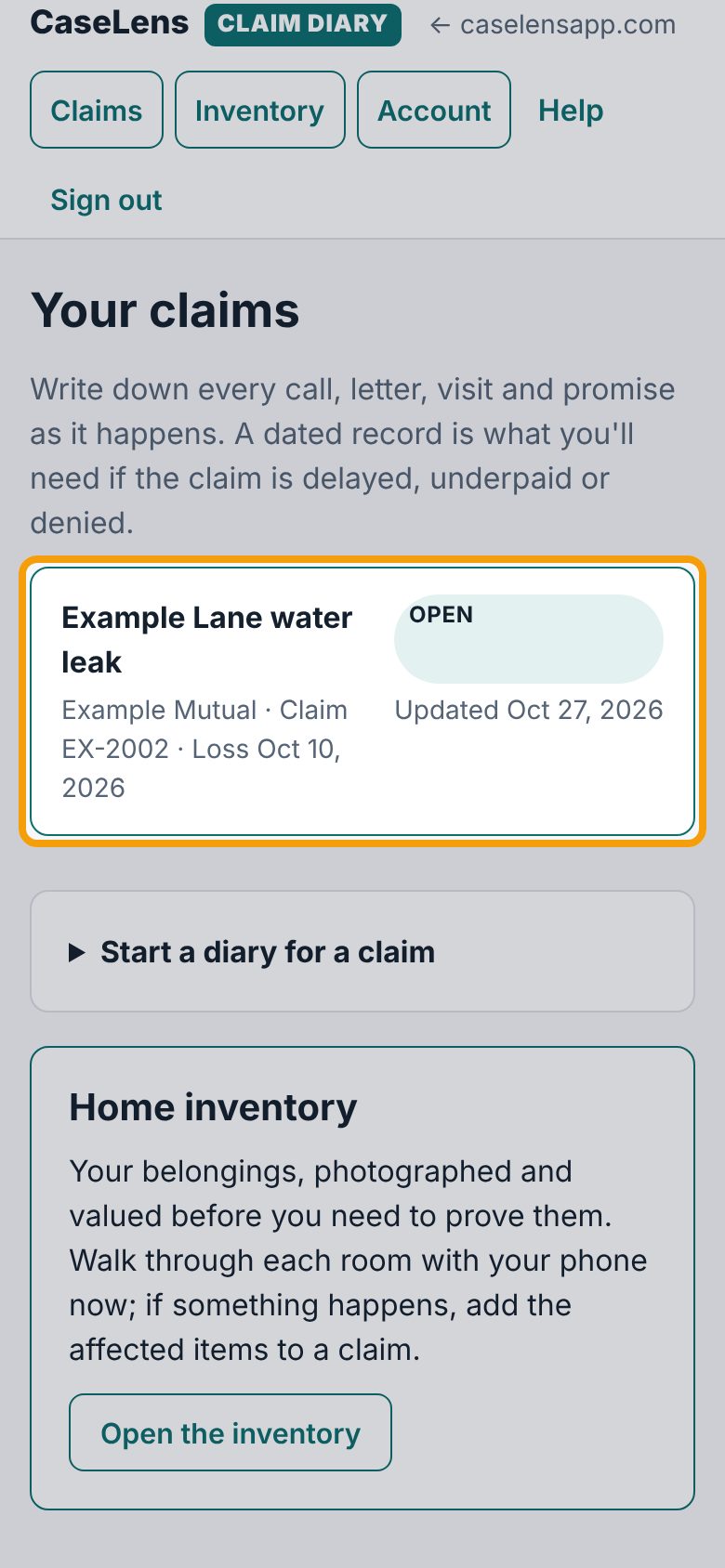
Sign in to diary.caselensapp.com. Under Your claims, tap the claim. It opens on its Diary tab.
2Say what happened and with whom
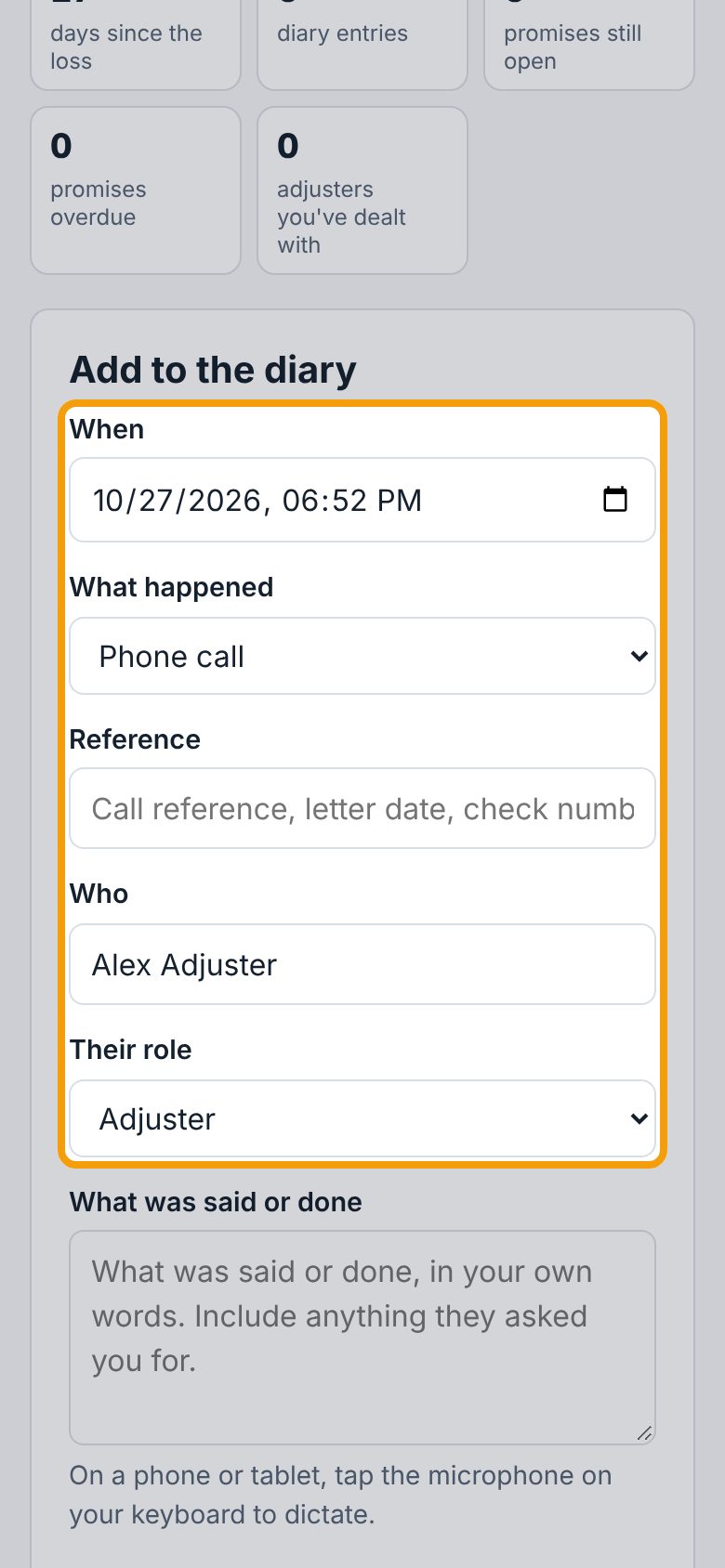
Under Add to the diary, When is already set to now; change it if the call was earlier. Set What happened to Phone call. Who and Their role start as your adjuster; change them if you spoke with someone else. Put any call or reference number under Reference.
3Write what was said
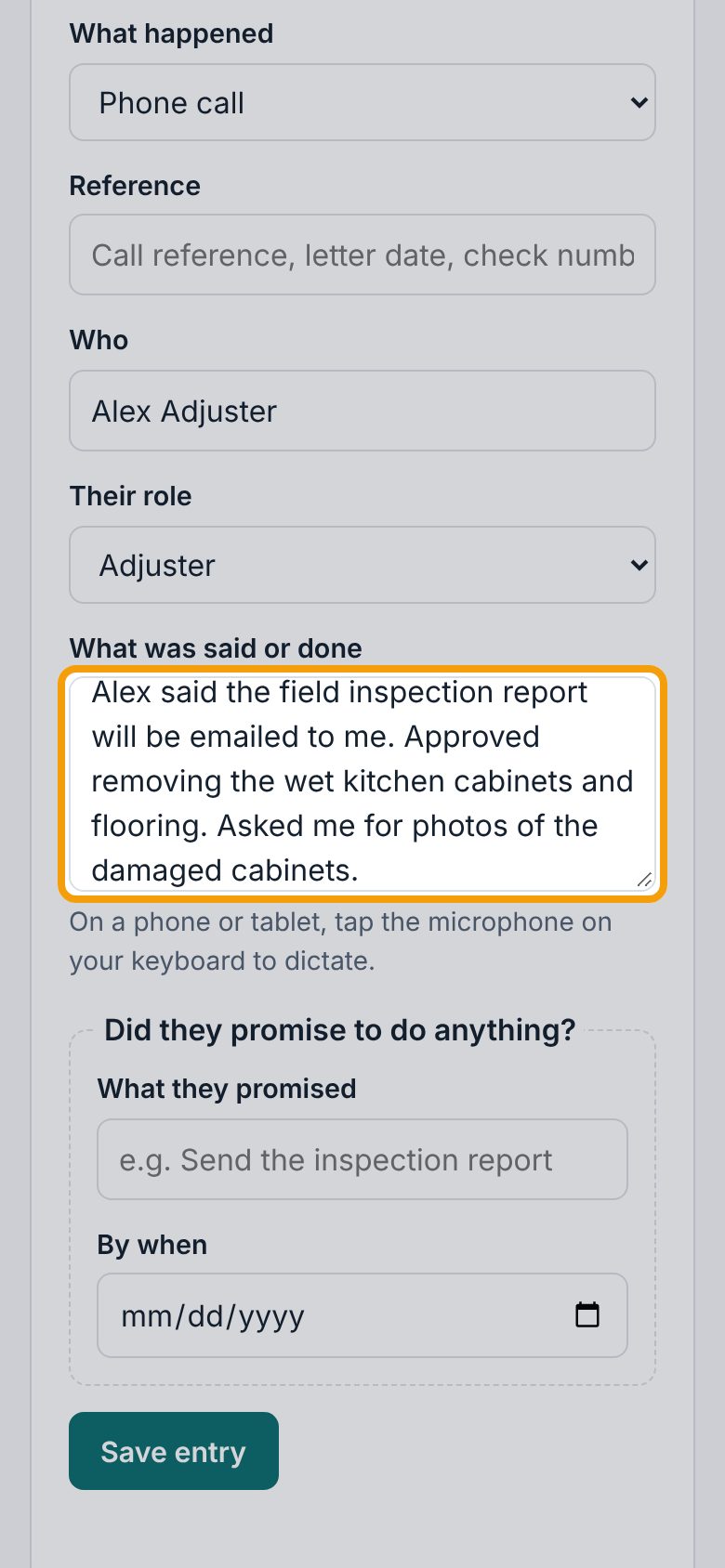
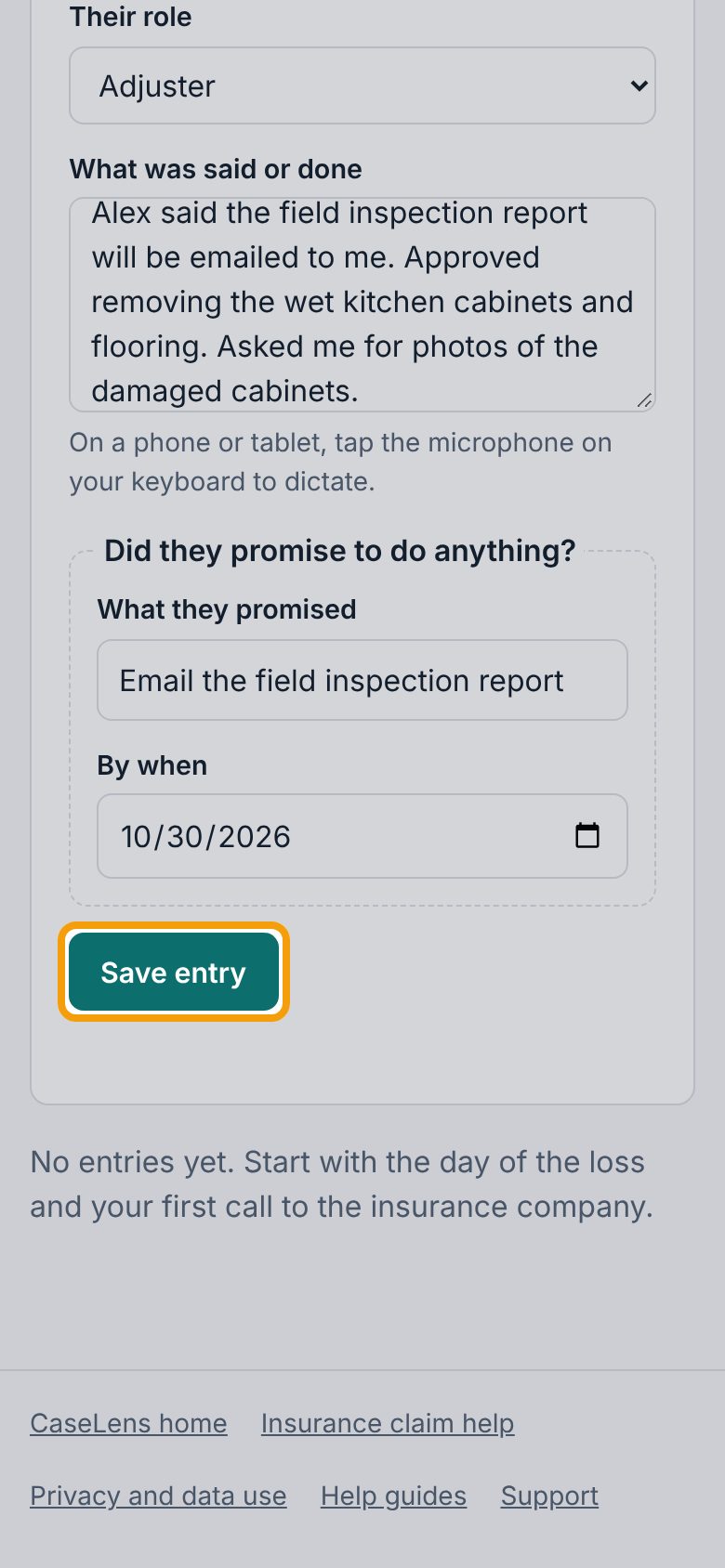
Under What was said or done, write it in your own words: what they told you, what they approved, and anything they asked you for. Tip: on a phone, tap the microphone on your keyboard to dictate instead of typing.
4Write down any promise
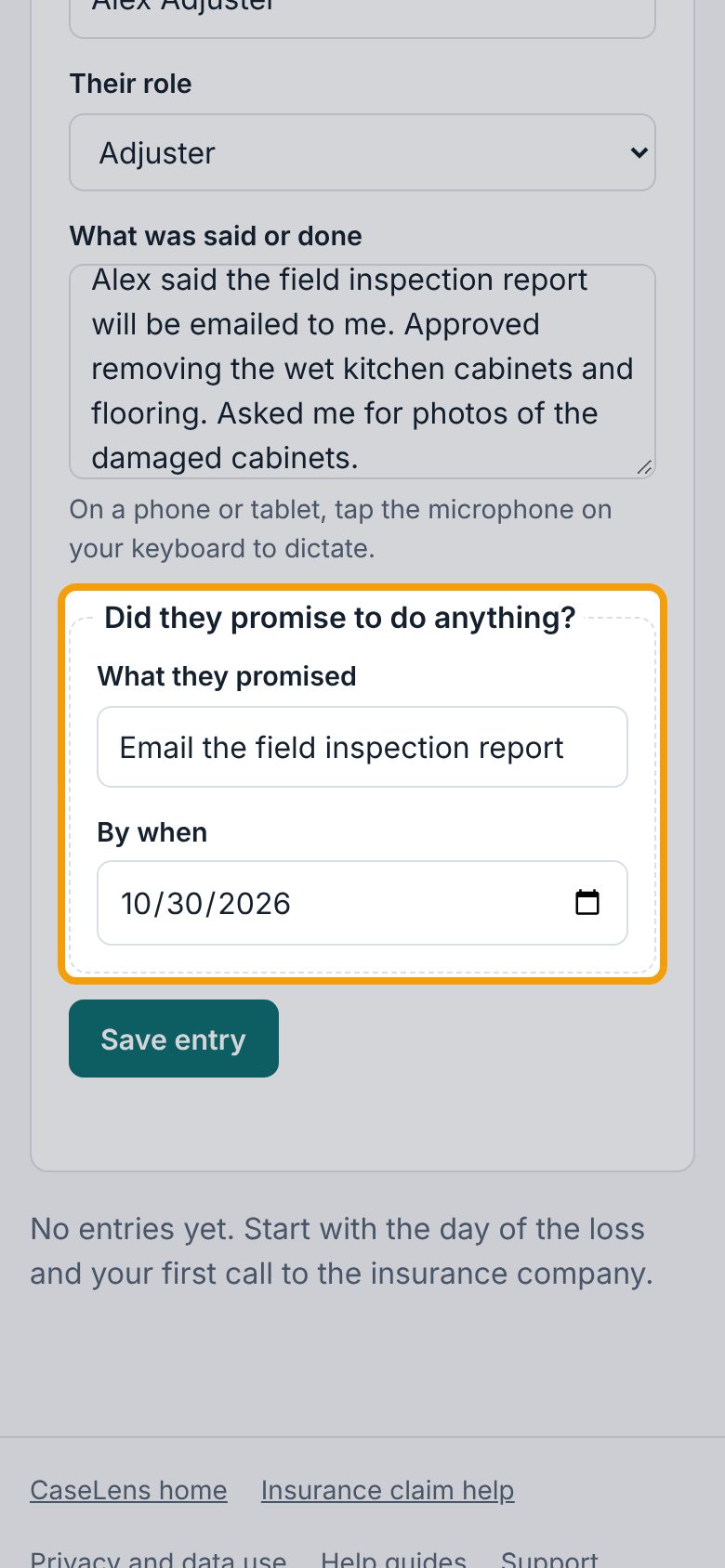
Under Did they promise to do anything?, write the promise in What they promised (for example "Email the field inspection report") and pick the date under By when. Leave both blank if they didn't promise anything.
5Save the entry
Tap Save entry. The entry goes into the diary with the date and time, and the time you entered it is recorded too.
6Put it in writing
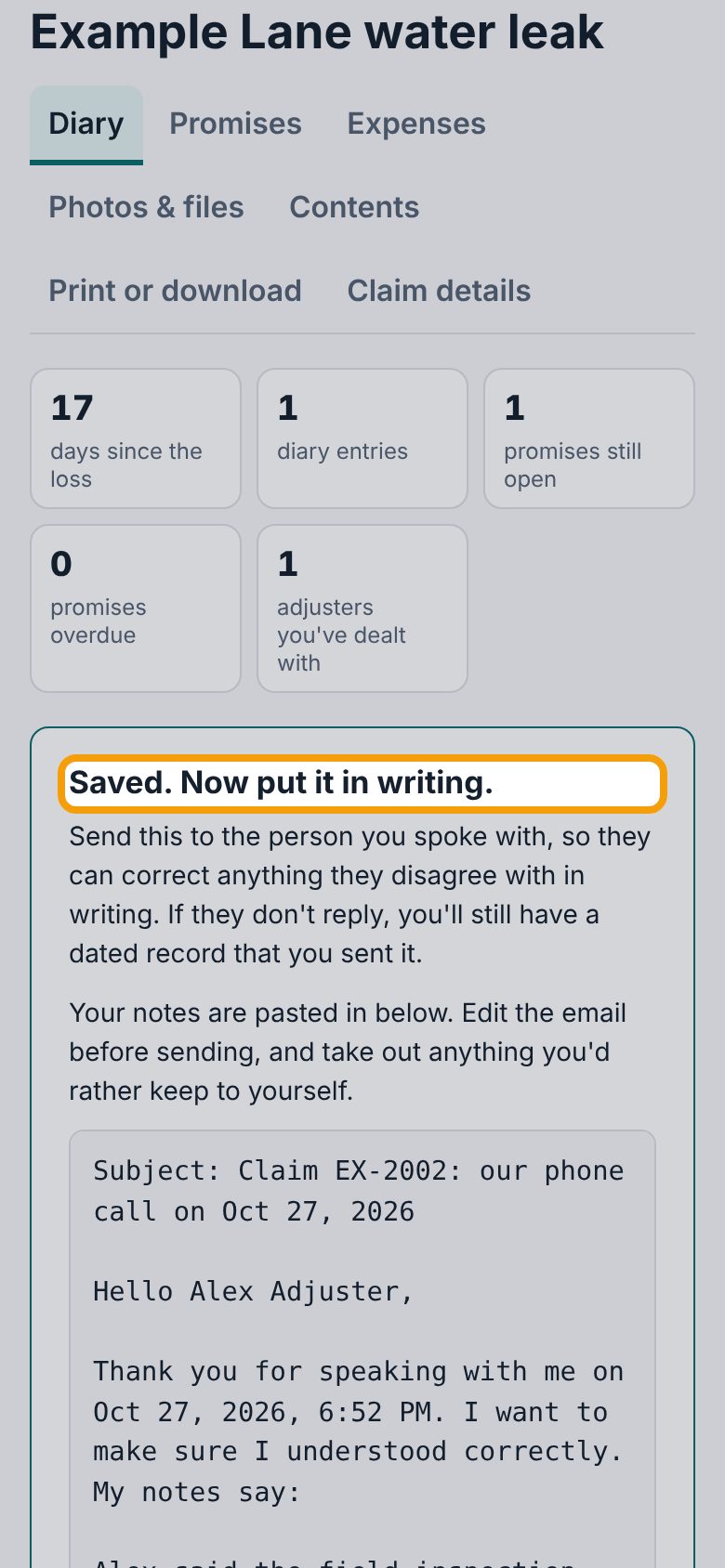
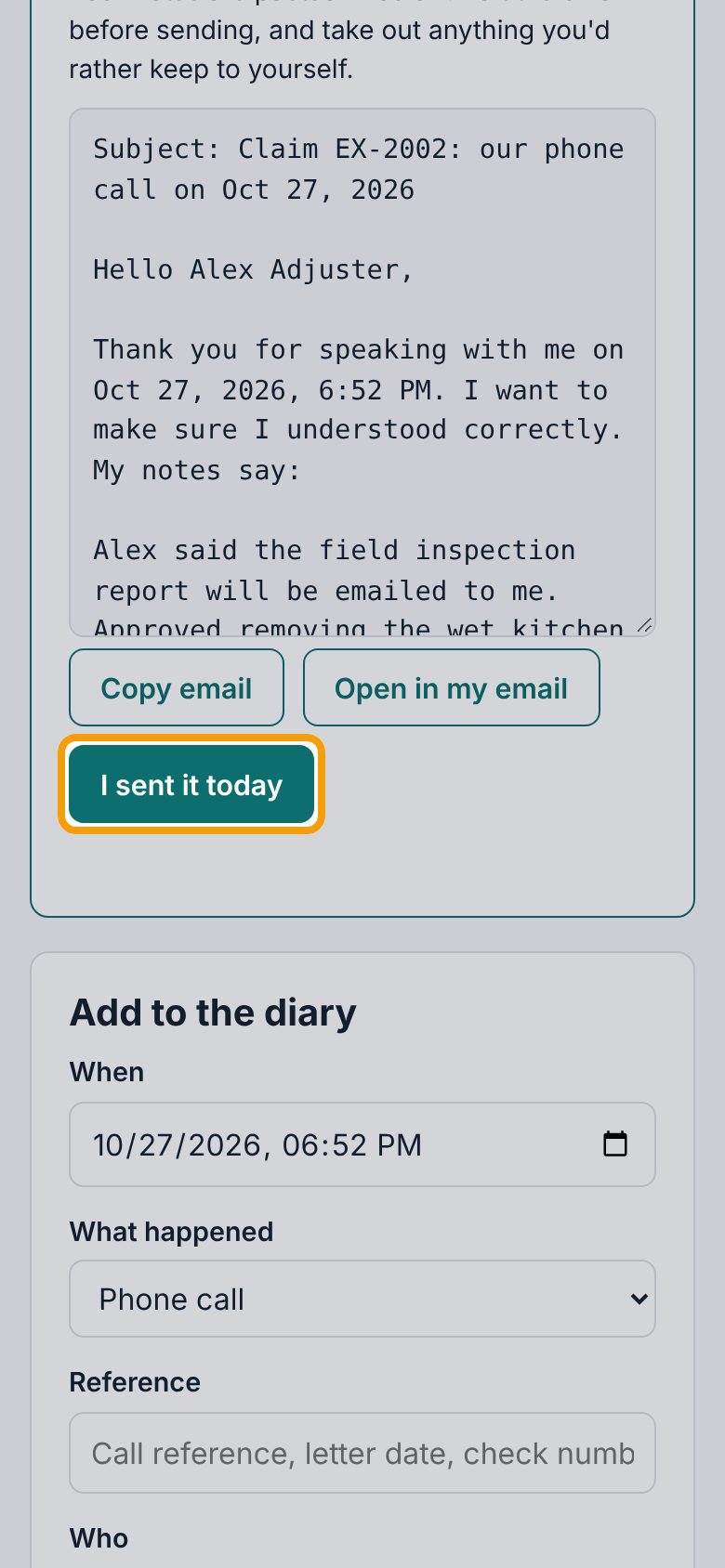
After a call with your adjuster or insurance company, you'll see Saved. Now put it in writing. A phone call leaves no written record, so Claim Diary drafts a short email that repeats what you were told and promised, and asks them to correct anything that's wrong in writing.
7Check the email
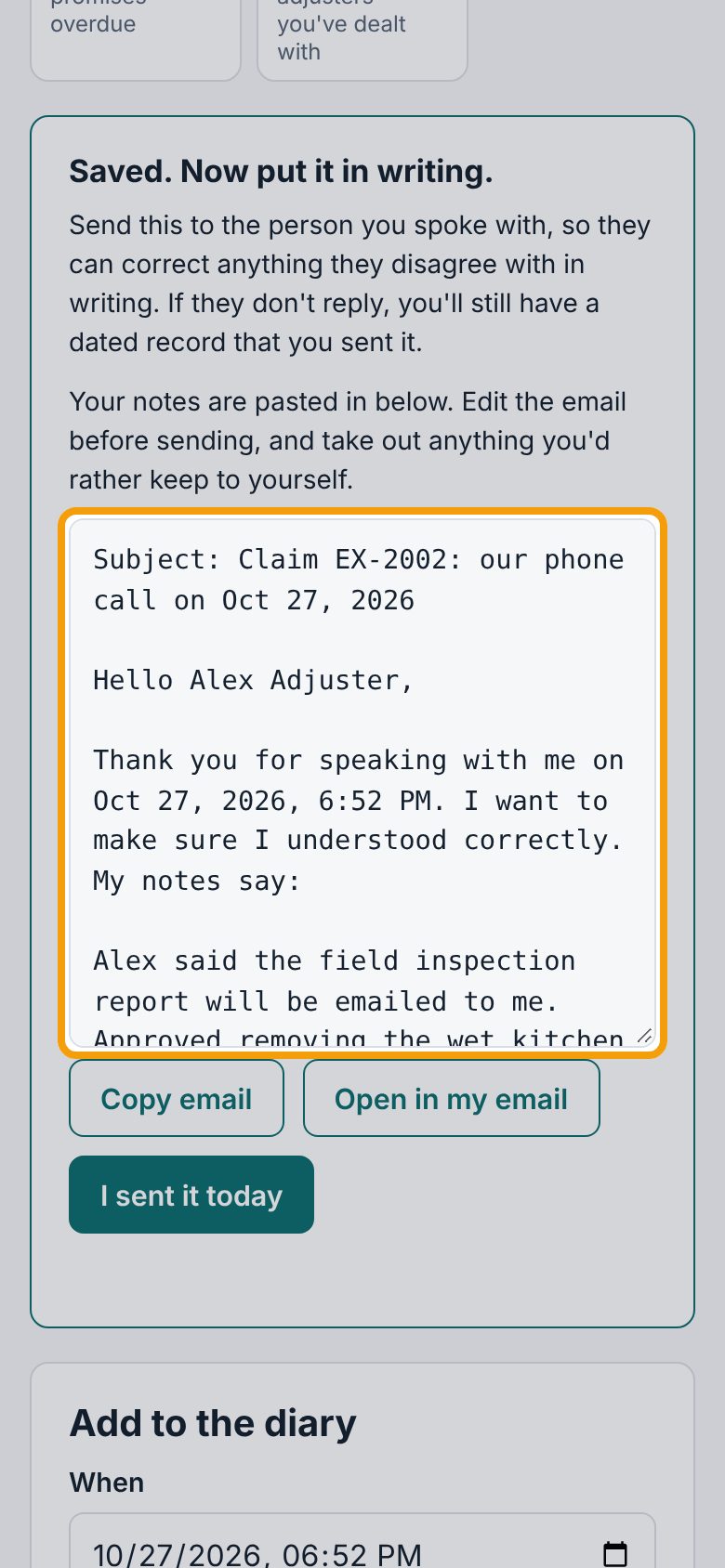
Read the email in the box; scroll inside the box to read it all. Your notes are pasted in, so edit anything you want to change, and take out anything you'd rather keep to yourself. Tap in the box to edit it.
8Send it from your own email
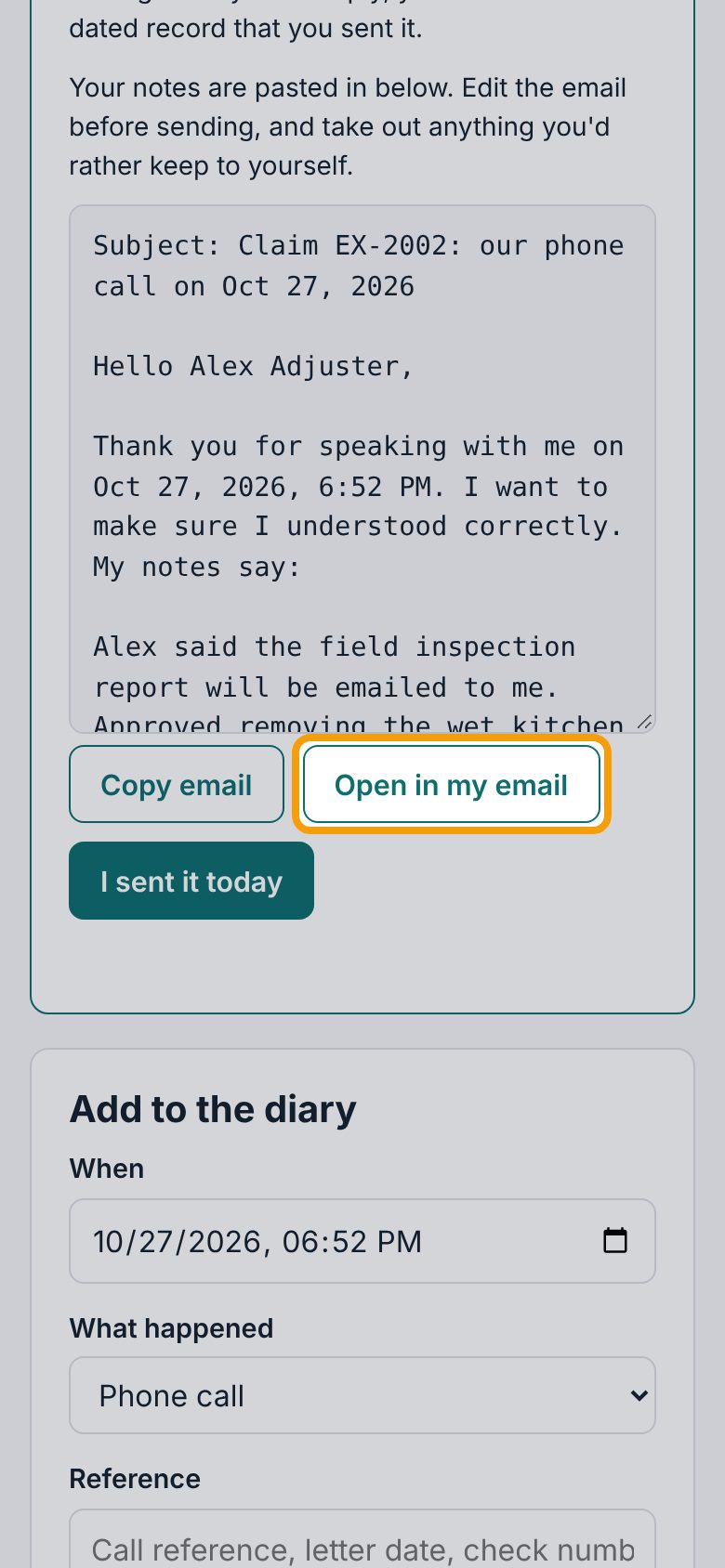
Tap Open in my email to open it in your email app, already addressed to your adjuster, then send it. Or tap Copy email and paste it into a new email yourself (the first line is the subject).
9Mark it sent
After you've sent it, come back and tap I sent it today. The diary then shows Written confirmation sent with the date, so your record shows you asked them to correct it in writing.
10Your diary
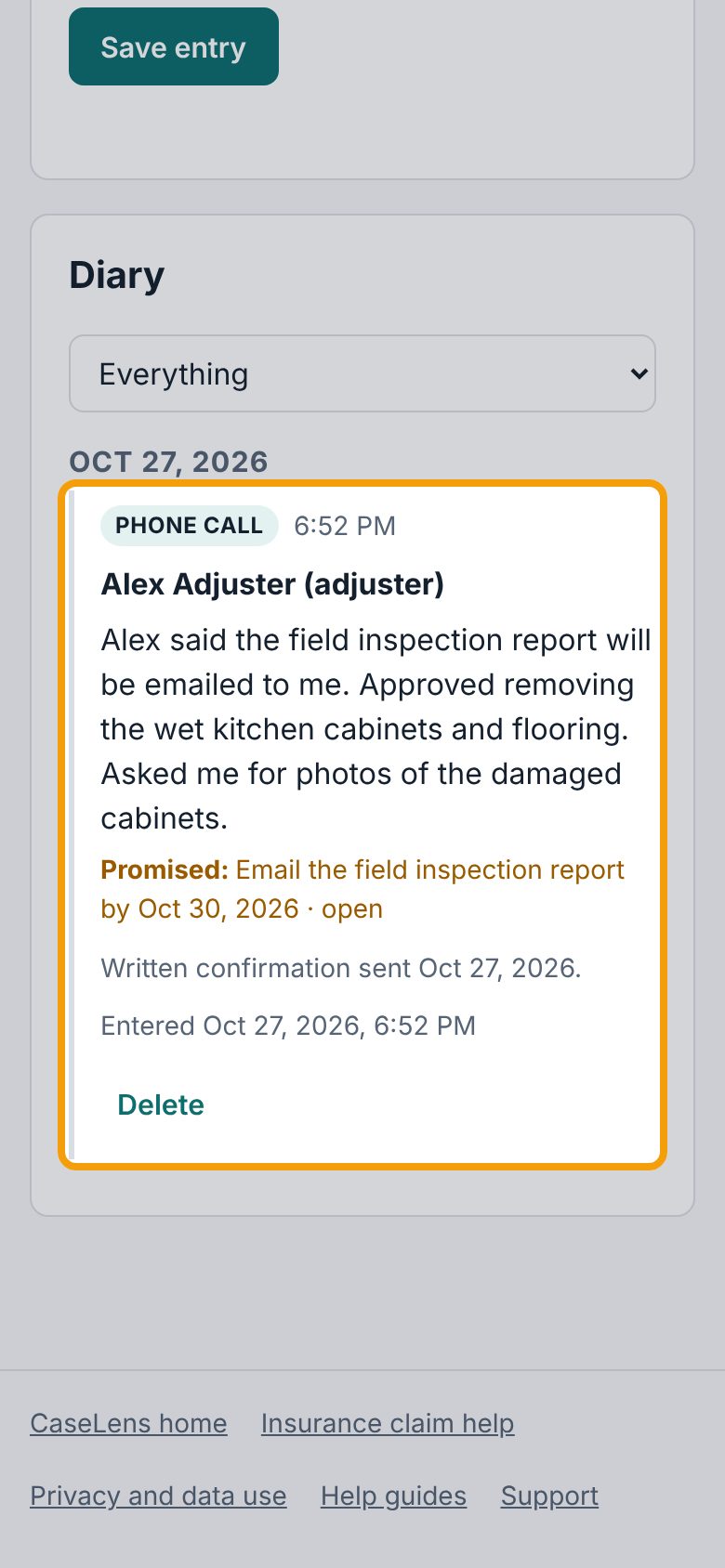
The call is now in the Diary list, newest first, with the promise and Written confirmation sent. For an older entry you haven't put in writing yet, tap Put it in writing under it.
If something goes wrong
- "Write down what was said or done."
- The What was said or done box is the one thing every entry needs. Write at least a line.
- "Write down what they promised, or clear the date."
- You picked a By when date without a promise. Fill in What they promised, or clear the date.
- "That time is in the future."
- Check When: it's set later than now. Pick the time the call happened.
- Open in my email doesn't open my email app
- Tap Copy email instead and paste it into a new email. Very long emails are only offered as Copy email.