Plan containment with the airflow explorer
Describe the work room, how it's closed off and what fan you'll run, and see how air would move and what to fix before you start. Free, no account. About 10 minutes.
Watch it (2:02, no sound)
- The room's length, width and ceiling height, and the home's rough floor area.
- What you'll use to close the room off and the fan's airflow in CFM (on its label or manual).
- Whether the house has a gas, oil or wood-burning furnace, water heater, boiler or fireplace.
Step by step
1Start with your situation
On Containment & airflow explorer, under Before you start, choose How much mold can you see, added up? and tick anything under Any of these? that's true. The boxes below show what public health agencies say for that size.
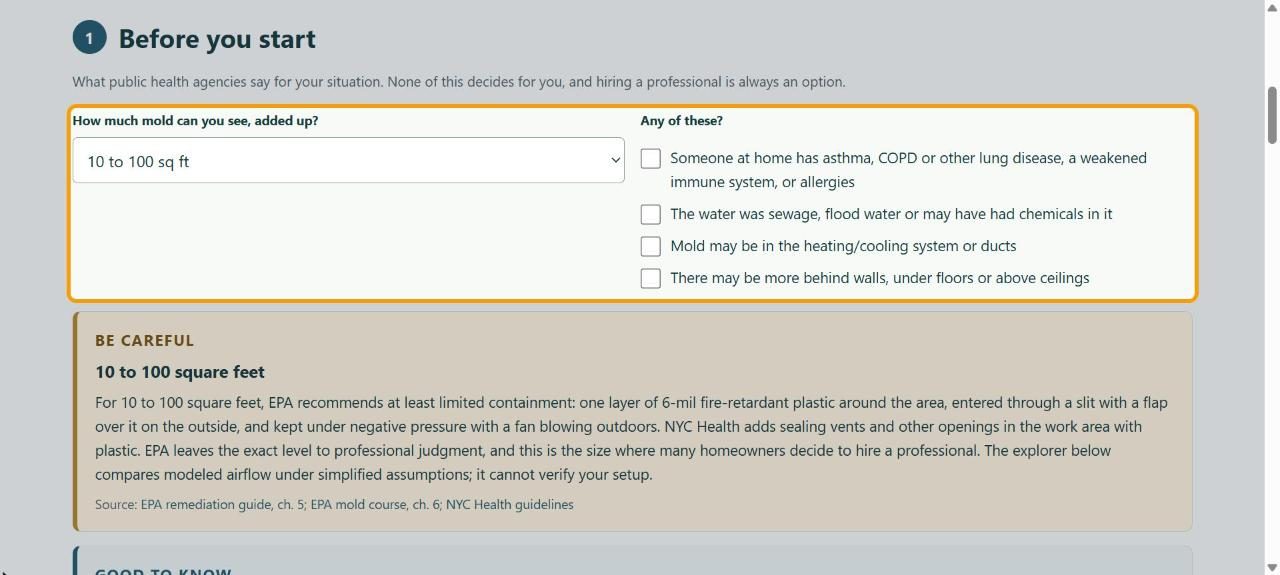
2Describe the work room
Under The work room (where the mold is), enter Length (ft), Width (ft) and Ceiling height (ft). Untick The work room has an outside wall (or a window) if it doesn't. Then fill in The rest of the house below it.
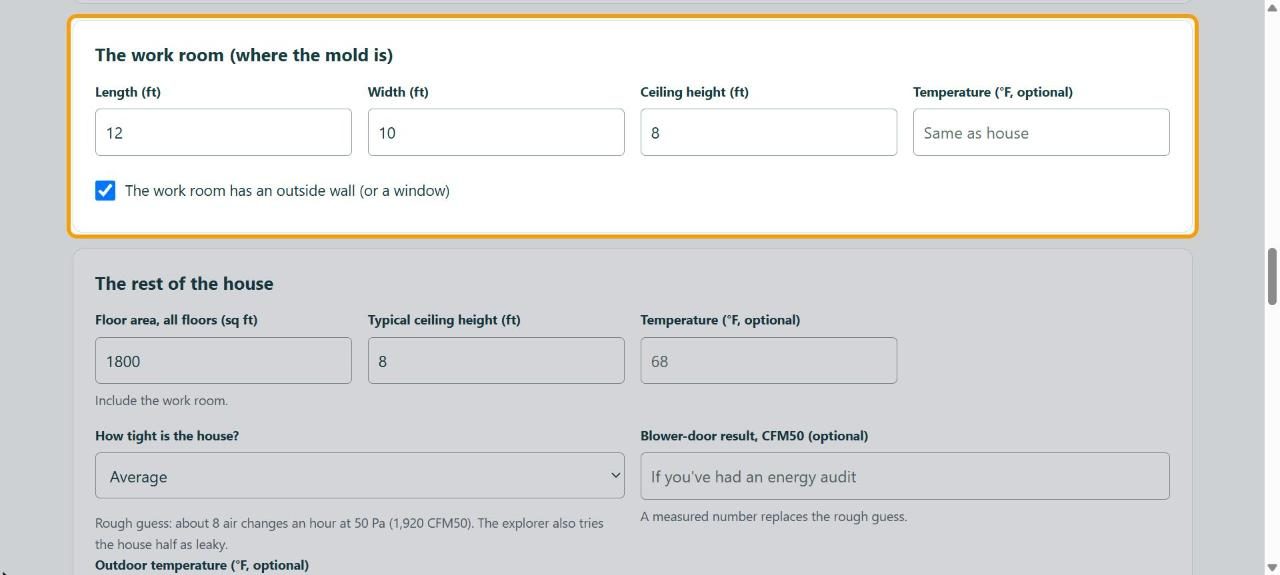
3Say how it's closed off
Under How the work room is closed off, choose the Barrier: plastic sheeting and a zip door, the room's own door, or nothing.
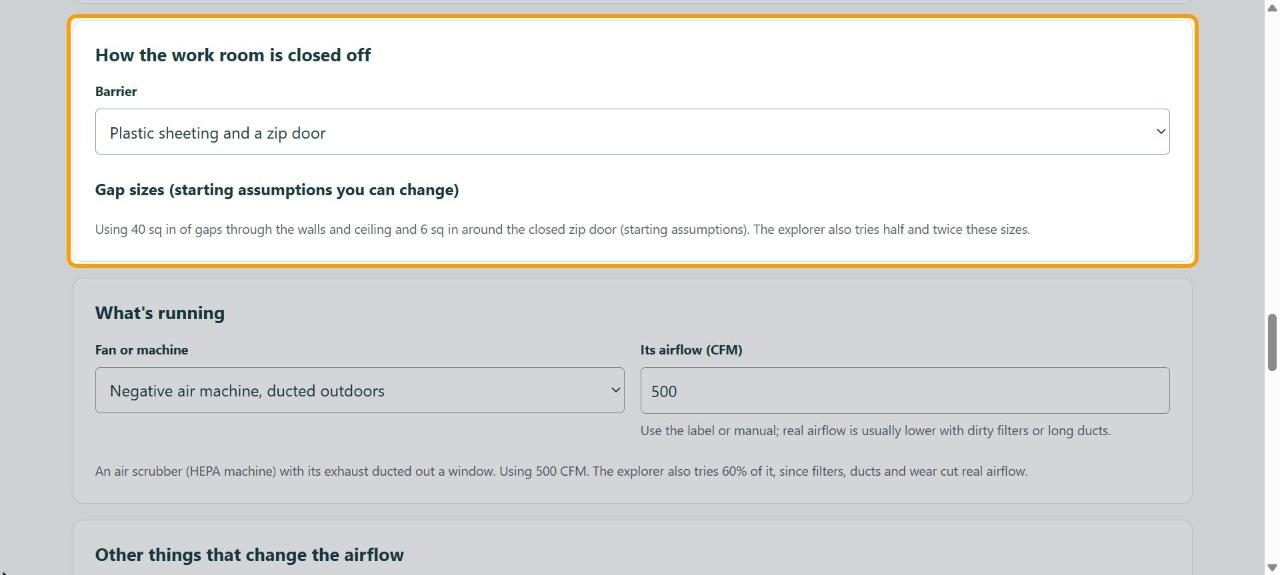
4Say what's running
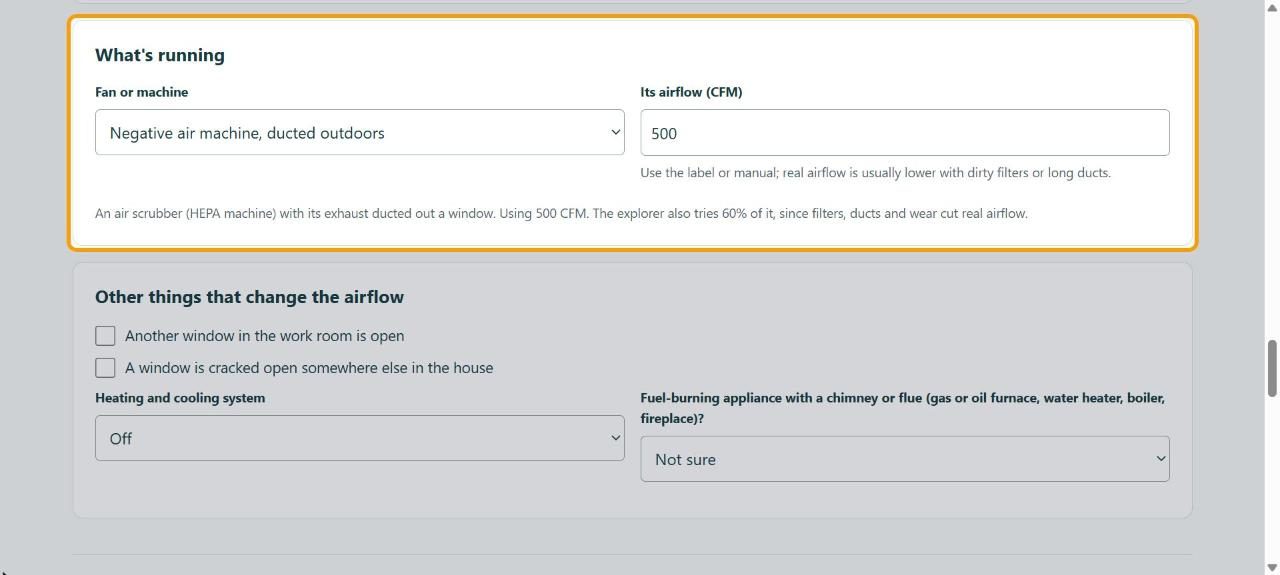
Under What's running, choose the Fan or machine and enter Its airflow (CFM). Real airflow is usually lower, so the explorer also tries 60% of it.
5Add anything else
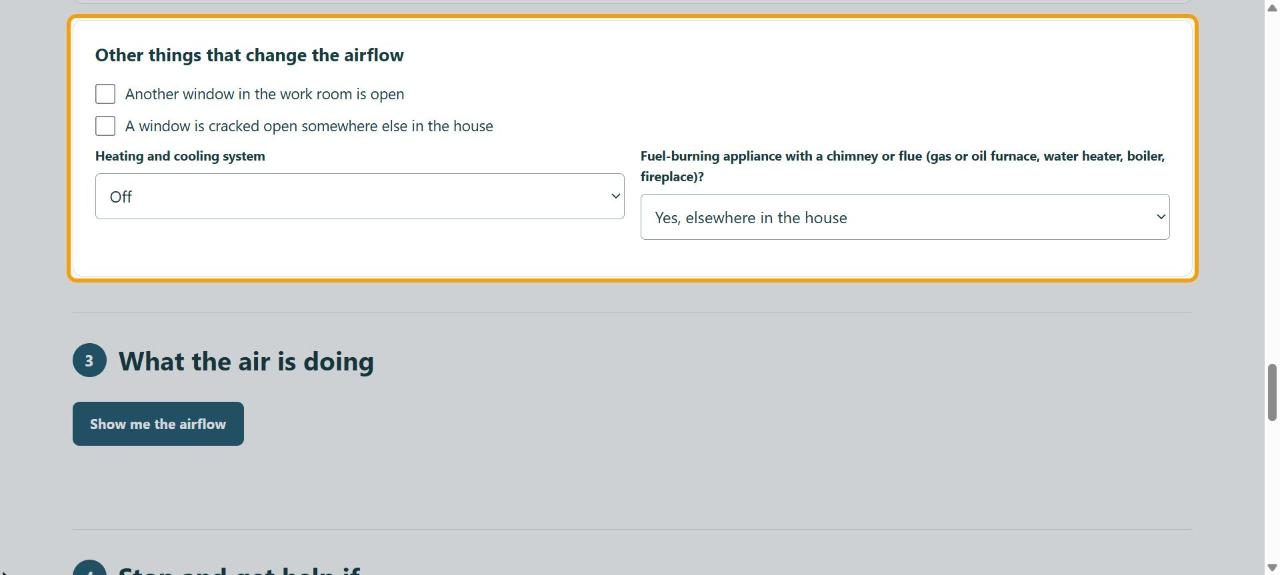
Under Other things that change the airflow, tick open windows and set the Heating and cooling system and Fuel-burning appliance with a chimney or flue. These change the warnings you get.
6Calculate
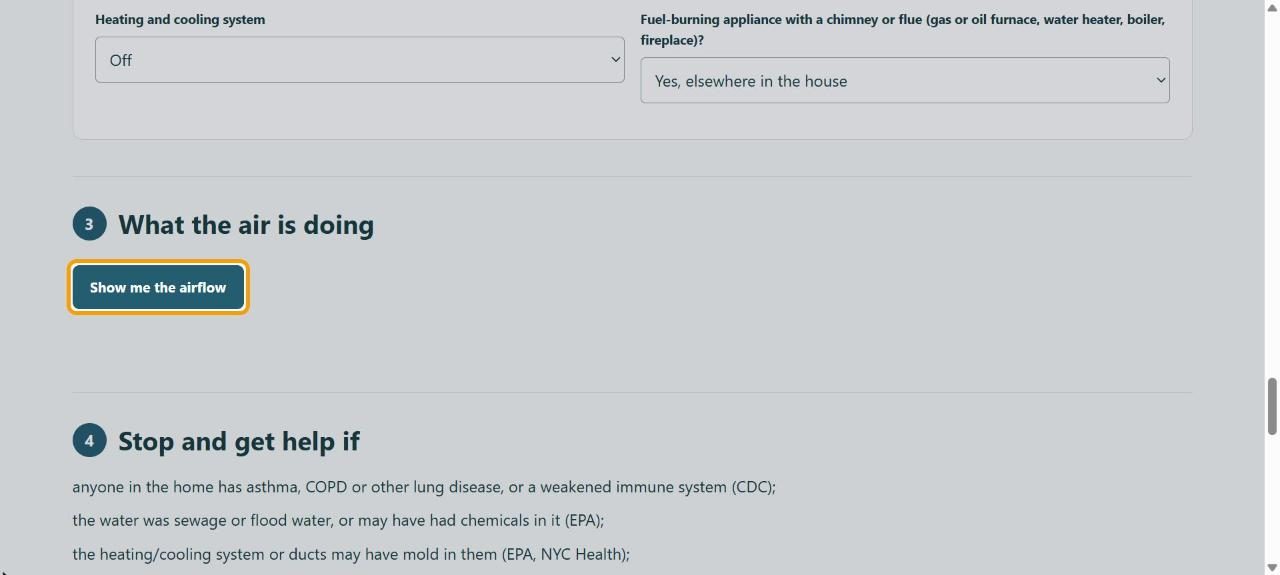
Click Show me the airflow. It calculates several cases besides yours: bigger and smaller gaps, the fan at 60%, a tighter house, and the zip door held open.
7Read the result
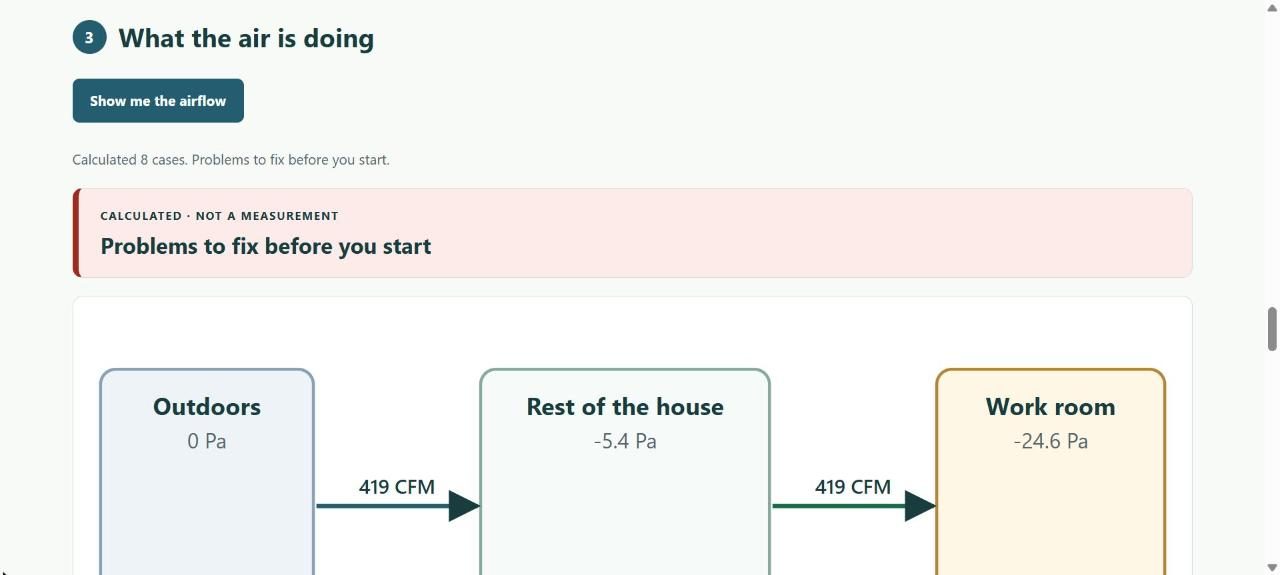
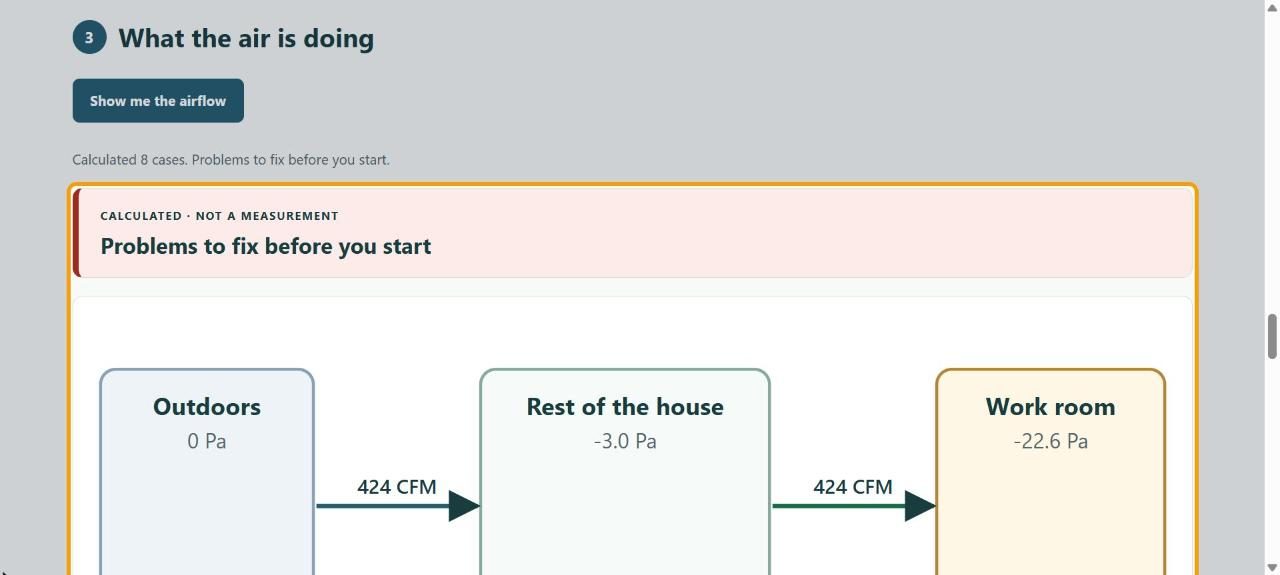
The diagram shows each space's pressure and the airflow between them. The headline says whether things look right or there are Problems to fix before you start. These are calculations, not measurements of your home.
8Fix what it flags
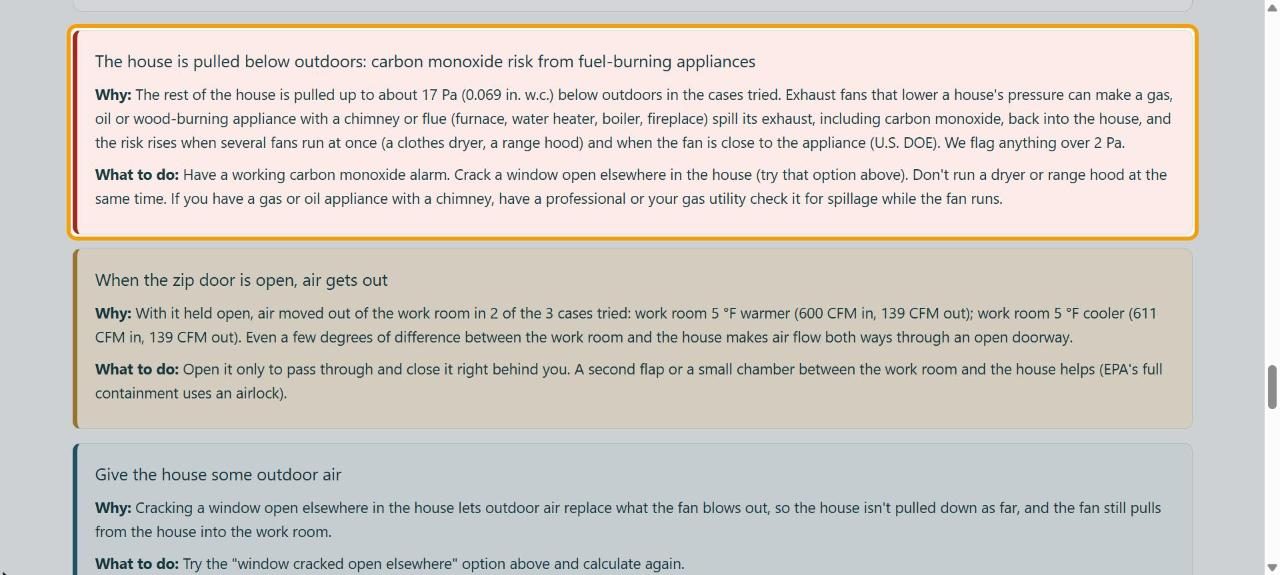
Each problem says Why and What to do. Here the house is pulled below outdoors, which can make a fuel-burning appliance spill carbon monoxide; it suggests a CO alarm and cracking a window open elsewhere.
9Try a change
Change a setting (here, A window is cracked open somewhere else in the house) and click Show me the airflow again to compare.
10Keep or share it
Click Copy a link to this setup to send it to someone (your health answers are left out), or Print or save as PDF. Read Stop and get help if before you start work.
If something goes wrong
- "Problems to fix before you start" won't go away
- Work through each What to do, then calculate again. If you can't fix one, especially a carbon monoxide warning, have a professional set up the containment.
- The numbers don't match my pressure gauge
- The explorer uses simplified assumptions and can't see your actual gaps. Your measured reading is the one to trust.
- I have a floor plan file from my contractor
- See Use a floor plan sketch in the airflow explorer.