Phone app: add claim photos and diary entries with no signal
Save damage photos and diary entries for your Claim Diary claim with no signal, then watch them upload when you're back in signal. About 3 minutes.
Watch it (1:45, no sound)
- The CaseLens app, signed in (see Sign in to the CaseLens phone app).
- A claim started in Claim Diary, and the app opened once with signal since, so the claim is saved on the phone.
Step by step
1Open your claim
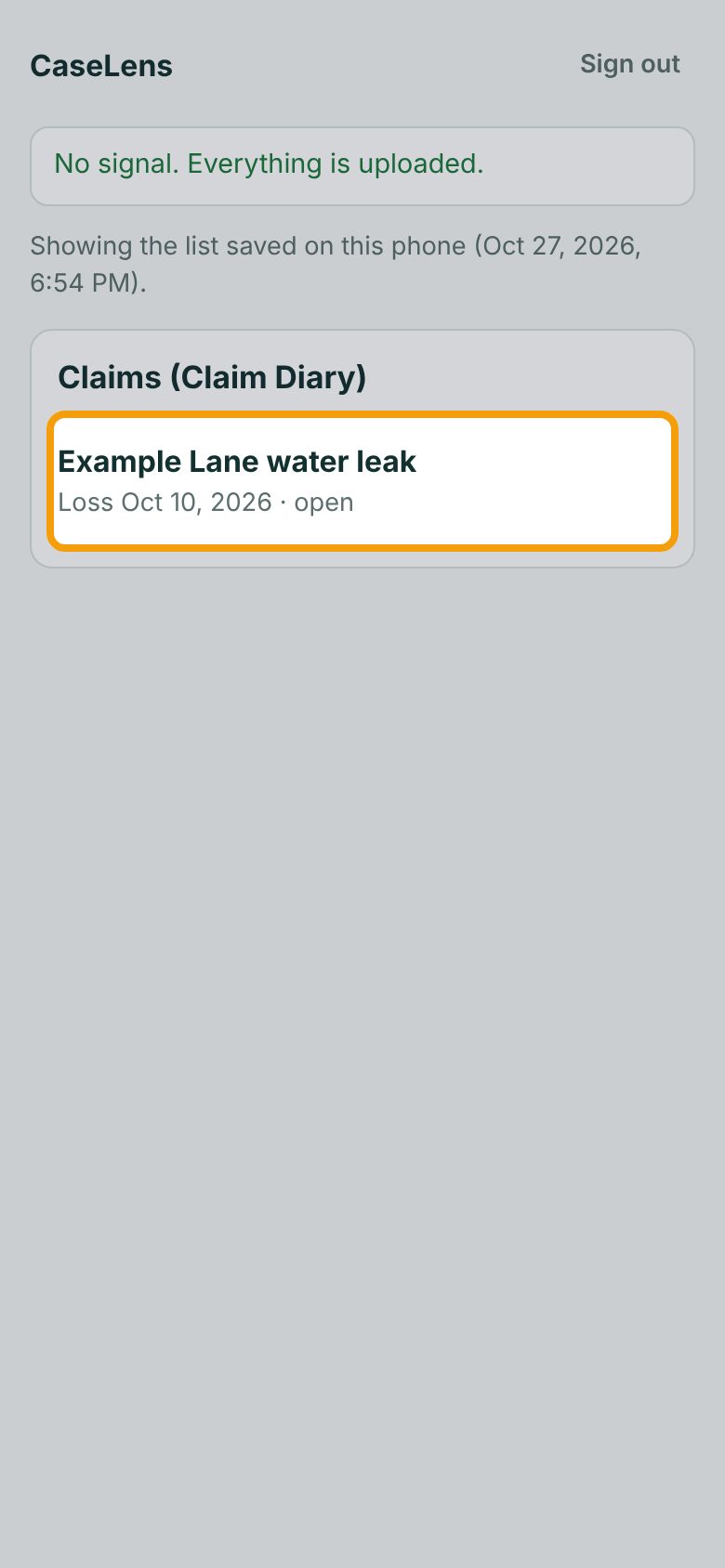
With no signal, the line at the top starts with No signal. Your claims are still listed under Claims (Claim Diary): Showing the list saved on this phone says when the app last loaded them. Tap the claim.
2Take a photo
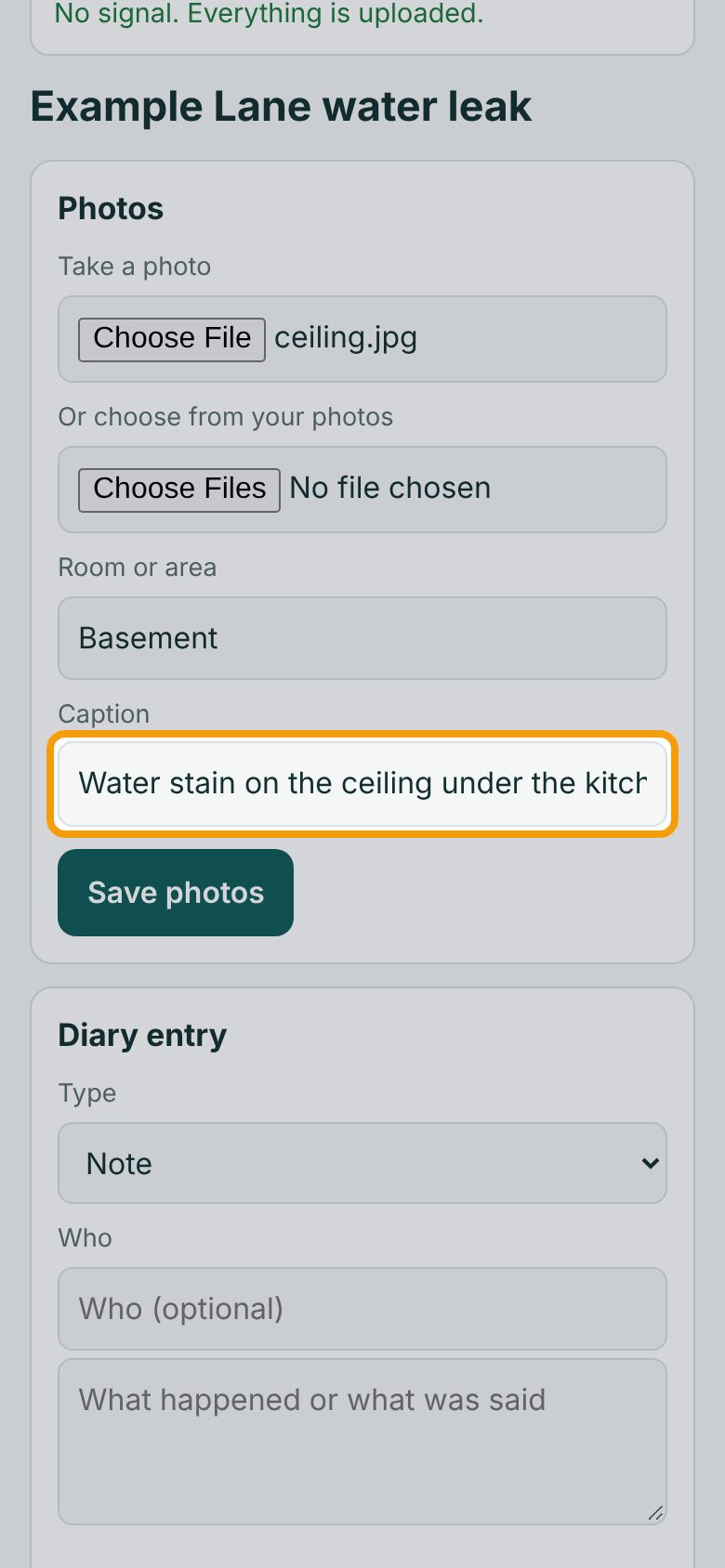
Under Photos, tap Take a photo to open the camera, or Or choose from your photos for ones you already took. Type the Room or area and a Caption saying what it shows. Both go into the photo's caption in Claim Diary.
3Save the photo
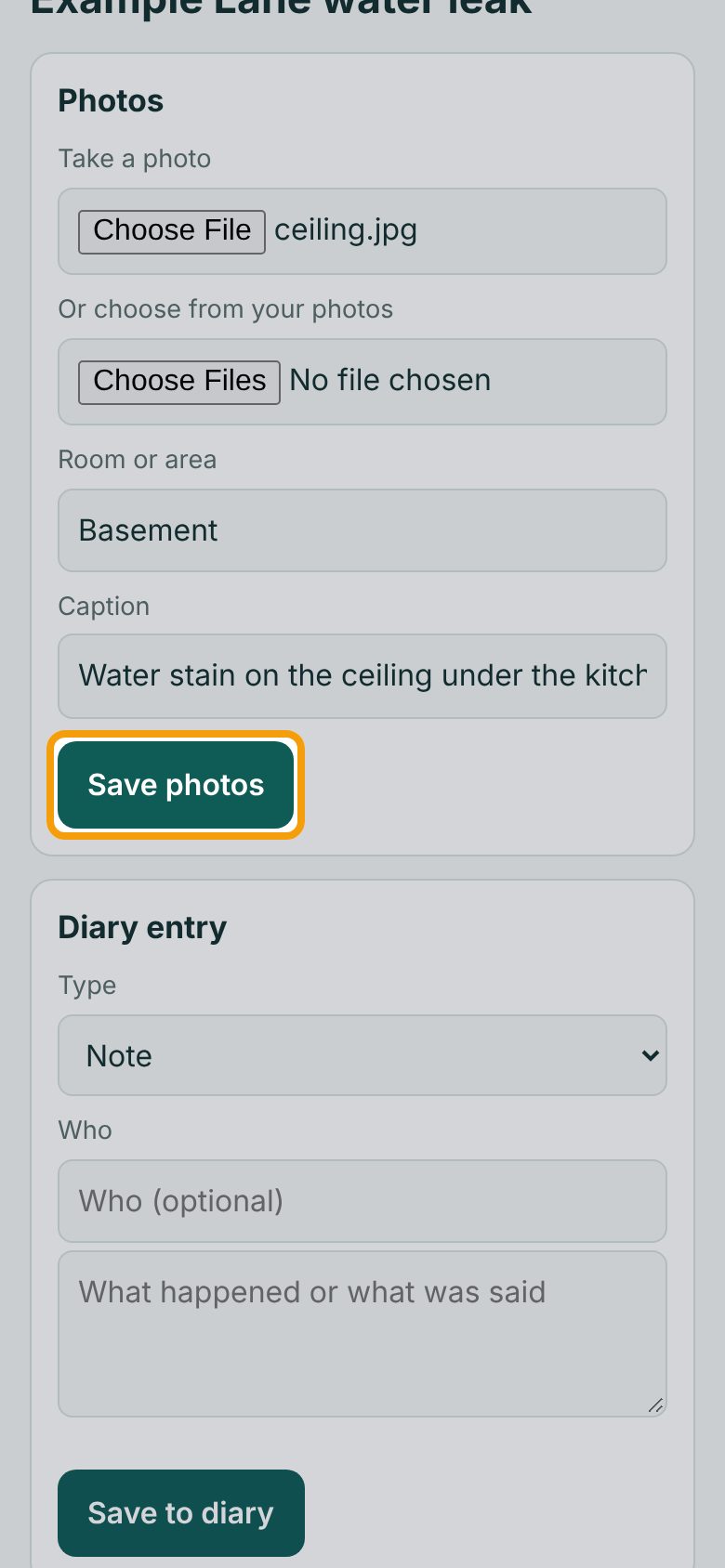
Tap Save photos. The app records the photo's fingerprint and camera details now, on the phone. You'll see 1 photo saved on this phone. further down the screen.
4Write a diary entry
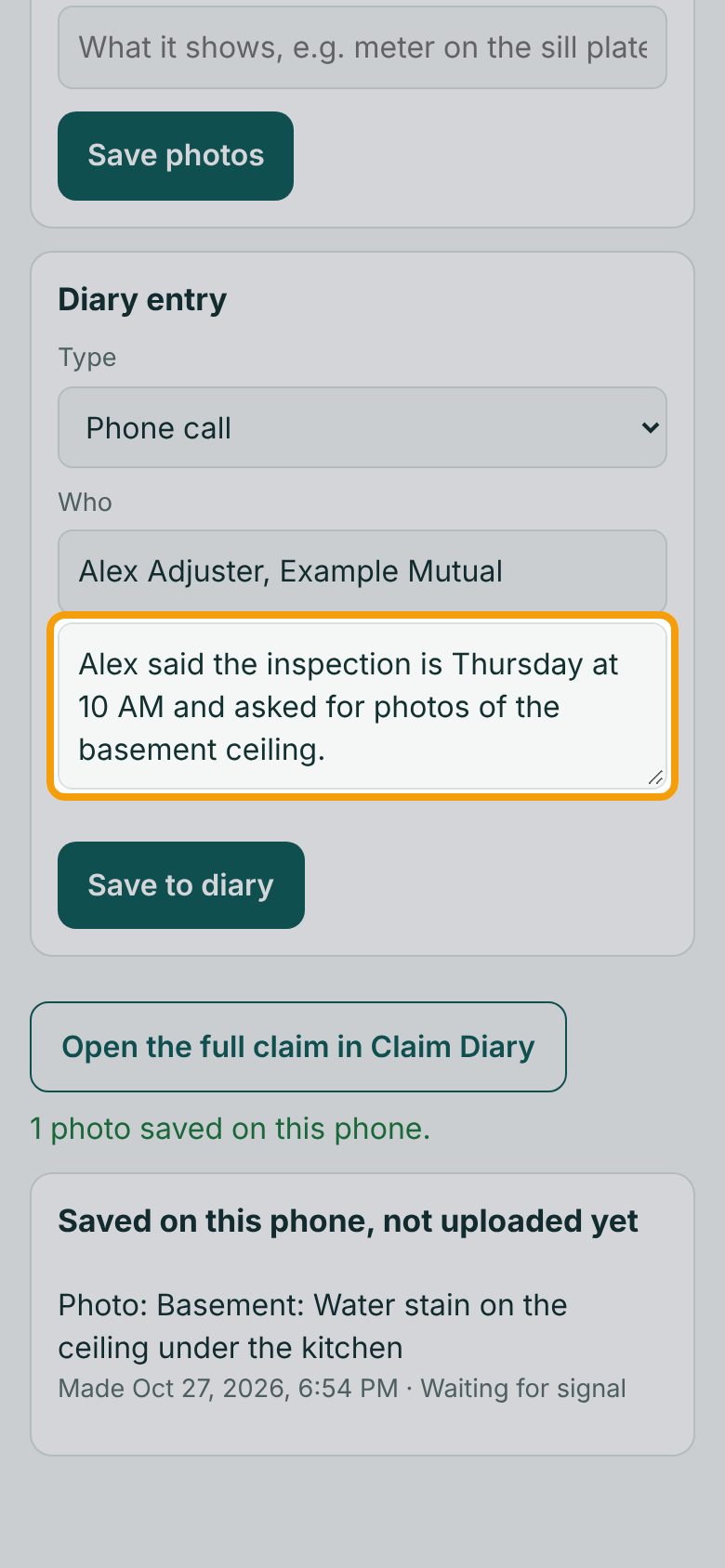
Under Diary entry, pick the Type (like Phone call, Visit or Note), put Who you dealt with if anyone, and write what happened or what was said.
5Save it
Tap Save to diary. You'll see Saved on this phone. under Open the full claim in Claim Diary. The entry keeps the time you saved it, even though it reaches Claim Diary later.
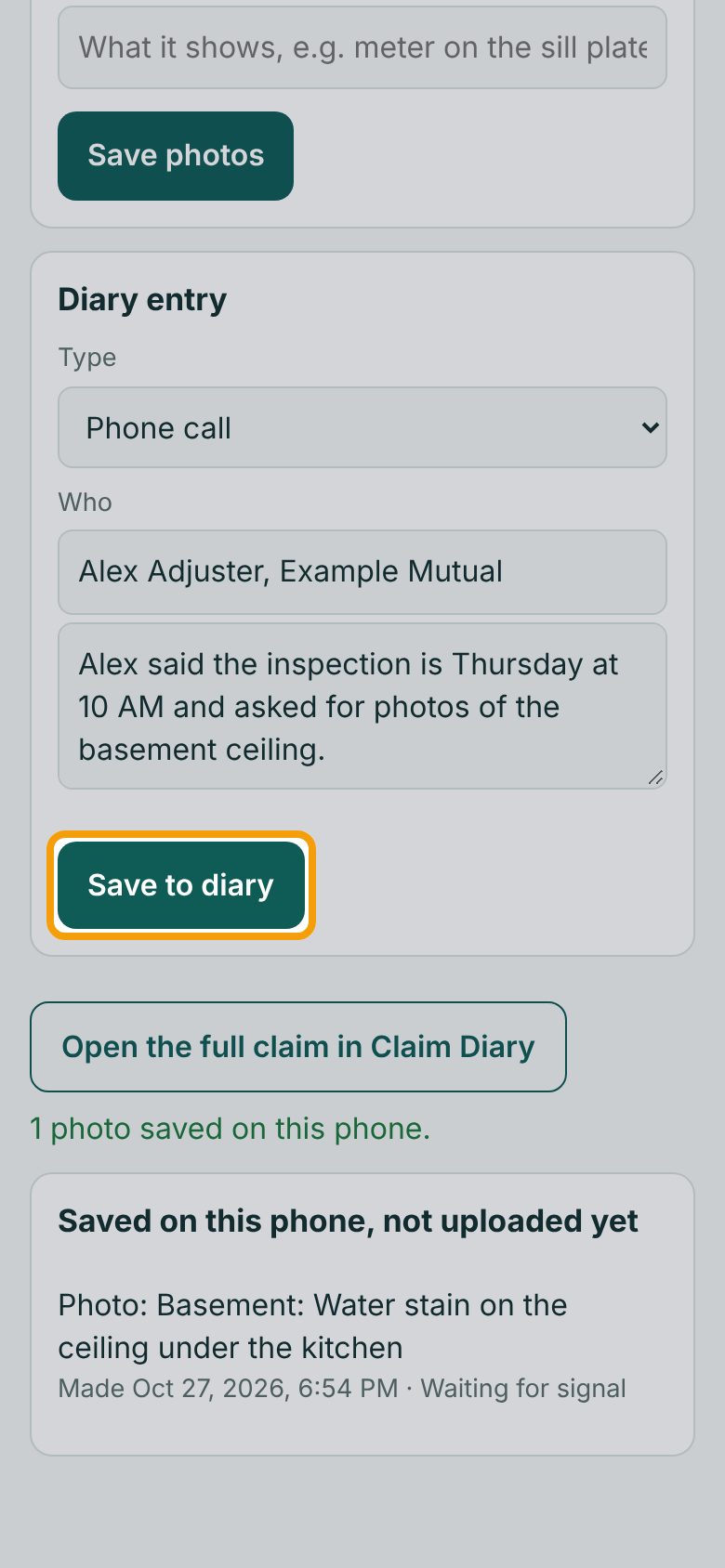
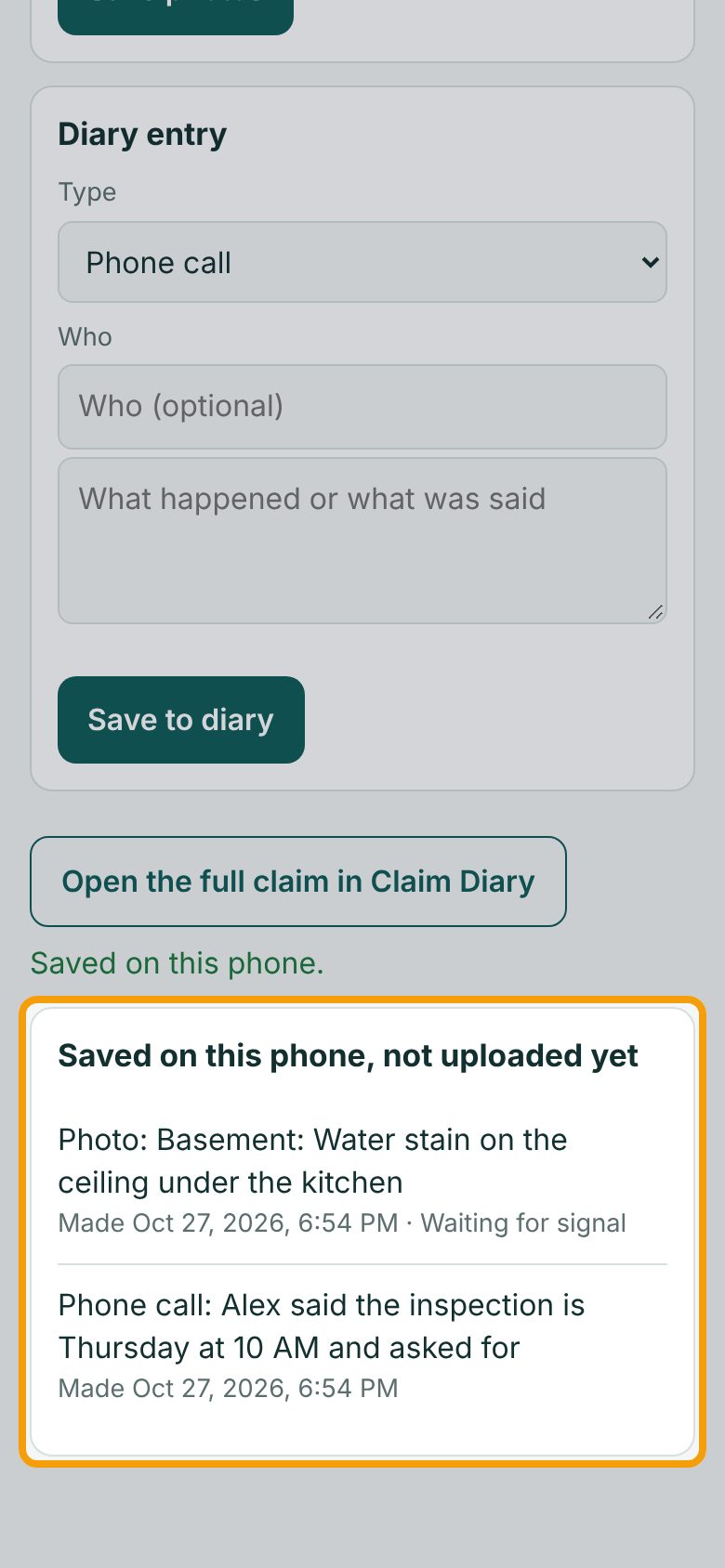
6Check what's waiting
Both are listed under Saved on this phone, not uploaded yet, with the time you made them. The line at the top of the screen counts them (2 saved on this phone, will upload when you have signal).
7Back in signal
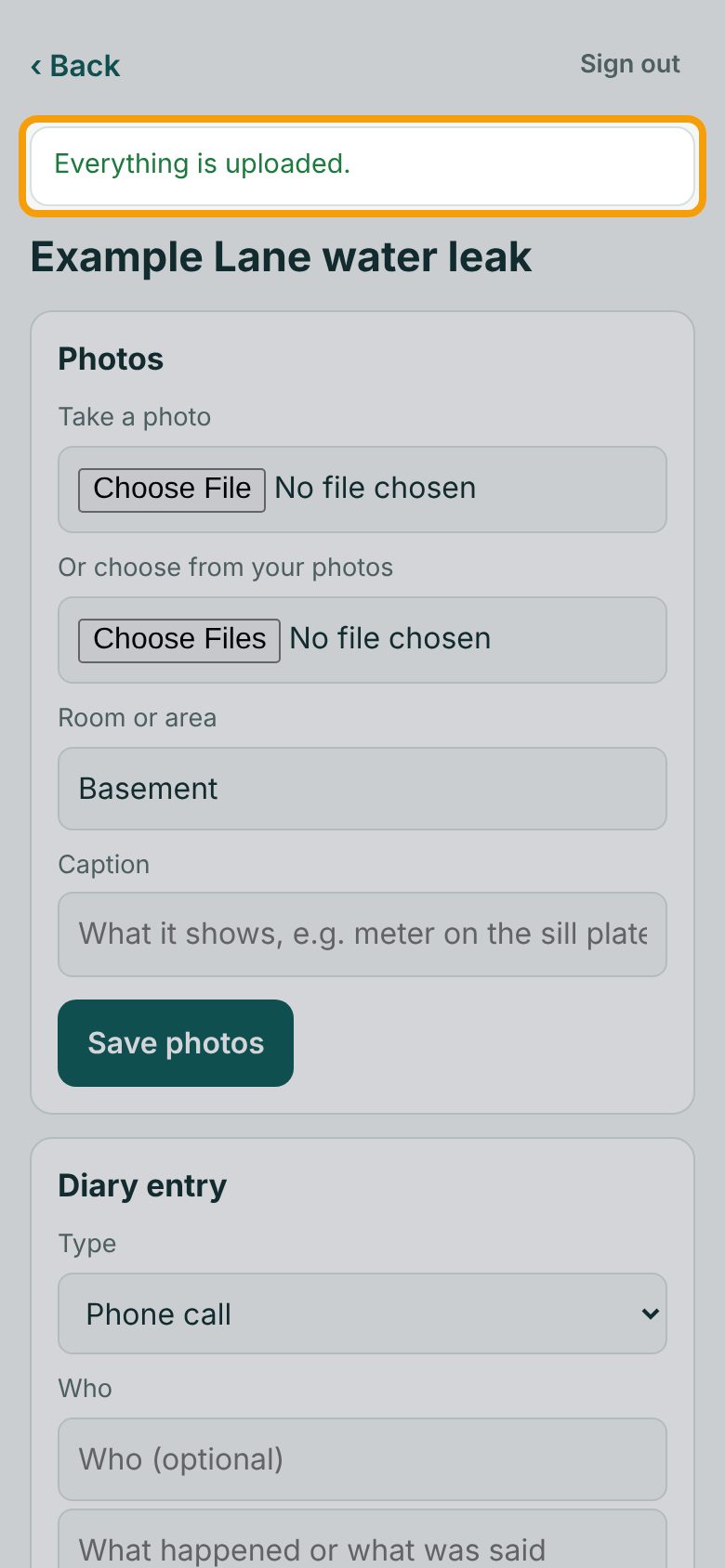
When you have signal again, with the app open, it uploads everything by itself, in order. The line turns to Everything is uploaded. and the waiting list goes away.
8See it in Claim Diary
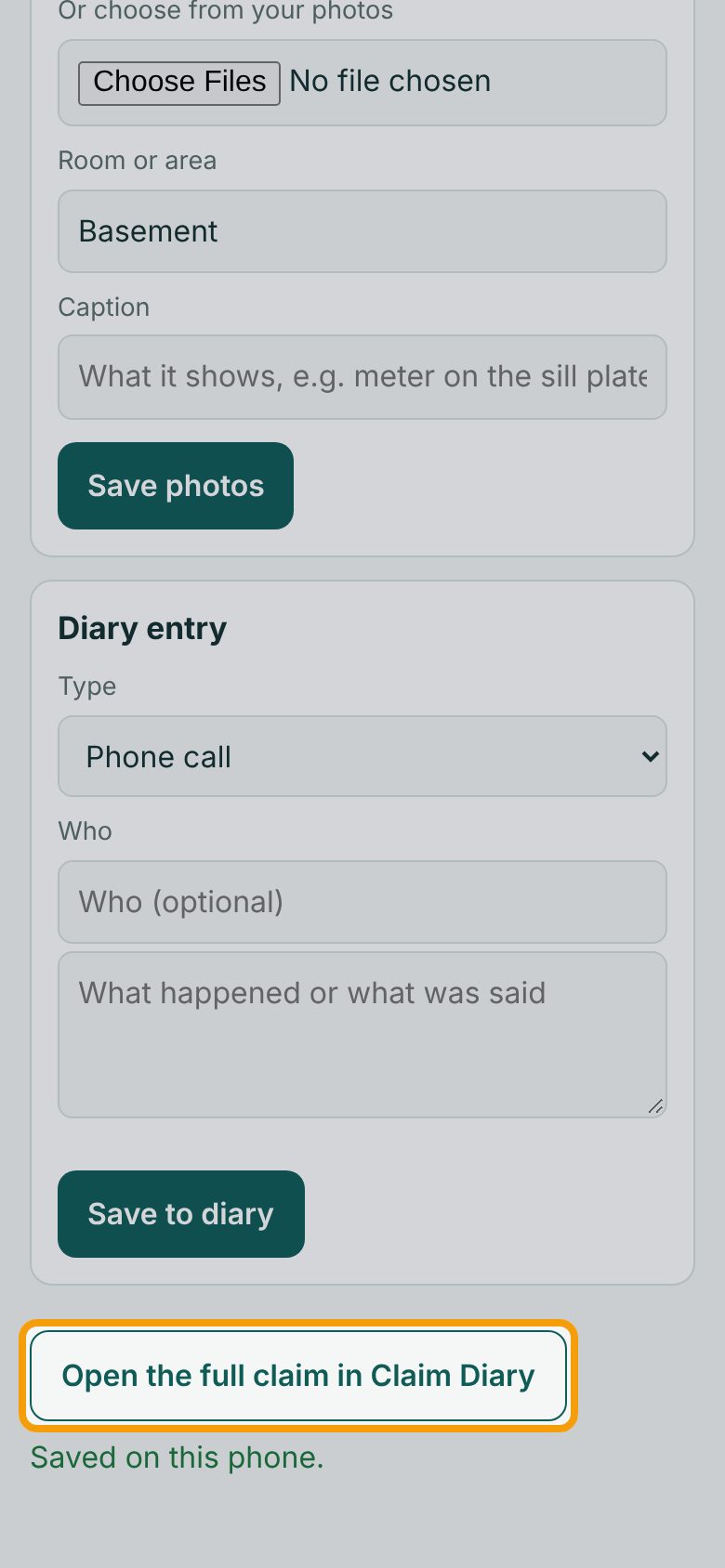
Tap Open the full claim in Claim Diary to see them on the claim: the photo under Photos & files, the entry on the Diary tab. For a call with your adjuster, use Put it in writing there to send them a confirming email.
If something goes wrong
- "This claim isn't on this phone yet. Connect once and open it from the list."
- The claim was started after the app last had signal. Get signal, open the app's list once, then the claim works offline.
- "Write what happened first."
- The box under Who needs at least a line.
- "… is over 25 MB."
- That photo or video is too big. Take a new photo, or add the file on the Claim Diary website.
- Something says "Couldn't upload"
- Claim Diary refused it; it's kept on the phone. See Check the upload queue: retry or remove what's waiting.