Sign in to the CaseLens phone app
Sign the app in through the CaseLens website with a code, so it can work in basements and crawlspaces with no signal. About 3 minutes, once.
Watch it (2:00, no sound)
- The CaseLens app is still being tested: it isn't in the App Store or Google Play yet. Your CaseLens contact sends you the test app and tells you how to put it on your phone.
- A CaseLens account: the same email and password you use for CaseLens Pro or Claim Diary. No account yet? The app's New to CaseLens? Create an account opens Claim Diary, where you can make one.
- Signal (mobile data or Wi-Fi) for this once. After you're signed in, the app works without it.
Step by step
1Open the app
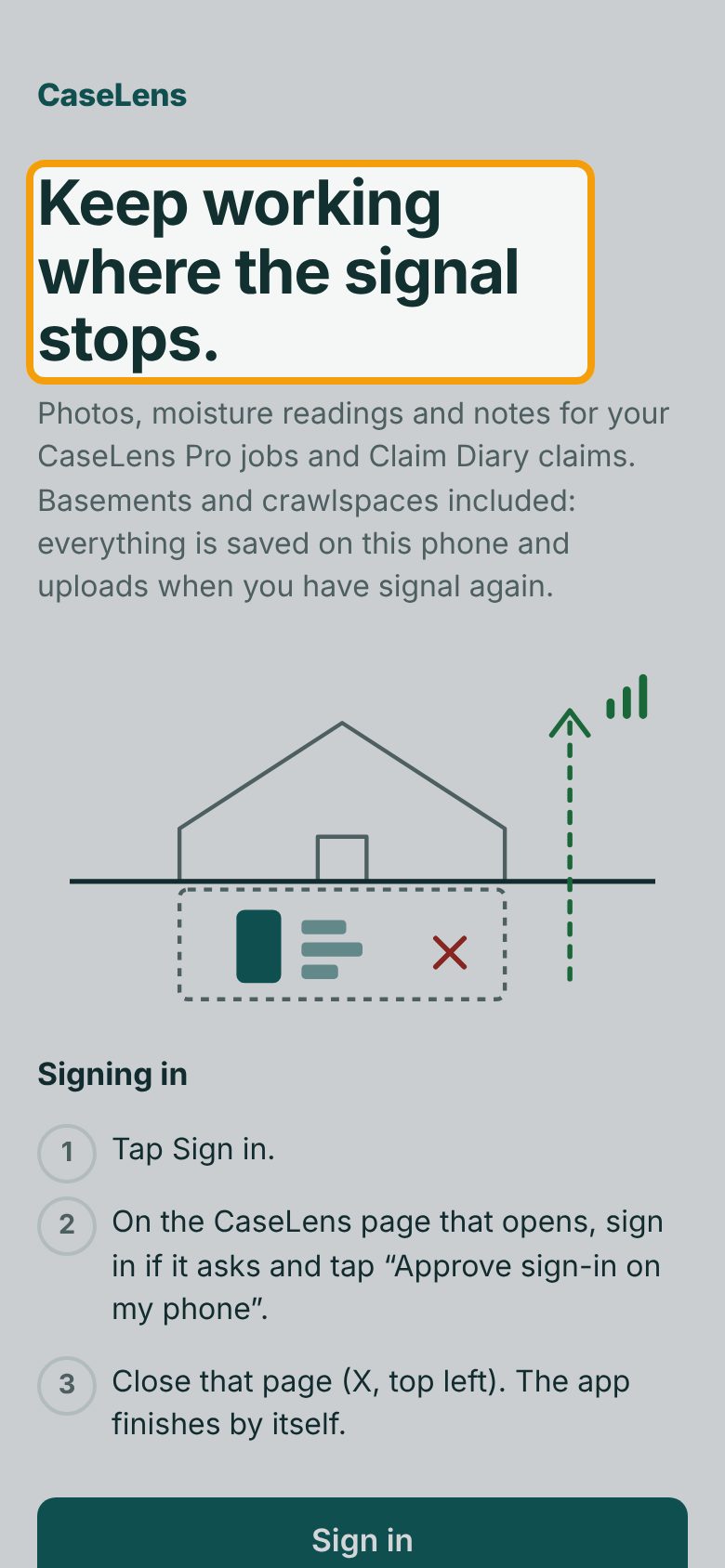
Open CaseLens on your phone. The first screen says Keep working where the signal stops. Under Signing in it lists the three steps. The app never asks for your password itself: you sign in on the CaseLens website instead.
2Tap Sign in
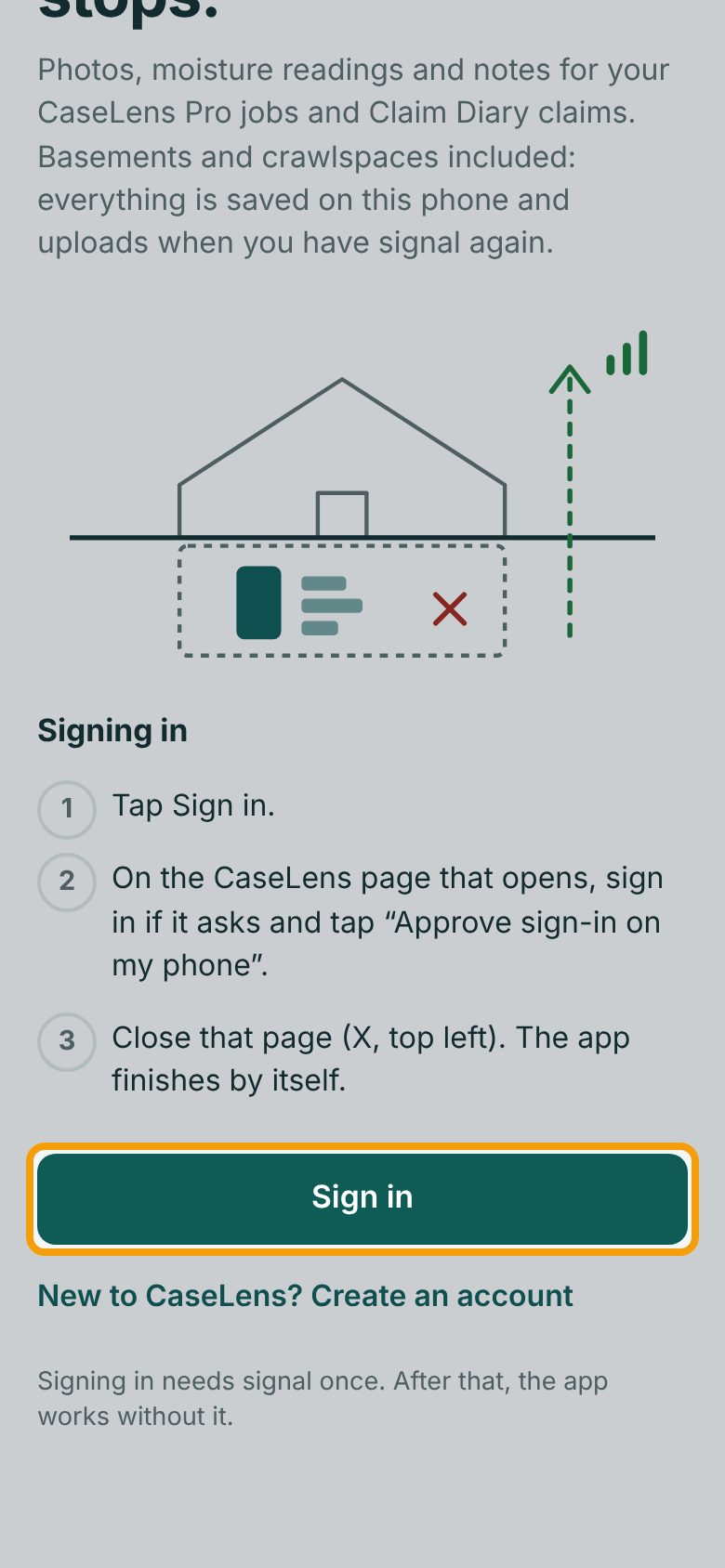
Tap Sign in. Your phone opens a CaseLens web page in its browser, on top of the app. (New to CaseLens? Create an account opens Claim Diary instead, to make an account first.)
3Sign in on the web page
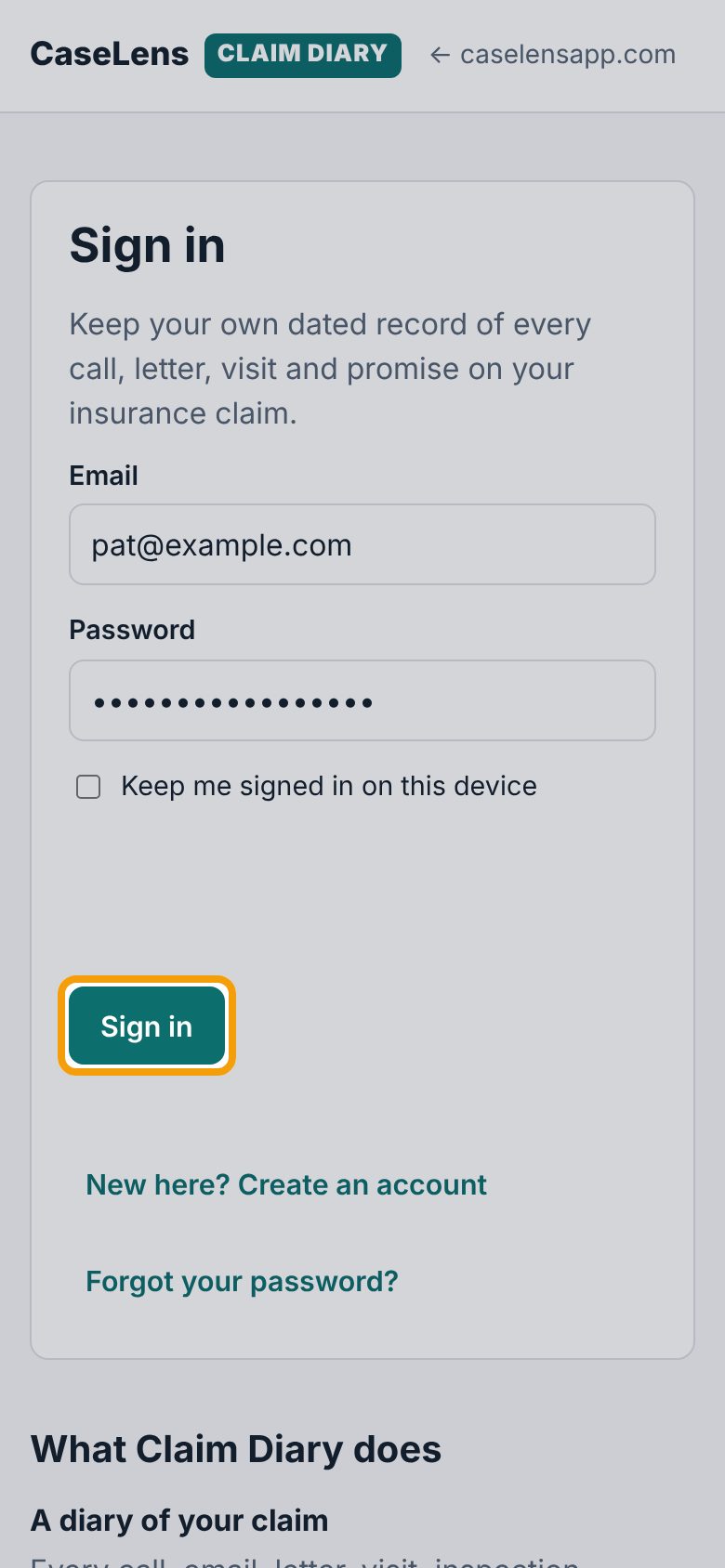
The page that opens is the Claim Diary sign-in page; it's the sign-in for every CaseLens account, contractors included. Under Sign in, enter your email and password, wait a moment for the security check, and tap Sign in. If you're already signed in in this browser, you go straight to the next step.
4Type the code from your phone
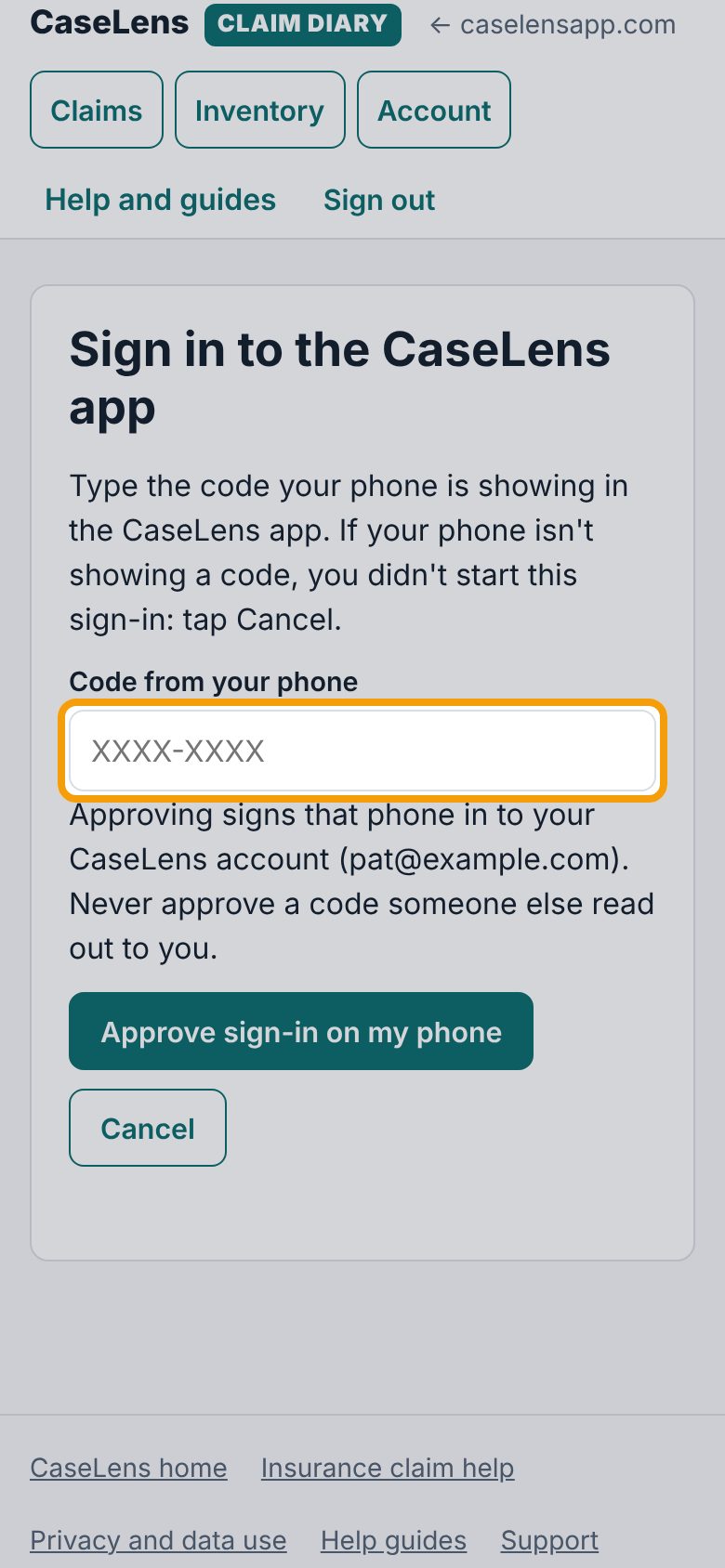
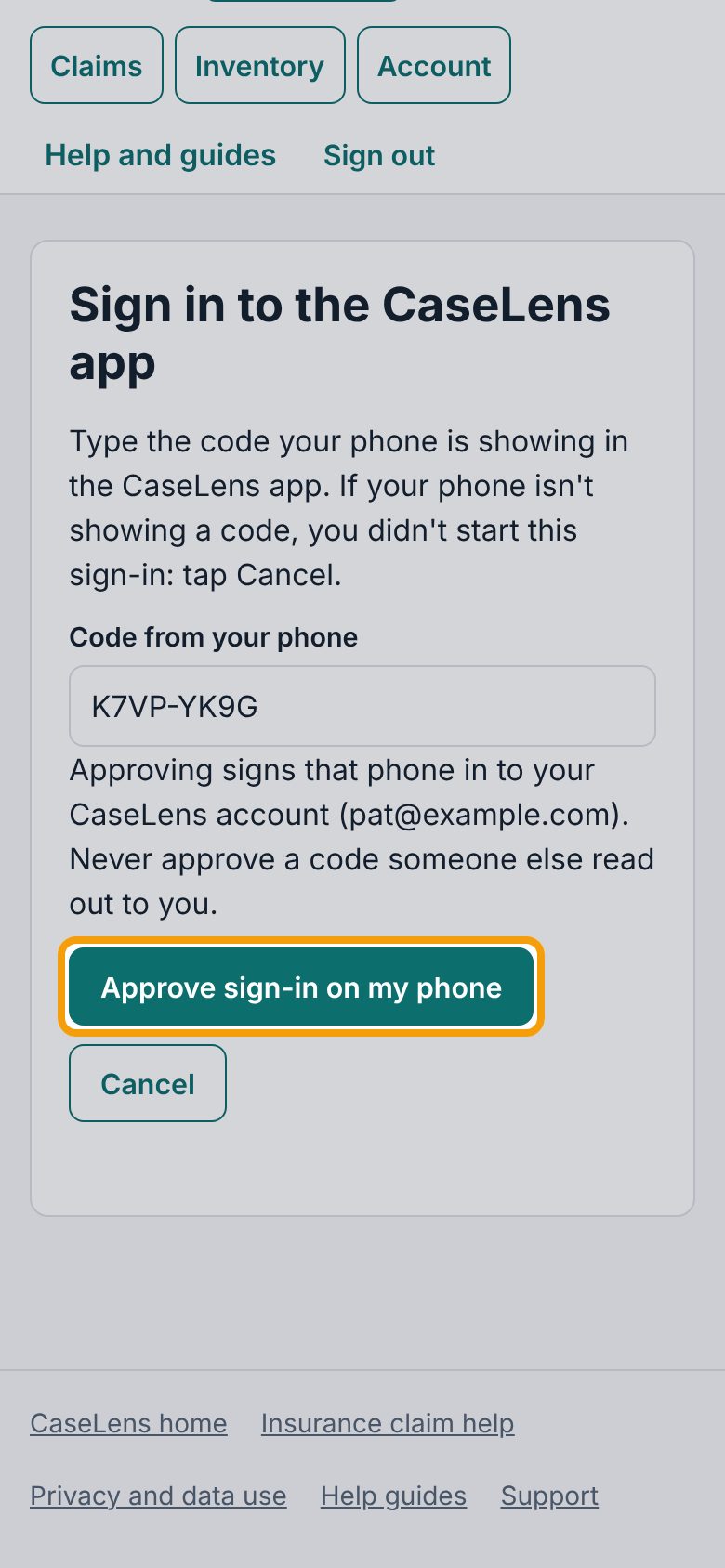
The page says Sign in to the CaseLens app and asks for the Code from your phone. The page doesn't show the code. Go back to the CaseLens app, read the code it shows (8 letters and numbers), and type it into the box. If your phone isn't showing a code, you didn't start this sign-in: tap Cancel. Never type a code someone else read out to you.
5Approve
Tap Approve sign-in on my phone. This signs the app in to the account you're signed in with here (the page names it). Tap Cancel if you didn't start this.
6Close the page
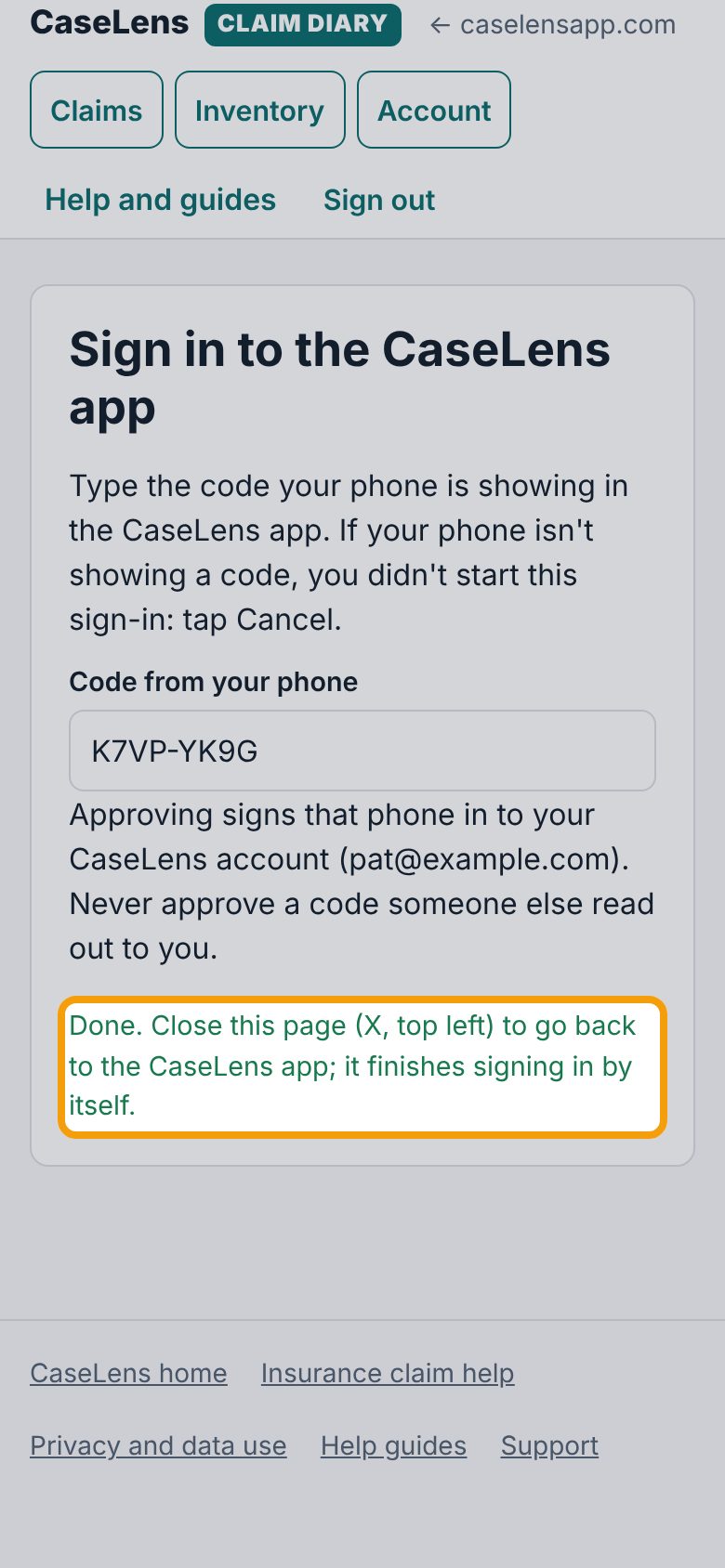
You'll see Done. Close this page (X, top left) to go back to the CaseLens app; it finishes signing in by itself. Close the browser page to get back to the app.
7If the app is still waiting
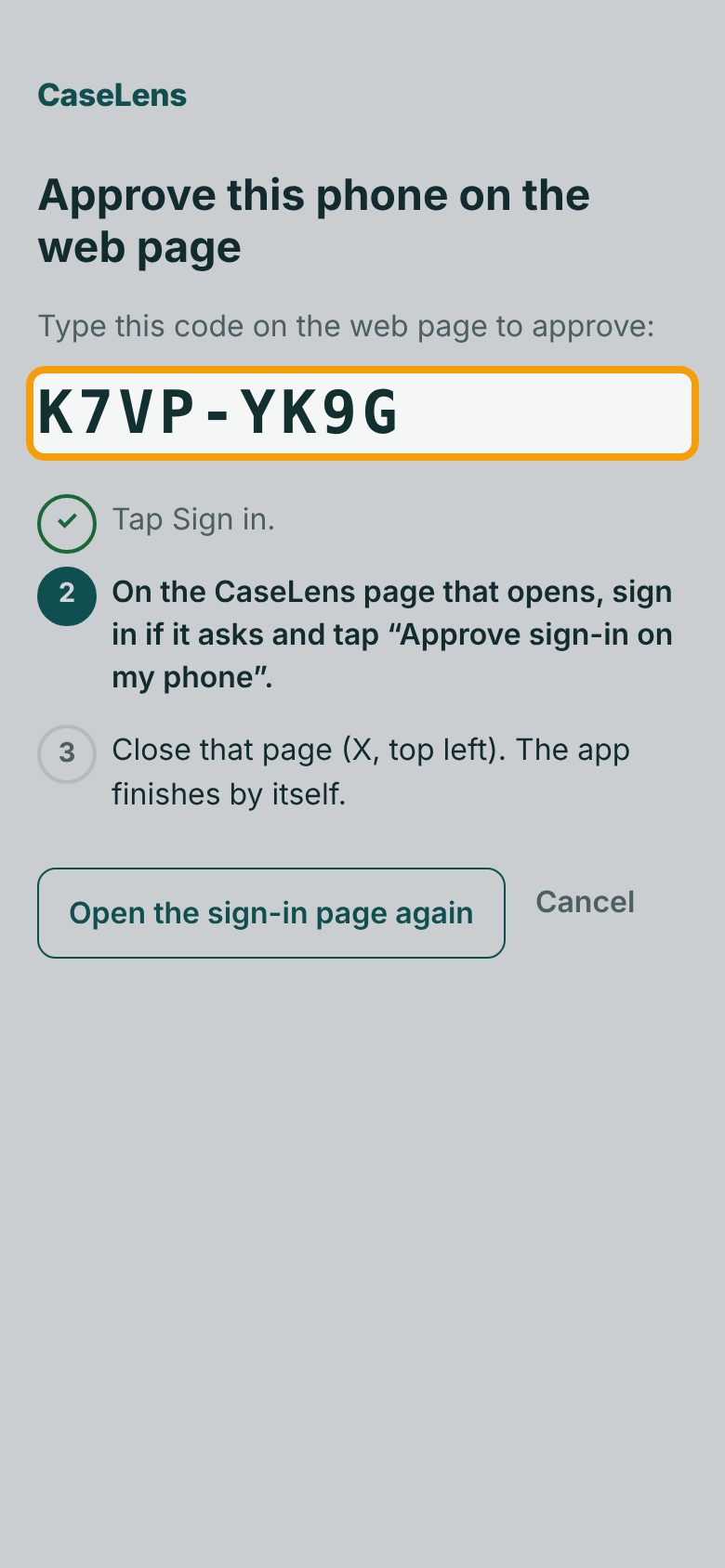
Behind the page, the app shows Approve this phone on the web page and Type this code on the web page to approve:, with the code, and the steps marked. It checks by itself every few seconds. If you closed the page before approving, tap Open the sign-in page again. To start over, tap Cancel.
8Your jobs and claims
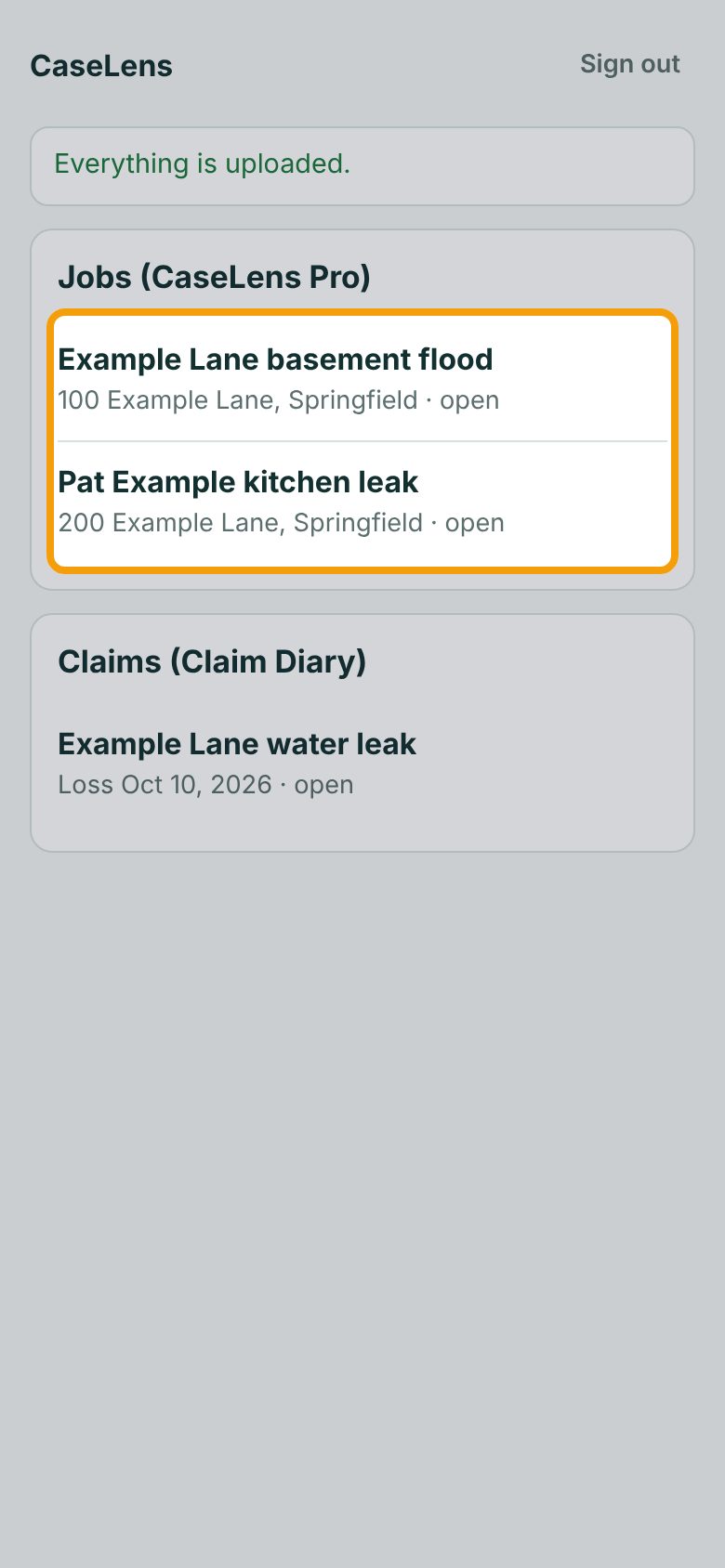
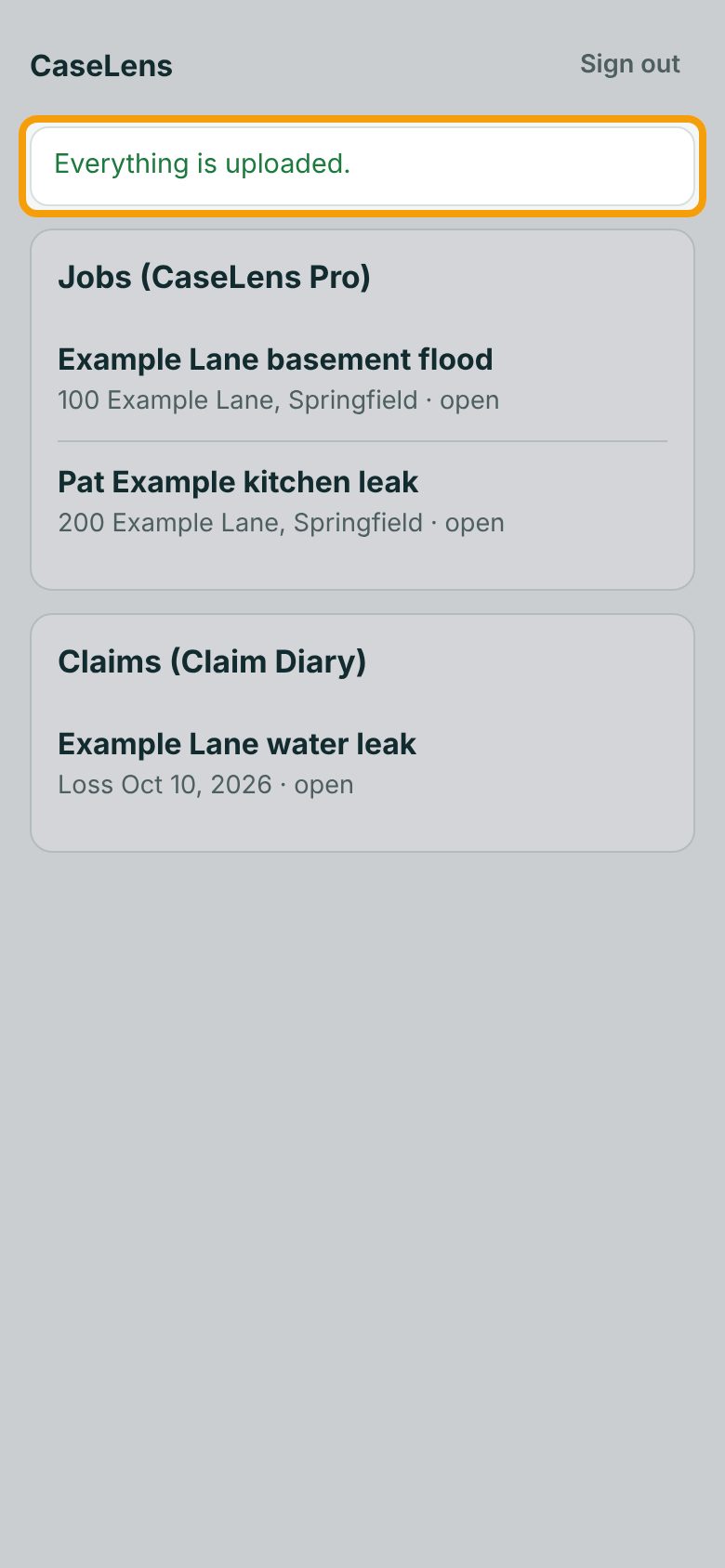
Once it's approved, the app opens on your list: Jobs (CaseLens Pro) if you're on a contractor's team, Claims (Claim Diary) if you keep a Claim Diary, or both. Tap one to add photos, notes or readings. The list is kept on the phone, so it opens with no signal too.
9The upload line
The line at the top says whether everything you saved has reached CaseLens. Everything is uploaded. means nothing is waiting on this phone.
If something goes wrong
- "That sign-in took too long. Start again."
- The code lasts 10 minutes. Tap Sign in again and approve the new code on the web page.
- "No connection. Still waiting…"
- Signing in needs signal once. Move to where you have signal or Wi-Fi; the app keeps checking by itself.
- "That sign-in can't be used any more. Start again."
- Each code works once. Tap Sign in again for a new one.
- The web page says "That isn't the code your phone is showing"
- Check the code in the CaseLens app and type it again. If your phone isn't showing a code, or someone else told you the code, don't approve: tap Cancel on the web page, then Cancel in the app, and start again from Sign in.
- "Nothing here yet."
- Your account has no jobs or claims yet. Start a job in CaseLens Pro or a claim in Claim Diary on the website (the app's buttons open them); it shows up in the app the next time it has signal.
What's next
- Phone app: take job photos, notes and moisture readings with no signalSave photos, notes and moisture readings on a Pro job in a basement or crawlspace with no signal, then watch them upload when you're back in signal. About 5 minutes.
- Phone app: add claim photos and diary entries with no signalSave damage photos and diary entries for your Claim Diary claim with no signal, then watch them upload when you're back in signal. About 3 minutes.